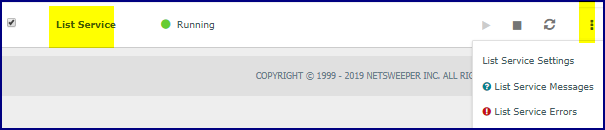
List Settings Admin Permission
nslistservicectl – List Service
The List Service can be enabled per List to process entries and detect page content changes. This can be useful for reviewing list entries and determining if an entry needs to be reviewed, changed, or removed from a List.
The List Service must be enabled in the 'Services' window in order to be used in an enabled List.
The List Service can be configured to process multiple entries at once to improve performance. The async setting can be enabled along with the per_page setting to determine the number of entries to process in each batch.
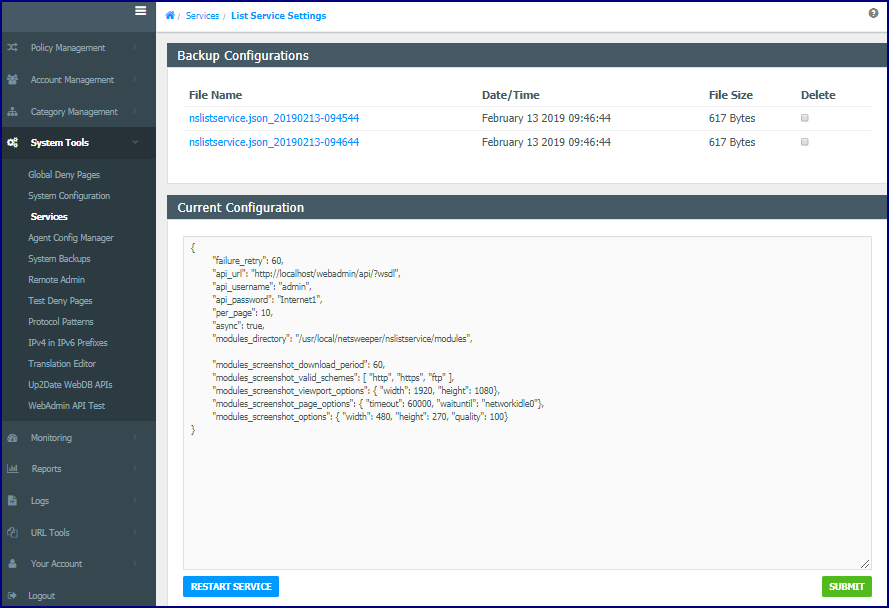
"failure_retry": 60,
"api_url": "http://localhost/webadmin/api/?wsdl",
"api_username": "admin",
api_password": "Internet1",
"per_page": 10,
"async": true,
"modules_directory": "/usr/local/netsweeper/nslistservice/modules",
"modules_screenshot_download_period": 60,
"modules_screenshot_valid_schemes": [ "http", "https", "ftp" ],
"modules_screenshot_viewport_options": { "width": 1920, "height": 1080},
"modules_screenshot_page_options": { "timeout": 60000, "waituntil": "networkidle0"},
"modules_screenshot_options": { "width": 480, "height": 270, "quality": 100}
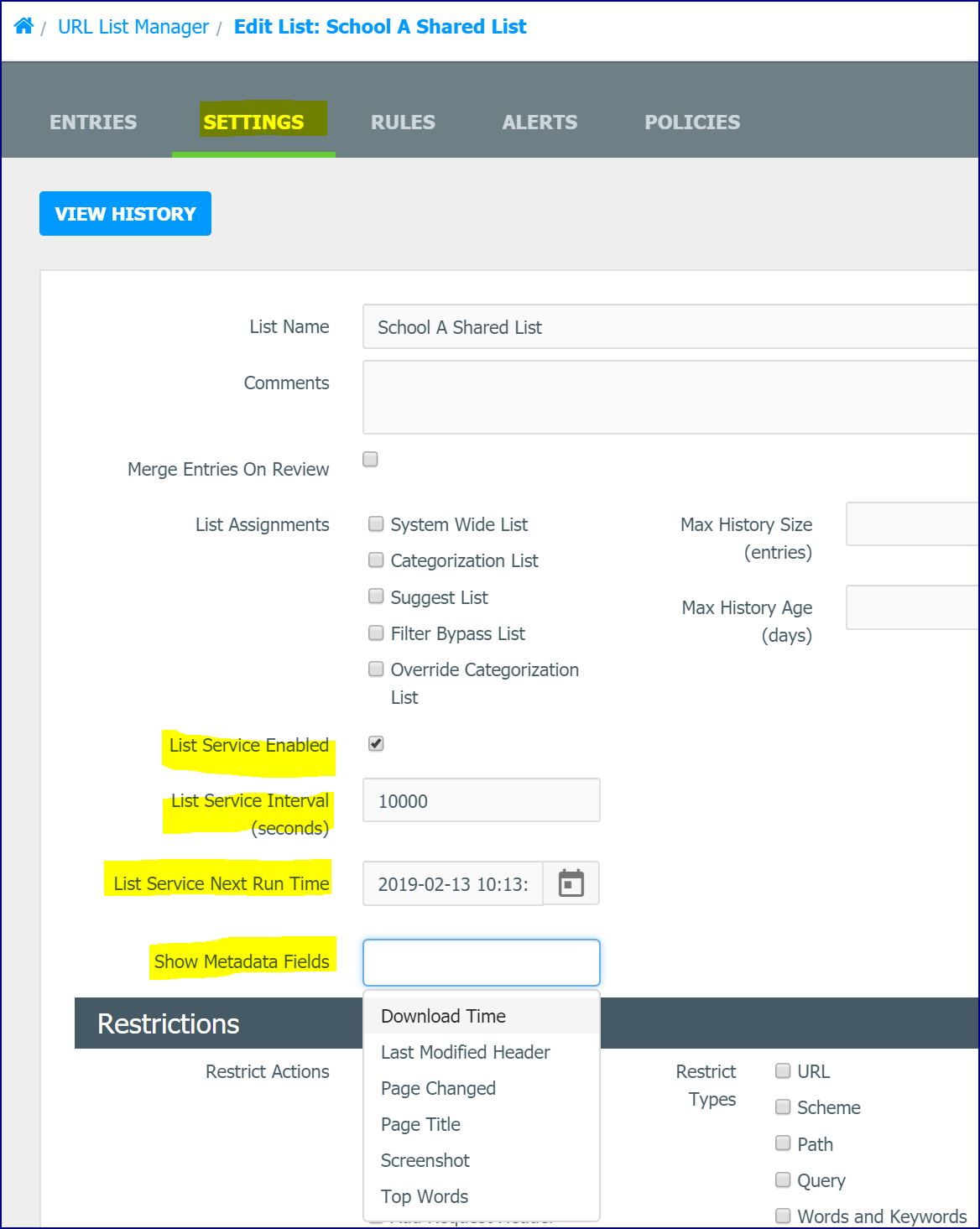
List Settings for the List Service display in the URL List Settings tab. These settings can be used to enable the service, set the interval or next run time and set the fields displayed in the WebAdmin for the selected List.
Click the checkbox for 'List Service Enable' to enable it for the List.
Please note that List Services must be enabled in the Services page for this feature to work.
Option |
Description |
List Service Enabled |
This enables the List Service to run the entries of this list to detect list entry issues, take screenshots, and detect when the list entry may change. The 'List Service' in the Services window must be started for these settings to work. |
List Service Interval (seconds) |
If you want the list service to run this list on an interval select an appropriate time. |
List Service Next Run Time |
This sets next time the list service will process this list. If the time is in the past the list service will start to process the list. |
Show Metadata Fields |
Choose the Fields you would like to show. By default, all are used. Options are: Screenshot, Page Title, Last Modified Header, Page Changed, Download Times, and Top Words. See Metadata Fields below for field descriptions. |
Option |
Description |
Screenshot |
This field displays a thumbnail of the screenshot, the screenshot is taken when the page changed. |
Page Title |
The title displayed for the URL. |
Last Modified Header |
If the page has a 'Last Modified Header', the date/time will display for that URL. This is usually blank unless the website sets this header. |
Page Changed |
This is the most recent date/time the page was changed. This is determined by the top words, last modified header, or a change in the page title. |
Download Time |
This is the most recent date/time the page was downloaded. |
Top Words |
The most frequent words found on the website. This is used to help determine if the page has changed. |
When List Service is enabled, additional columns display for the entries.
If not all the columns display, be sure to check that the columns are not hidden. Click the gear in the top right corner of the List Entries window.
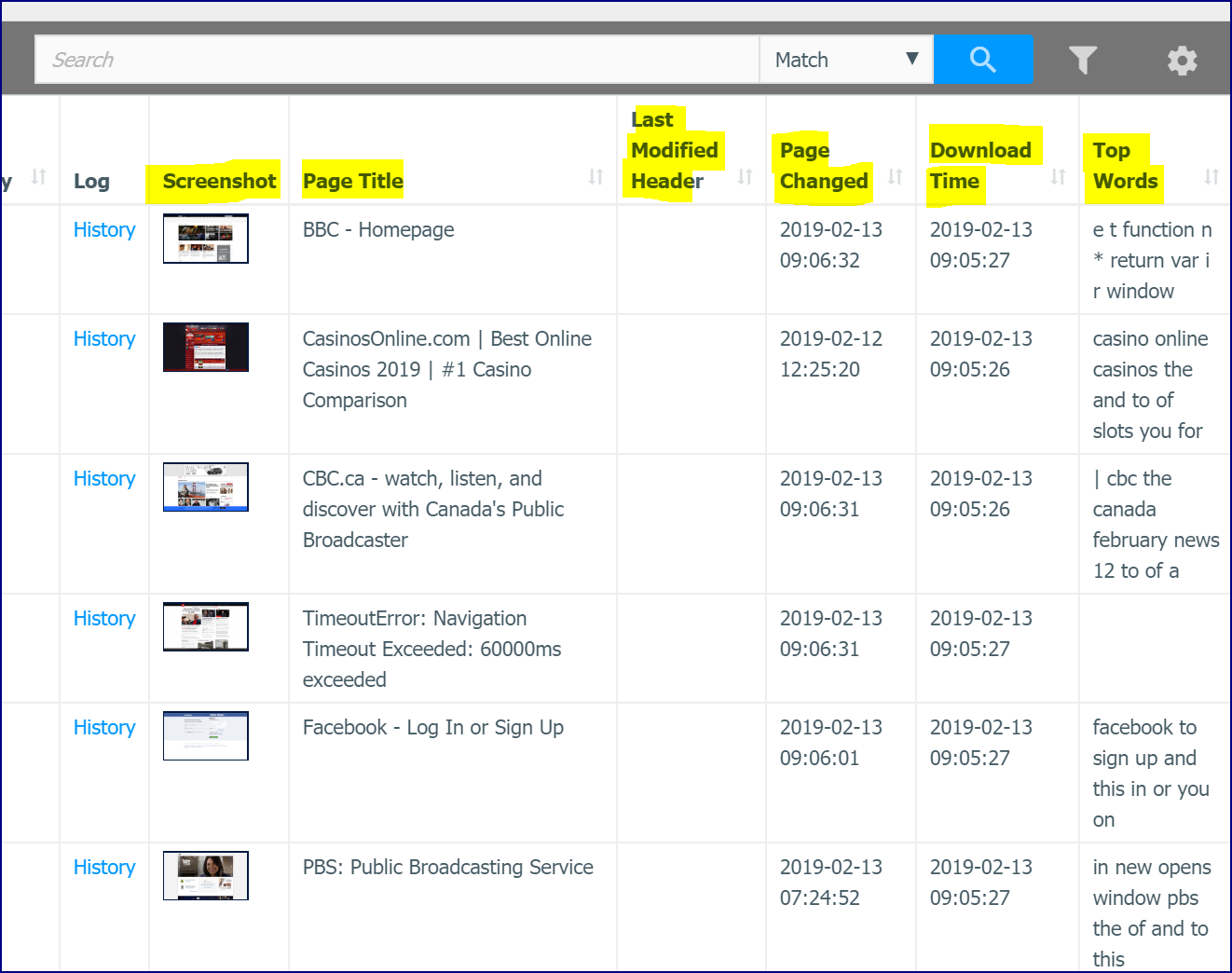
The Metadata fields display in the Edit and Review List window. These are not editable in this window. You can also view and scroll through screenshots.
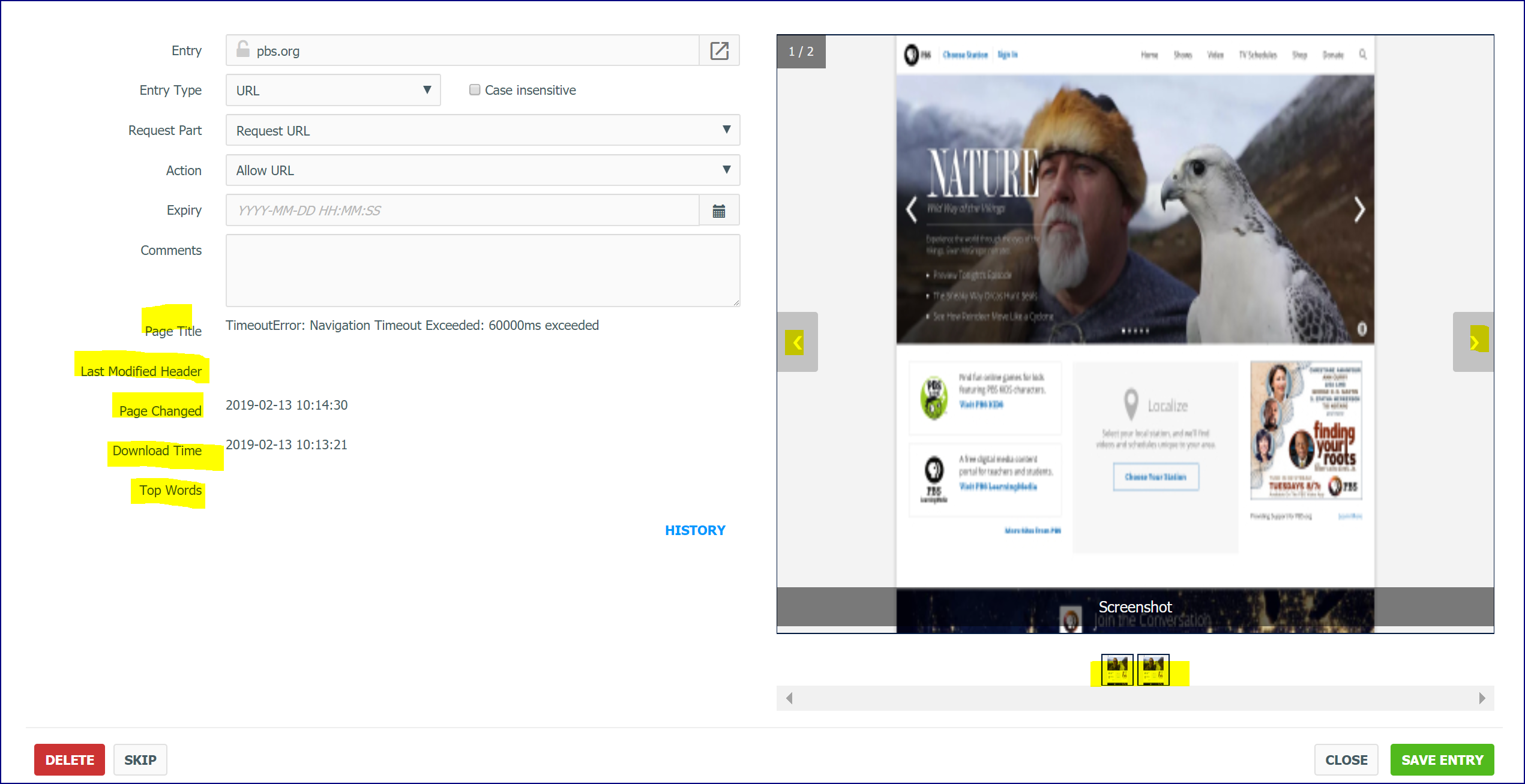
The 'List Service Settings' Admin permission must be enabled.
Usage: /etc/init.d/nslistservicectl
Argument |
Description |
start |
Starts the List Service |
stop |
Stops the List Service |
restart |
Restarts the List Service |
status |
Displays the List Service status |
service nslistservicectl status