List Update Settings in System Configuration
List Update Setting Permission for Admin Accounts
Important Information about Manual List Updates
Manually Running the FreshNSD Application
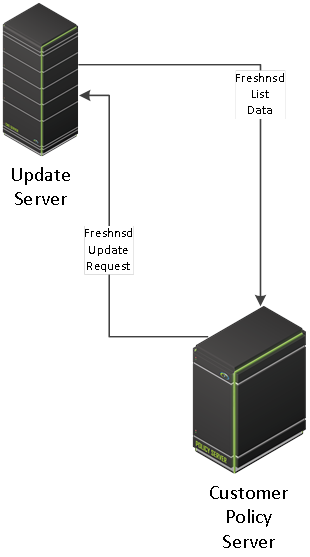
Freshnsd is a cron job that runs periodically on the Policy Server and downloads the Netsweeper Lists from the Netsweeper Update Server (update.netsweeper.com). The List Update Settings can be used to control the scheduled or manual updates.
You can see these Lists, updates, and other information from Monitoring > System Status page on the Lists tab. For example, the masterlist.dat, cnsextlist.dat, tld.dat, and other list information is checked every 5 minutes and if there is an update to a list then an incremental update includes only the necessary changes to the List may be downloaded to the customer’s Policy Server.
The 'Last Update Check' indicates the last time the Lists were checked. If updates for any List have not been checked within the set threshold minutes (default 30 minutes), set by WebAdmin Settings > General Setting 'Policy List Last Update Check Threshold (minutes)', the 'Last Update Check' column and the Policy Server name will display in red for that List. The 'Last Time Loaded' column is the last time the List was loaded. The Revision column shows the revision number with the last four characters representing your serial category version. A listing will be displayed for each Policy Server in the deployment. The 'Service Start time' is the time the Policy Server was last started.
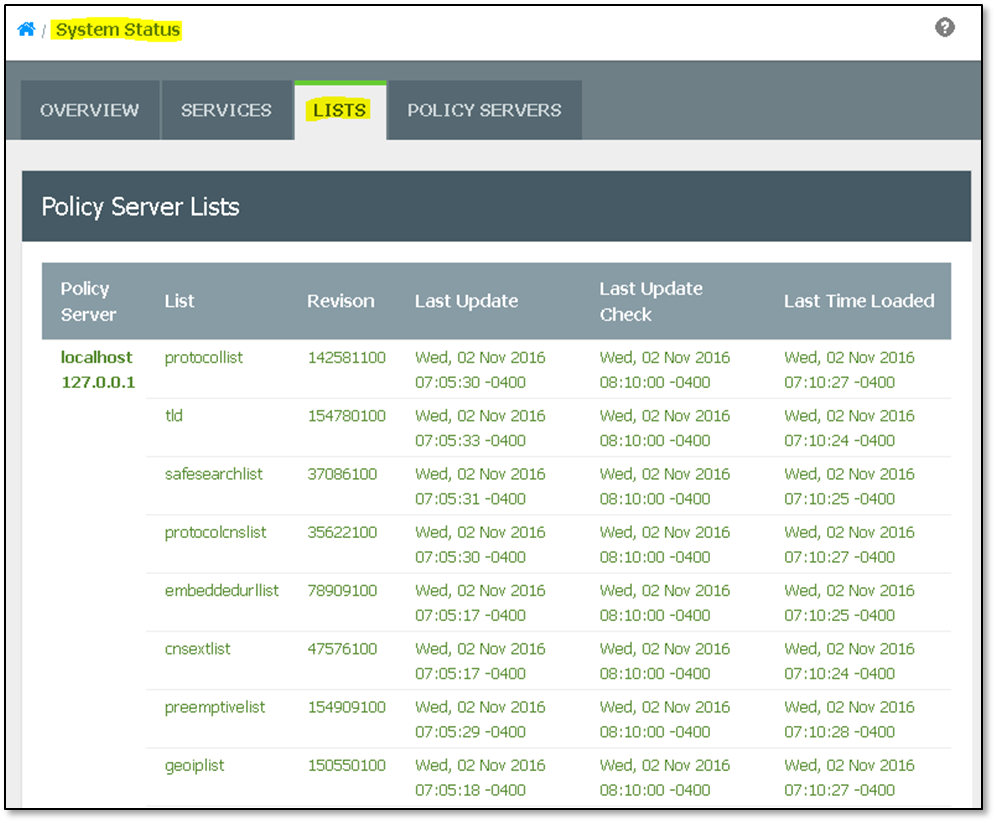
The lists are used by the reporter and/or the policy service for processing requests. The following lists are distributed and managed by Netsweeper.
Policy Service used lists
1. Master List
2. Pre-emptive List
3. CNS Extension List
4. Category Mapping
5. Protocol CNS List
6. Safe Search List
7. Embedded URL List
8. Protocol List
9. Geo IP List
10. Suggest List
11. Top Level Domain List
Argument |
Description |
-s [SERIAL] |
Override the serial in the nsd.conf file
|
-r [URL] |
The URL we should query for updates
|
-u |
Update all Lists. Use -f to force updates if in scheduled mode e.g. freshnsd -u -f
|
-l |
List all current list revisions
|
-a |
List all local and remote list revisions
|
-d |
Daemon mode. Get updates every hour (see -t and -q options). Do not run in this mode if WebAdmin's Schedule Update is active. For freshnsd -u to take effect in this mode, you need to run it with -f option (force): "freshnsd -u -f" |
-t [SECONDS] |
Change polling interval of -d option to every SECONDS interval |
-c |
Cleans up all lists from system |
-i |
Interactive mode |
-f |
Force freshnsd to process list update. Use with -u option. |
-q |
Quiet mode, logs to log file (nsdctl status check) (-d forces this enabled) |
-n |
Do nothing if neither nsd or nsroutes are running (nsdctl and nsroutesctl status check). This option will only run automatically if nsd or nsroutes is active. |
Examples:
/usr/local/netsweeper/bin/freshnsd -u
/usr/local/netsweeper/bin/freshnsd -l
/usr/local/netsweeper/bin/freshnsd -a
/usr/local/netsweeper/bin/freshnsd -u -s 12345 -r https://update.netsweeper.com/lists
/usr/local/netsweeper/bin/freshnsd -d -t 3600
There is a List Update Settings button and a Process List Update button in the 'System Configuration' window that allows you to schedule or manually update the Lists. The 'List Update Settings' window allows you to change the configuration settings for Freshnsd.
You can schedule these updates for a specific day and time of the week or manually update Lists by clicking the Process List Update button.
There is a 'List Update Settings' Admin Account permission that allows access to these buttons. See 'Admin Account Permissions' in Policy Management for more information.
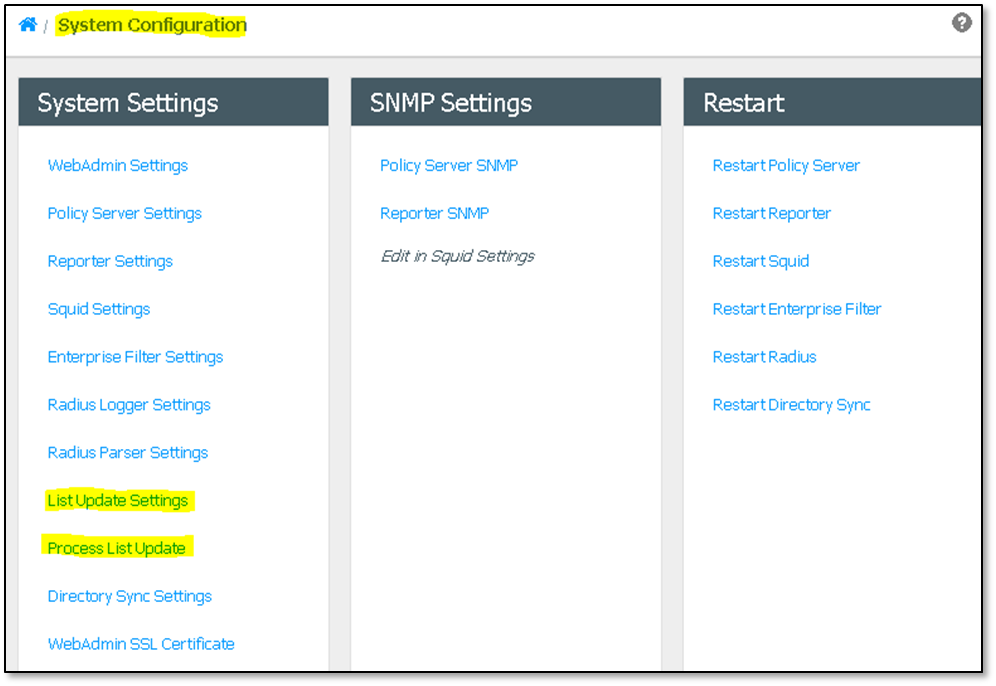
To display the 'List Update Settings' window, go to System Tools > System Configuration.
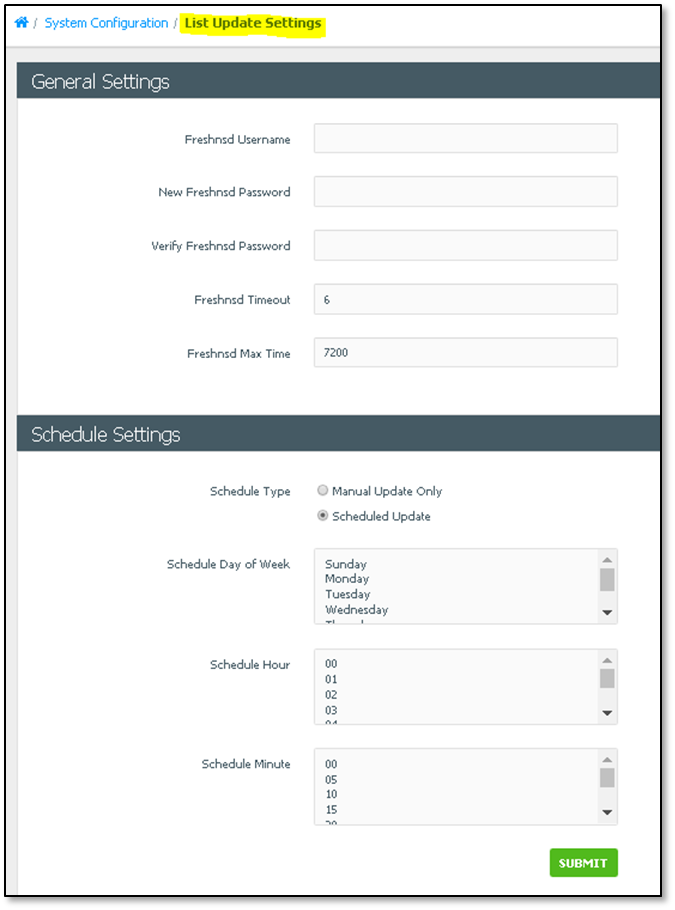
The List Update Settings allows you to change the configuration of Freshnsd. Once you have modified the configuration settings, Freshnsd would apply the settings automatically within 5 minutes.
· The optional freshnsd username and password are sent to the remote Update server for authentication.
· The Freshnsd Max Time defines the maximum time in seconds that you allow for the whole download operation.
· The Freshnsd Timeout defines the default timeout in seconds to establish a connection to the Update server.
· If no minute, hour, or day of week is selected, the list update will occur every 5 minutes.
· If you select the Manual Update Only option, the List Update would not happen until you click on the Process List Update button in the System Configuration page. You can also click this button if you are in Scheduled mode. Please see information on Manual List updates below
The Lists must be updated at least once every 3 days (72 hours) in order to filter requests properly. If 'Manual Updates' are enabled, you must perform a 'Process List Update' every 3 days. The policy service will stop filtering requests if no list update check is completed in 3 days.
Option |
Description |
Freshnsd Username
|
Enter the optional Freshnsd Username. This is used to send to remote Update servers for authentication. |
New Freshnsd Password |
Enter the Freshnsd Password.
|
Verify Freshnsd Password |
Verify the Freshnsd Password. |
Freshnsd Timeout |
By default, this is set to 6 seconds. This is used to define the default timeout to connect to the Update server. |
Freshnsd Max Time |
The Freshnsd Max Time defines the maximum time in seconds allowed for the whole download operation. The default value is 7200. |
Schedule Type |
This option has two settings: 'Manual Update Only' requires you to click on the Process Update button on the 'System Configuration' page for the List Update task to begin. If this option is checked, the Schedule Day, Hour and Minute fields are hidden. The List Update task will begin at the next rounded 5 minute threshold.
'Scheduled Update' (default) will apply the settings within 5 minutes after clicking the Submit button. If no minute, hour, or day of week is selected, the List Update task will begin at every 5 minute threshold e.g. 0, 5, 10, 15, etc. |
Schedule Day of Week |
Select the day of the week for the scheduled update to occur. This field is hidden if 'Manual Update Only' is selected. |
Schedule Hour |
Select the hour of the week for the scheduled update to occur. This field is hidden if 'Manual Update Only' is selected. |
Schedule Minute |
Select the minute of the hour set above for the scheduled update to occur. This field is hidden if 'Manual Update Only' is selected. |
List Update Settings are global on all Policy Servers.
If a List Update task fails for any reason (e.g. a missing or corrupted List, download failure) the Netsweeper system will continue to work properly using the last valid Lists. It will retry every 5 minutes to update all Lists until the Last Update Check time for all Lists is later than the Scheduled time or, if in Manual Mode, later than the moment the Process List Update button has been pressed.
If you want to manually run the freshnsd service to download the updates into a specific directory or to manual control when updates occur the following process can be used
Disable the freshnsd-crontab (Remember this will be enabled after upgrade.)
Manually run the freshnsd service.
The following settings can be used to control freshnsd outside of the command line arguments:
This setting is a flexible way to define the max download time by running the command in the following way:
freshnsd_maxtime=86400 freshnsd –u
This command will download the list files within 24 hours. After that time, if the file is not downloaded successfully, it will fail. The freshnsd_maxtime default value is 2 hours.
This setting enables changing the download path for freshnsd in the following way:
freshnsd_path=/home/user freshnsd -u
The above command will write all download list files into /home/user directory
Netsweeper does not recommend or advise customers to run any of the above unless they are integrating and distributing Netsweeper List Updates.