WebAdmin Overview
The WebAdmin is a web application that administrators (Admins) and system operators (SysOps) can use to manage the Netsweeper content-filtering system. It runs on the Apache Web Service (httpd). You can use the WebAdmin to configure, monitor and troubleshoot Netsweeper components, including the WebAdmin itself.
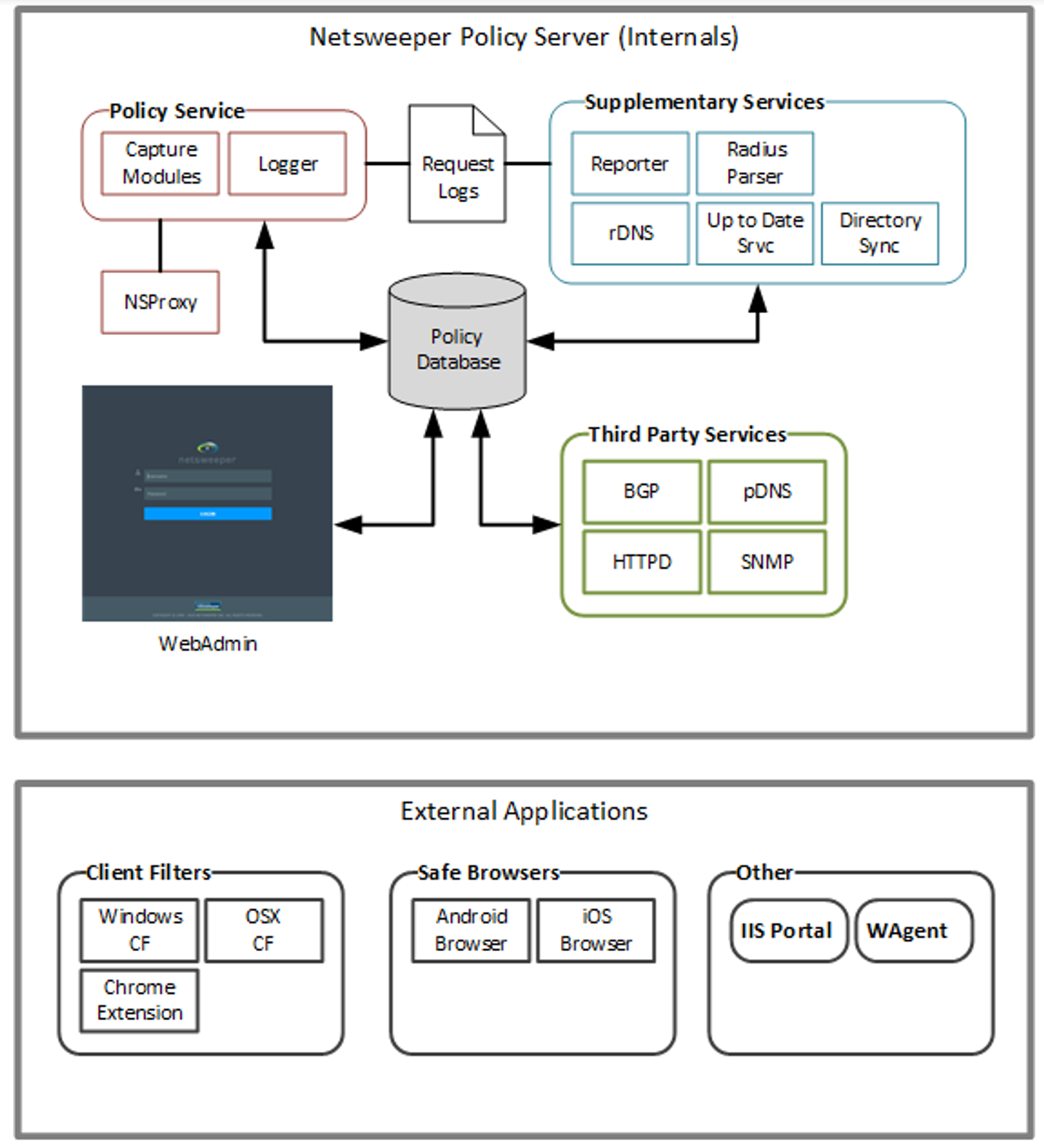
This document outlines the WebAdmin service from the operational and administrative context, looking at how the service operates, and how to ensure it is functioning correctly.
Logging into the WebAdmin
Only the 'Master Admin' or Admin Accounts with specific permissions can access and change all WebAdmin system settings. See 'Accounts' documentation for more information on delegated administration.
-
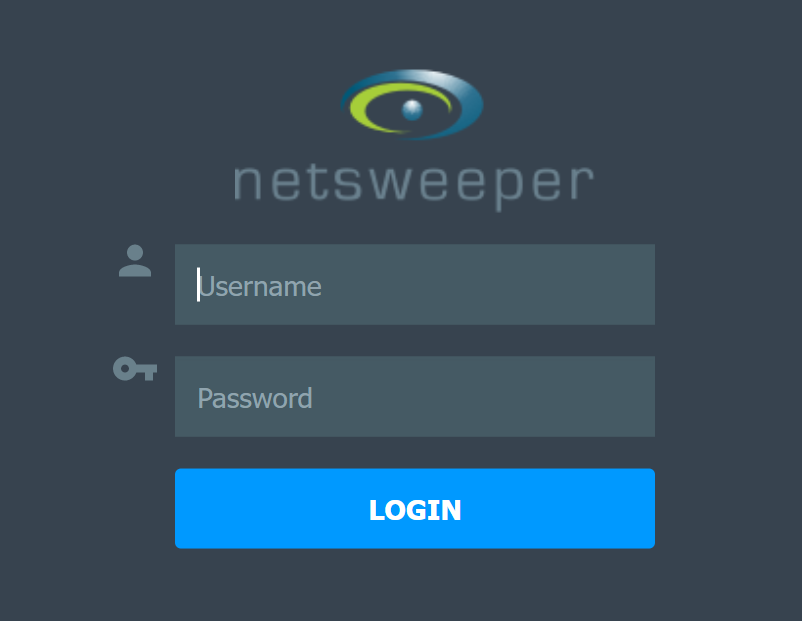
Enter the IP address or domain name of your Policy Server. For example: http://YourIP:8080. The WebAdmin Login window appears.
-
Type your Login name.
-
Type the password in the Password box.
-
Click Login.
The WebAdmin Service
WebAdmin Inputs
Inbound WebAdmin Ports
Below is a list of inbound ports used by the WebAdmin/Web Server services.
|
Port |
Protocol |
Comments |
|---|---|---|
|
80 |
TCP |
WebAdmin functionality can be accessed on ports 80, 8080, and 443. |
|
8080 |
TCP |
WebAdmin functionality can be accessed on ports 80, 8080, and 443. |
|
443 |
TCP |
WebAdmin functionality can be accessed on ports 80, 8080, and 443. |
Database
The Netsweeper database makes use of the MySQL database platform, and is segmented into several separate databases. You can modify the database settings for the WebAdmin through the WebAdmin, by going to Administration >WebAdmin Settings.
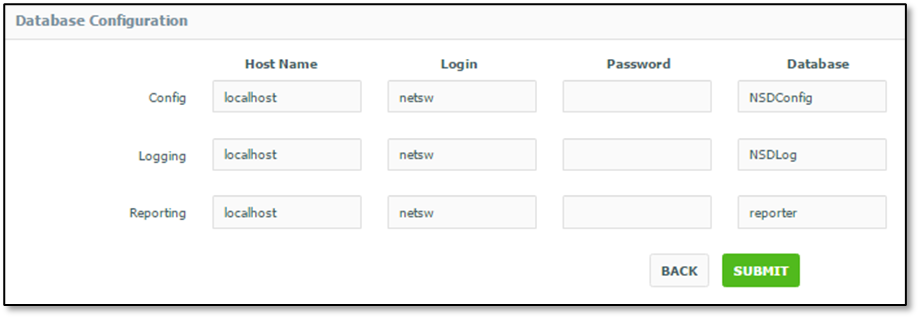
See 'WebAdmin Settings Reference' documentation for more information.
WebAPI
The Netsweeper Web API is a web service that allows for Policy management to occur without the use of the WebAdmin interface. There are two specific variants of the API that are available: Direct API and SOAP API.
Direct API
This API is conducted with specific URL requests using CGI arguments that can be GET or POST arguments. Example:
http://ServerName/webadmin/api/APINAME.php?argument=value&arg2=value2
Direct API Authentication
If you are using the Direct API with authentication, you must first log in. The authentication for the Direct API requires the client to save and use cookies between requests. To log in you must call the Direct API login. Example:
http://ServerName/webadmin/api/login.php?login=USERNAME&password=PASS
It is recommended to use a POST for this request since it contains password information.
SOAP API
The SOAP API contains general documentation for functions using the WSDL file. This WSDL file can be downloaded from any Netsweeper server using the following request example:
http://ServerName/webadmin/api/?wsdl
You should always use the WSDL file from the server you are making SOAP requests to. Netsweeper also provides a simple SOAP test tool that can be used for example and demonstration purposes:
http://ServerName/webadmin/tools/webapitest.php
Currently the SOAP API specification does not include features for handling large datasets.
SOAP API Authentication
The SOAP API uses HTTP Authentication and the SOAP client must be able to transmit the username and password via HTTP username headers.
See ' WebAdmin Web API Overview' documentation for more information.
WebAdmin Outputs
Outbound WebAdmin Ports
Below is a list of outbound ports used by the WebAdmin/Web Server services.
|
Port |
Protocol |
Comments |
|---|---|---|
|
The WebAdmin service does not use any outbound ports. |
||
WebAdmin Monitoring
Services Page Monitoring
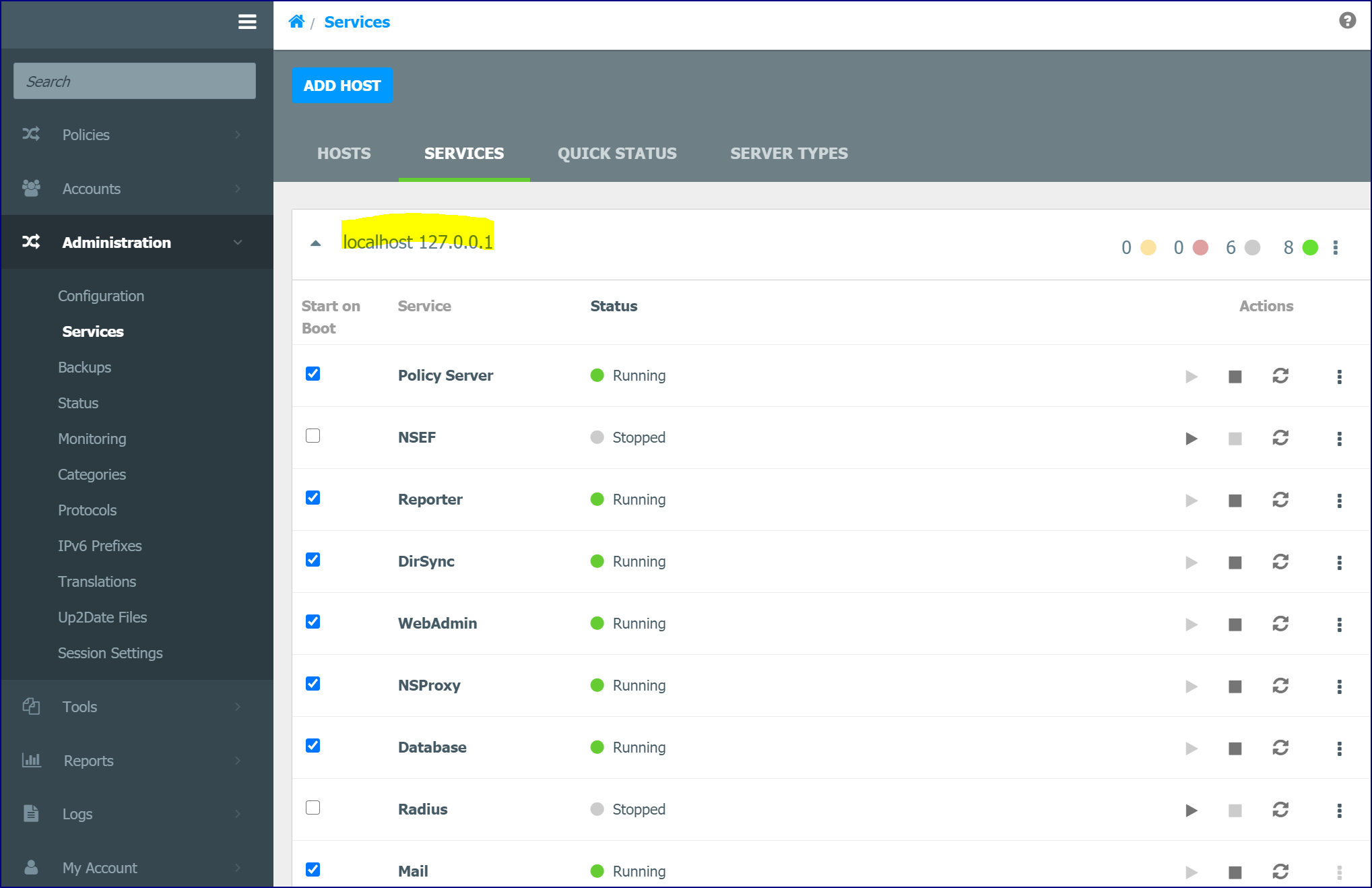
The Administration > Services page allows for a quick, at-a-glance, view of the services running on your Netsweeper deployment.
The ‘Services’ page lets you view and control local and remote services you have running. Use this page to Disable / Enable, Start / Stop services, and Restart a local or remote service.
Status Window
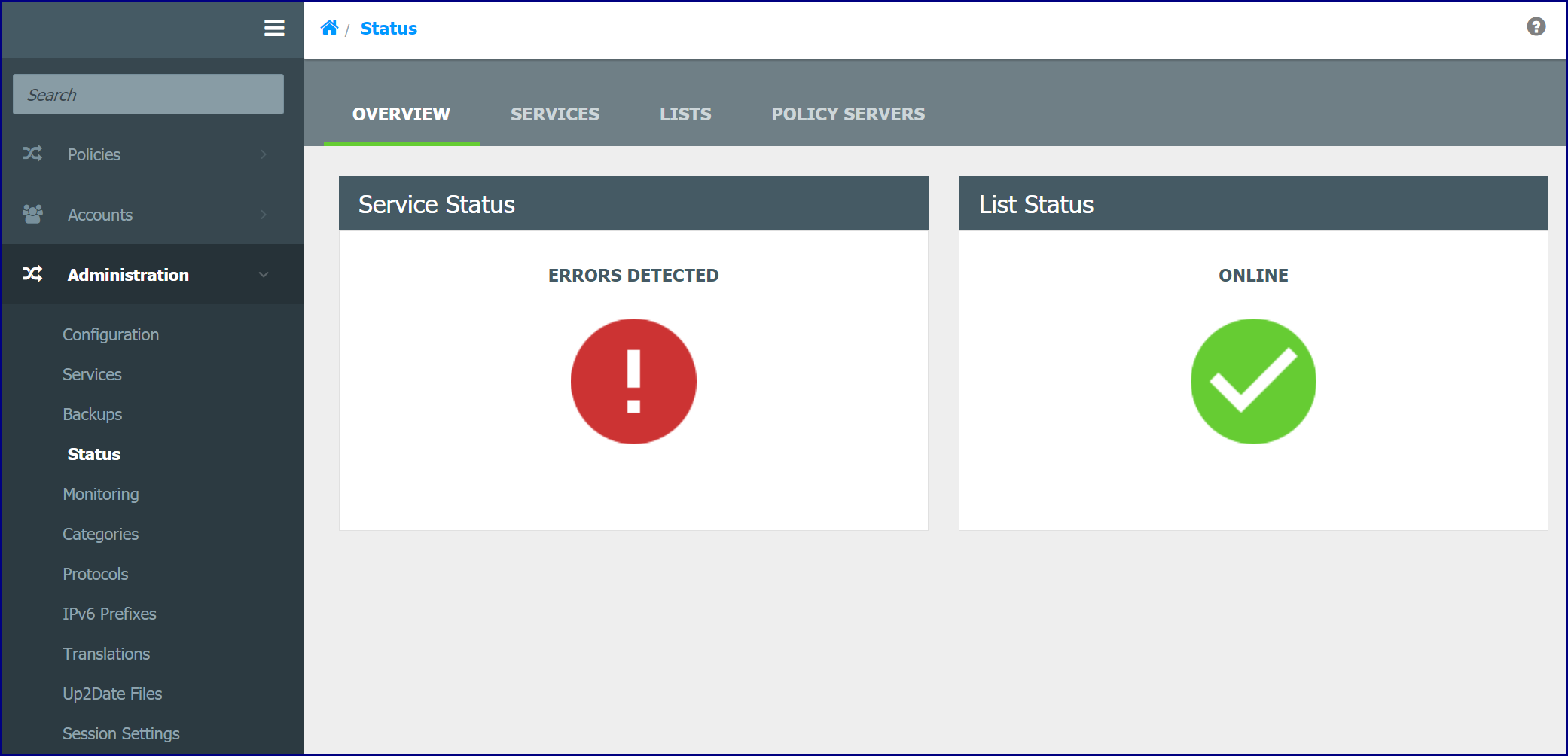
The nsd.conf (policy service configuration file) contains settings for remote administration and is used for authentication and monitoring of system status in the WebAdmin. You must list the servers by IP address or subnets that can connect. If you add the IP address of 0.0.0.0 all servers will be allowed to connect.
In the WebAdmin, to view the status and statistics for the remote systems and services, go to Monitoring > System Status.
Home Page / Dashboard
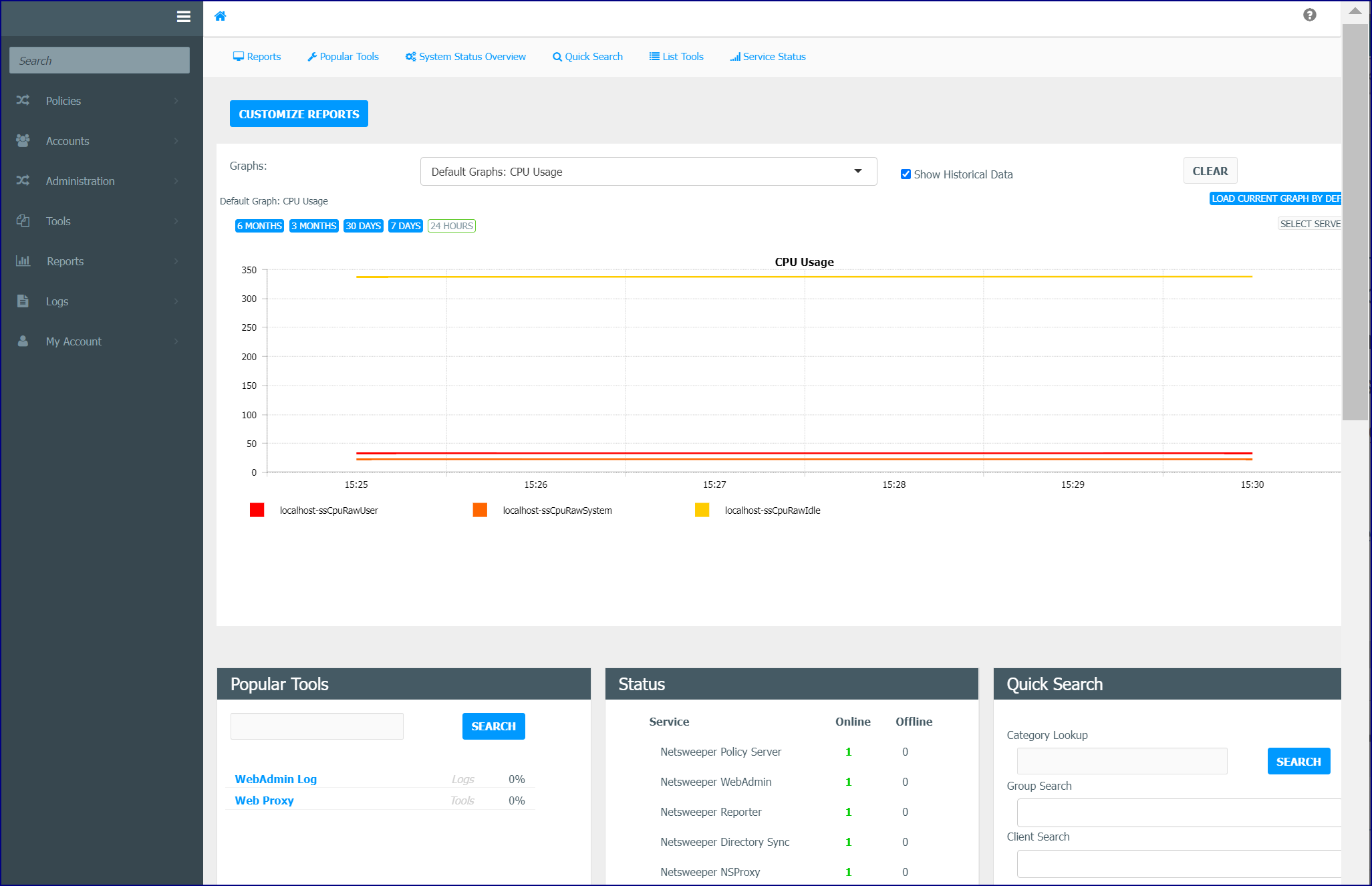
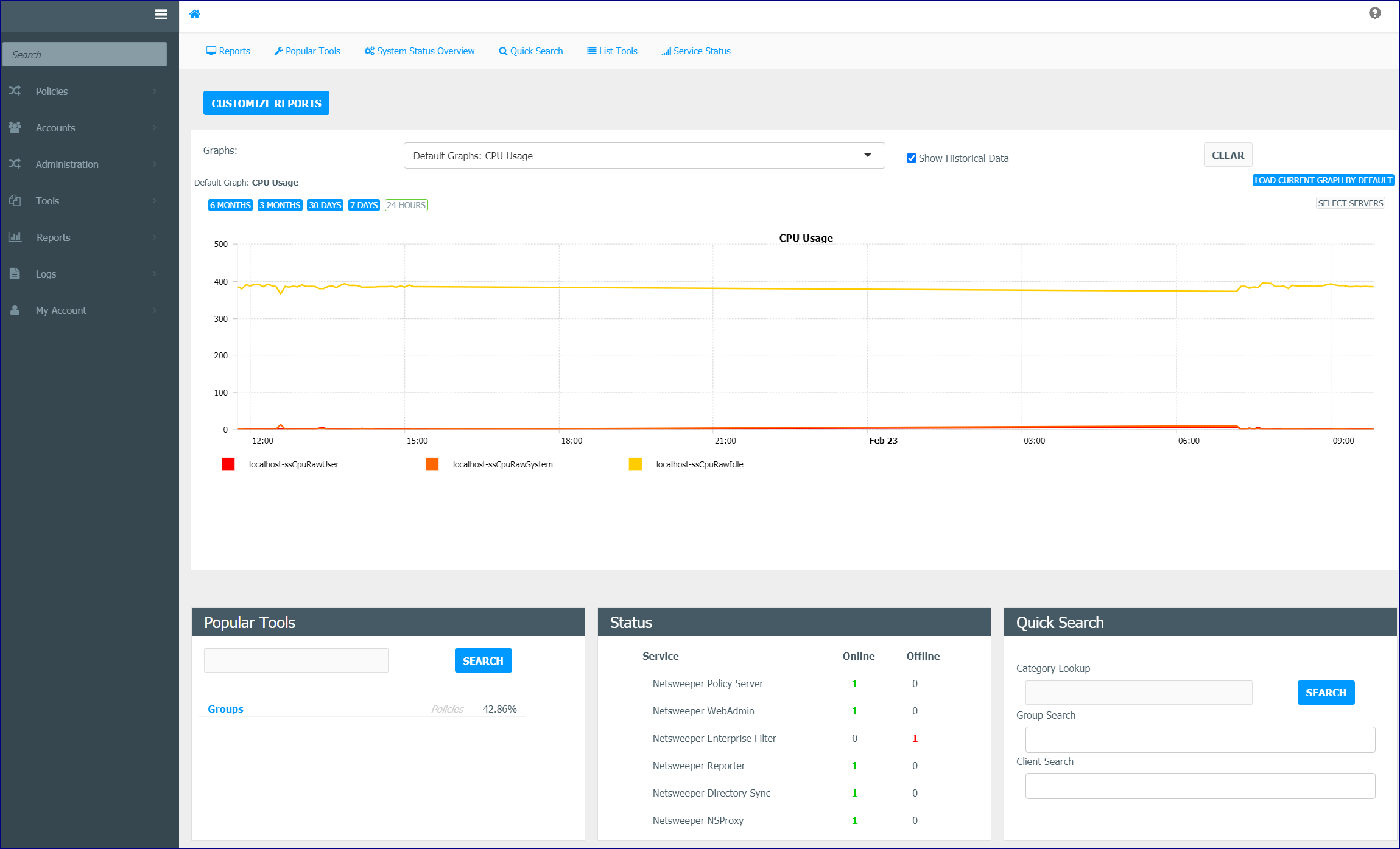
The Home page provides quick access to frequently used tools, Real-Time graphs, Monitoring Graphs, reports, as well as ‘Service’ and ‘System Status’ displays. Use the side panel navigation bar to scroll vertically to the different displays. Real-Time graphs and Quick Reports show at the top of the window. They use a scrollable ‘carousel’ function. Click the arrow buttons to the right and left of the graphs to scroll horizontally across the window. Click ‘Select Servers’ to select the servers you wish to monitor. All servers are displayed by default. Click the lock icon to show the current panel when the dashboard loads. The Customize Reports button lets you add or remove Reports from the carousel display. In addition, you can add List entries or search URLs, Groups, and Clients.
WebAdmin Log
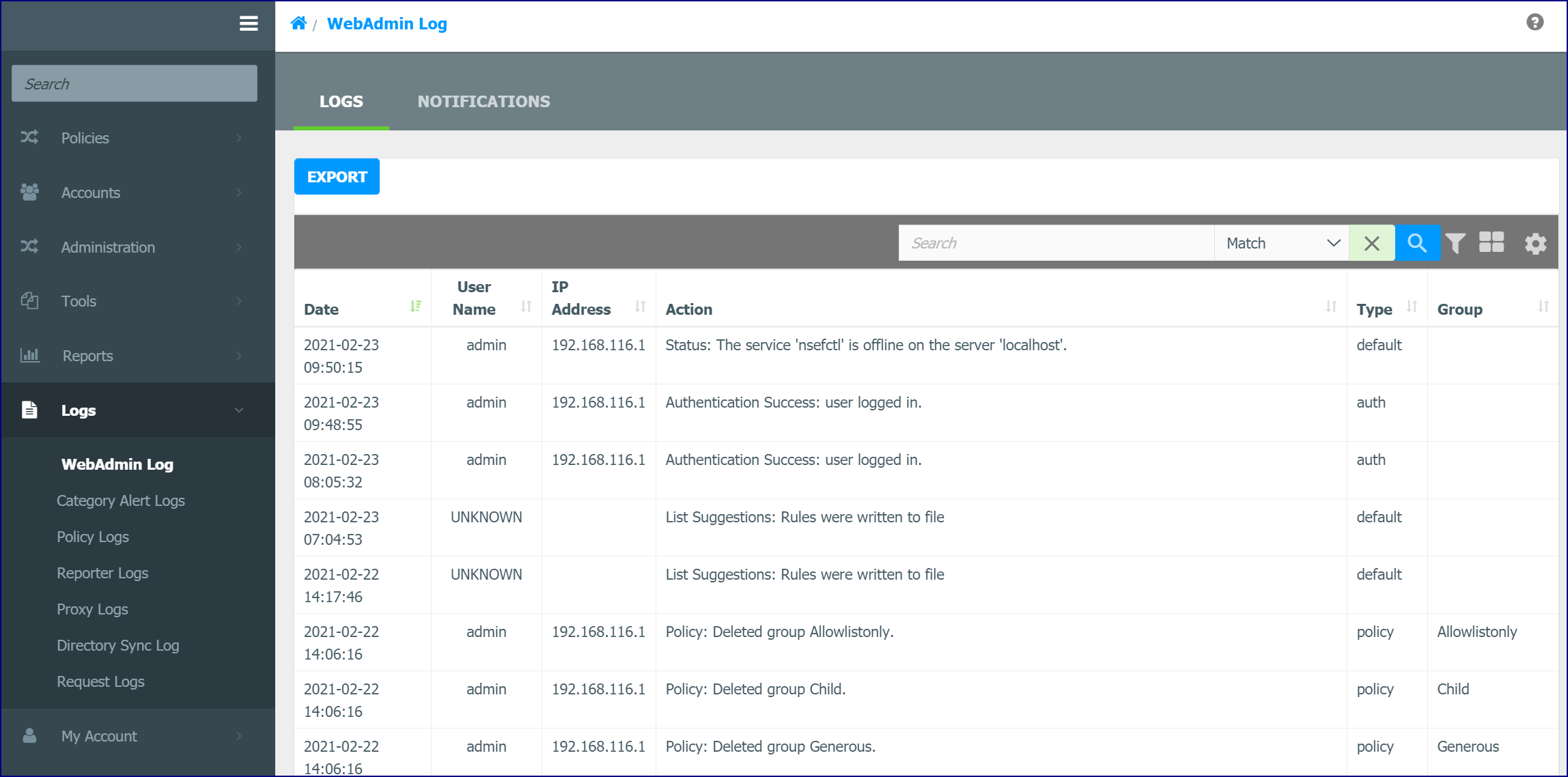
The WebAdmin Log is a record of events generated by the WebAdmin. You can access the WebAdmin Logs through Administration > Services or at Logs > WebAdmin Log.
WebAdmin Log Types are: Policy, WebAdmin, Auth, Default, Database, and Security
Apache httpd Logs
Because the Netsweeper WebAdmin is a web application that runs within the web server, logging is available for the underlying web server as well. Apache creates a variety of logs. See ‘Apache - httpd Logs’ for a list of Apache logs at ‘Configuration - File Locations’.