 See Also
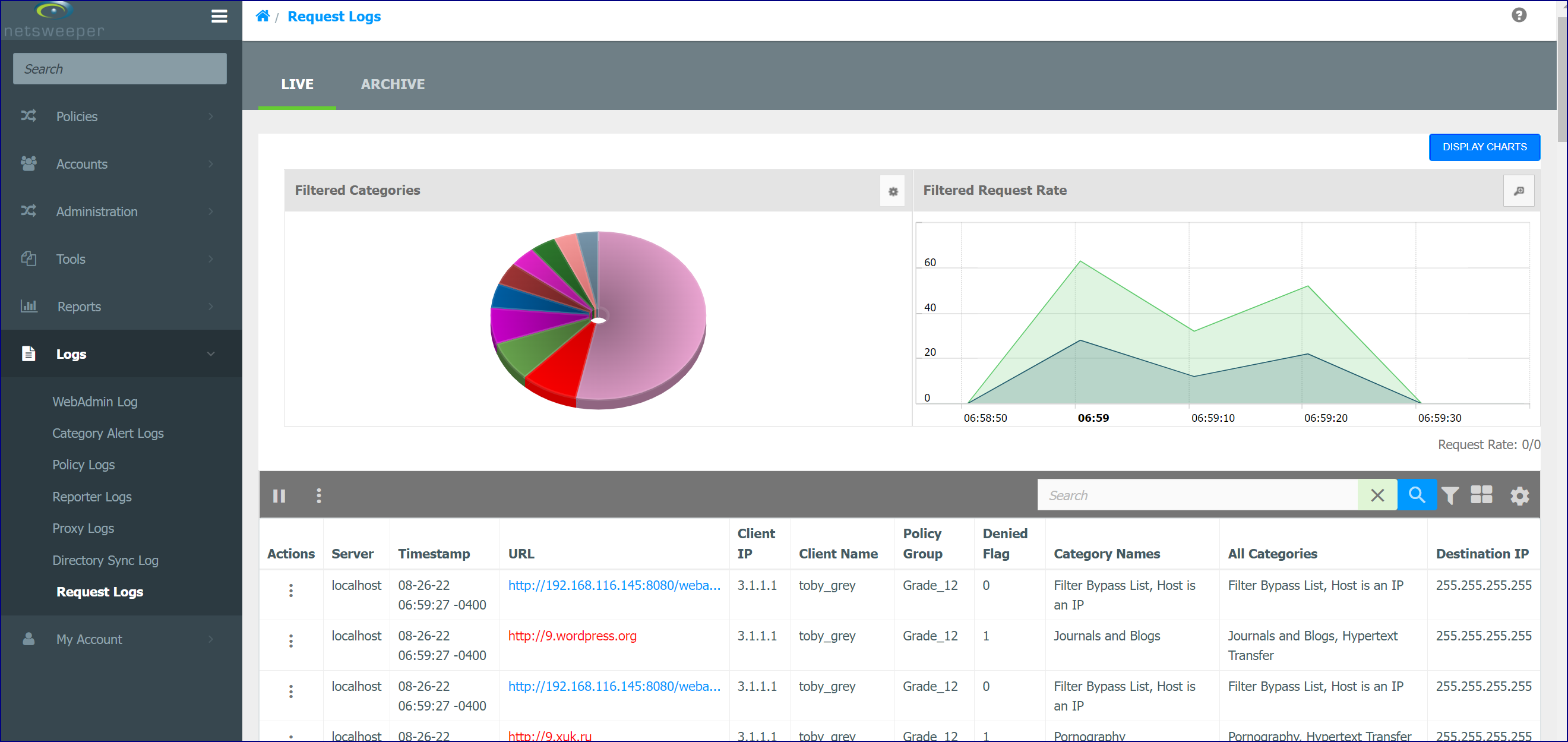
The 'Request Logs' window catches the traffic on each policy server, by polling the request logs every second. The viewer displays up to 50 logs per server with the display limit set by the 'Logs Per Page' option in WebAdmin Settings. The 'Settings' icon on the toolbar lets you show/hide column heading. You can click in the log viewer to pause the flow of the logs or you can click the Play/Pause button in the Header Table. The 'Search' field allows you to search for log entries. The More icon in each row of the Action column displays the options: Category Lookup, Category Alert, Group Details, Group Search, Client Search, Client Search IP, Trace Request, Add URL to List, and Manage Client. The Group options will only display if a Group is found, and the 'Client Search Name' option will only display if a Client name is found. Clicking the Advanced icon will display the 'Advanced Filter' window. Click the Add Filter link and select how you want to filter the log view. These Filters can be saved or shared.
About Verifying Filtering
There are two tools that are helpful in verifying categorization and filtering.
- Trace Request
- Request Logs
Once you have implemented your Policy settings, you can use these tools to verify filtering and categorization.