WebAdmin Logs
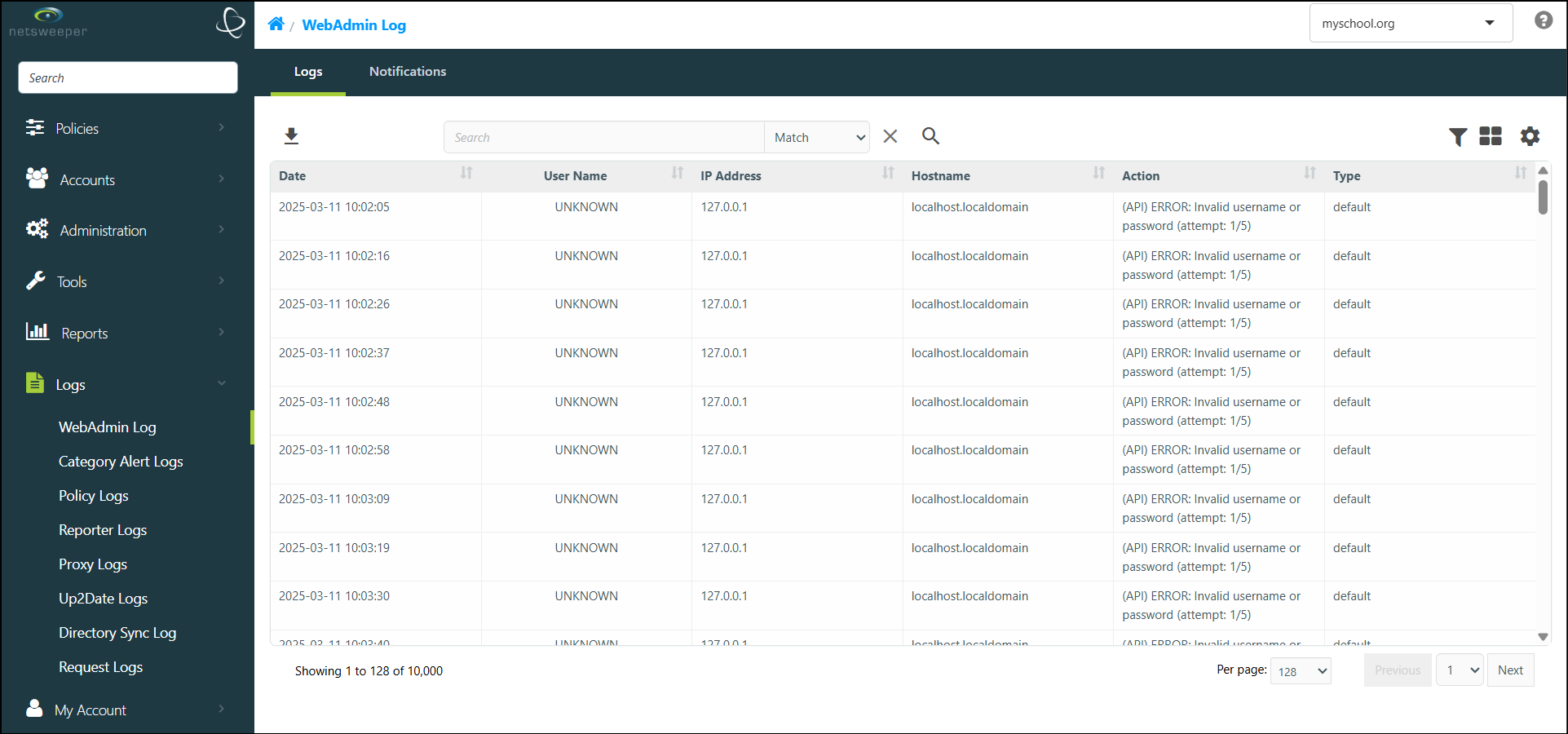
The WebAdmin Logs tab displays a record of events generated by the WebAdmin. A description of each Action (Event) is displayed along with additional details including the Date/Time of the event, the User Name, and the IP address of the person who initiated the event. WebAdmin Log Types are: Policy, WebAdmin, Auth, Default, Database, and Security. The Policy Group also displays if applicable. You can sort the columns by clicking on the heading.
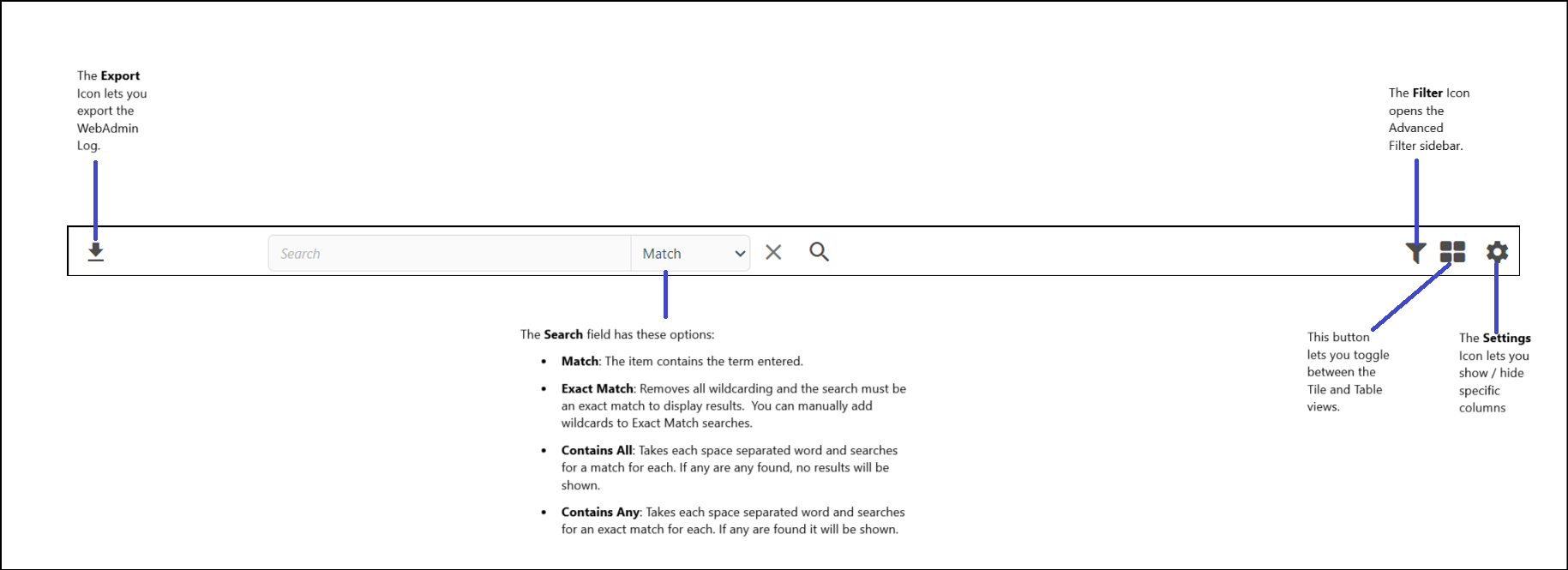
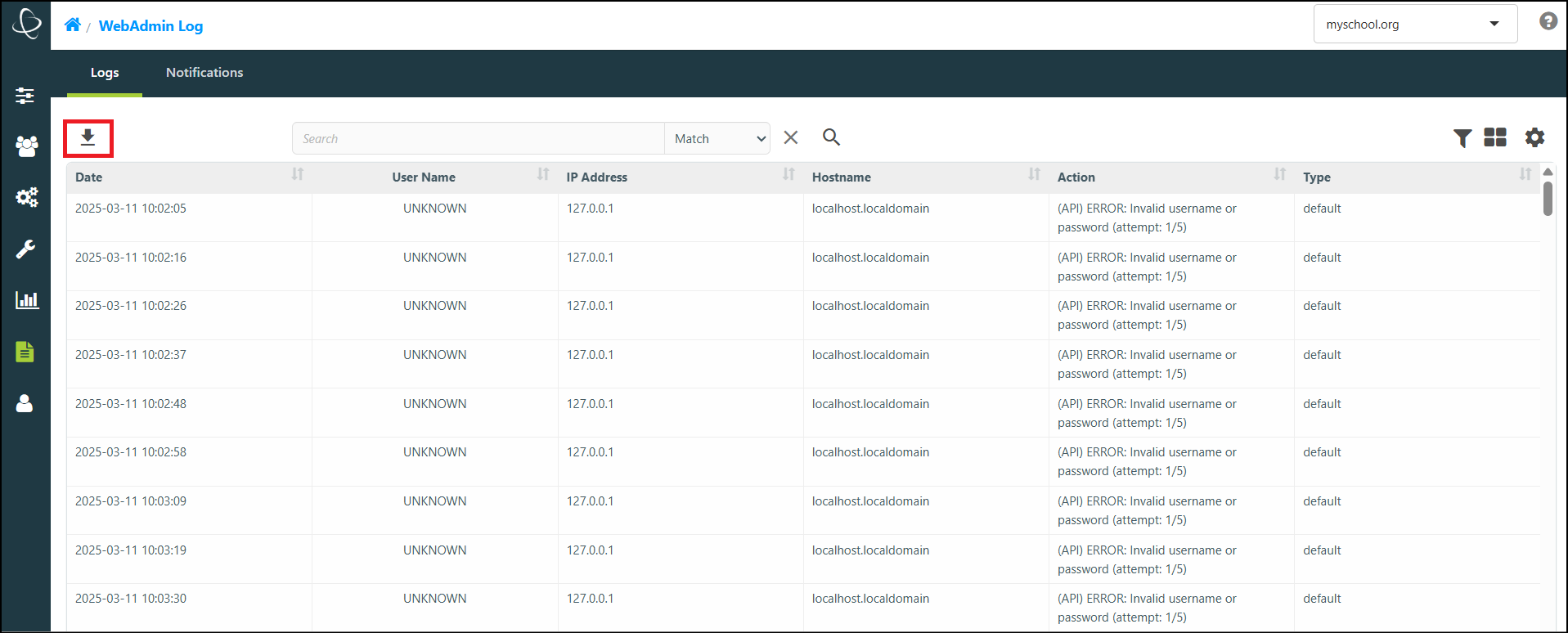
In the Table Header, you can use the Advanced Filter and the Search field to search for log entries. You can also display the log in Table or Tile View. The Settings icon lets you show or hide specific columns and the Export icon allows you to export your WebAdmin Log.
Advanced Filter for WebAdmin Logs
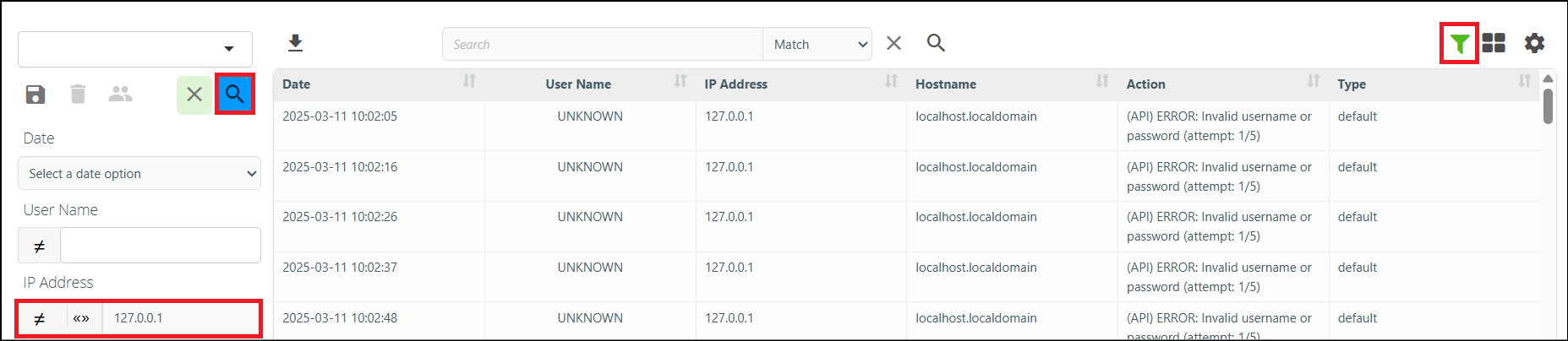
Selecting the Filter icon on the toolbar opens the Advanced Filter window.
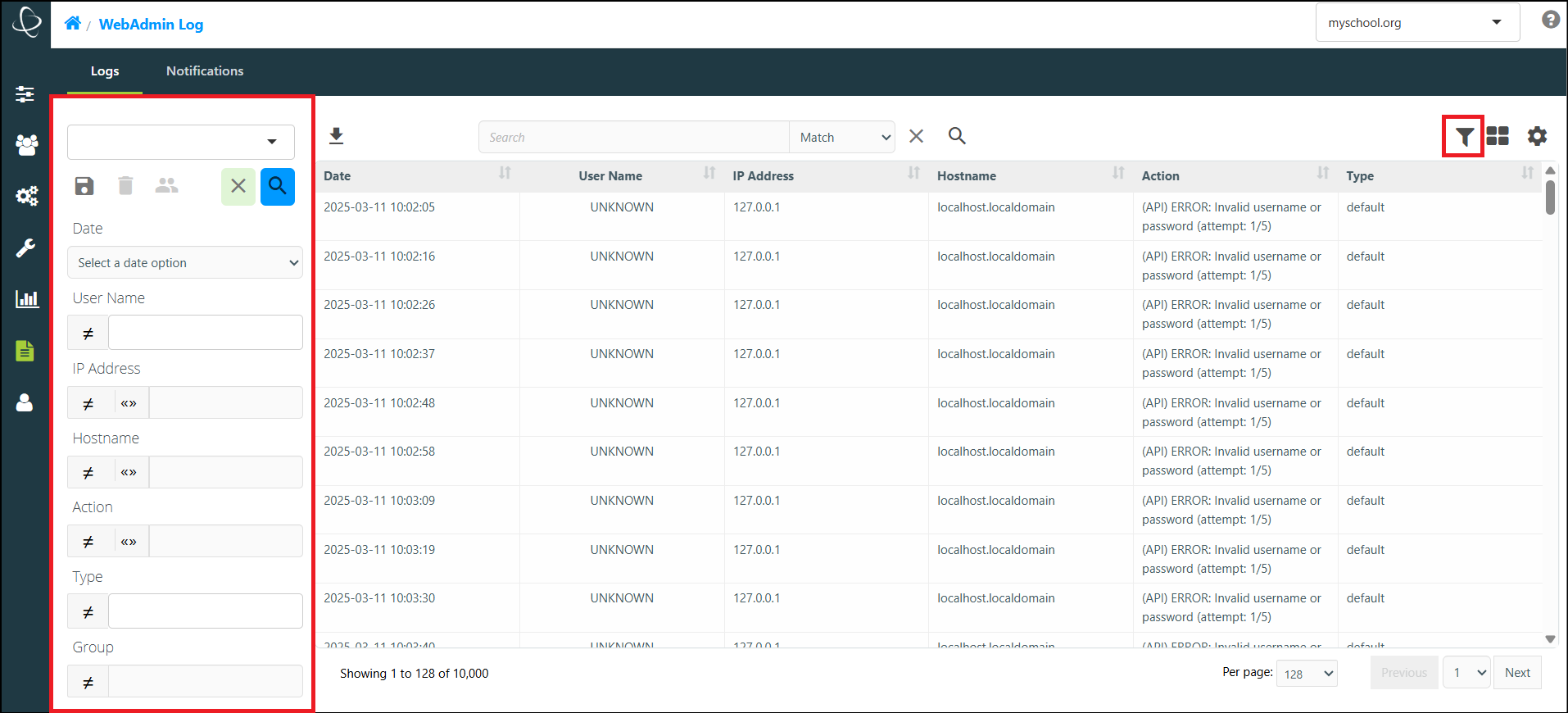
You can filter by: Date, User Name, IP Address, Action, Type, and Group.
If you filter by 'Date' an 'Include Time in Filter' option displays. If this is checked, the Time will be considered at table rows selection.
Select the 'Magnifying Glass' Icon to apply your Advanced Filter. The 'Funnel' Icon will highlight green to show the filter is applied.
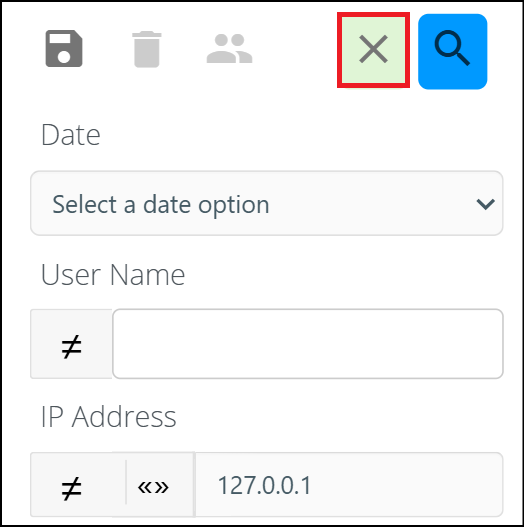
You can save and load Advanced Filters, if desired. Select the 'X' Icon to remove your applied filter.
Exporting WebAdmin Logs
Select the 'Export' icon to export the WebAdmin Logs.
WebAdmin Log Menu Notifications Tab
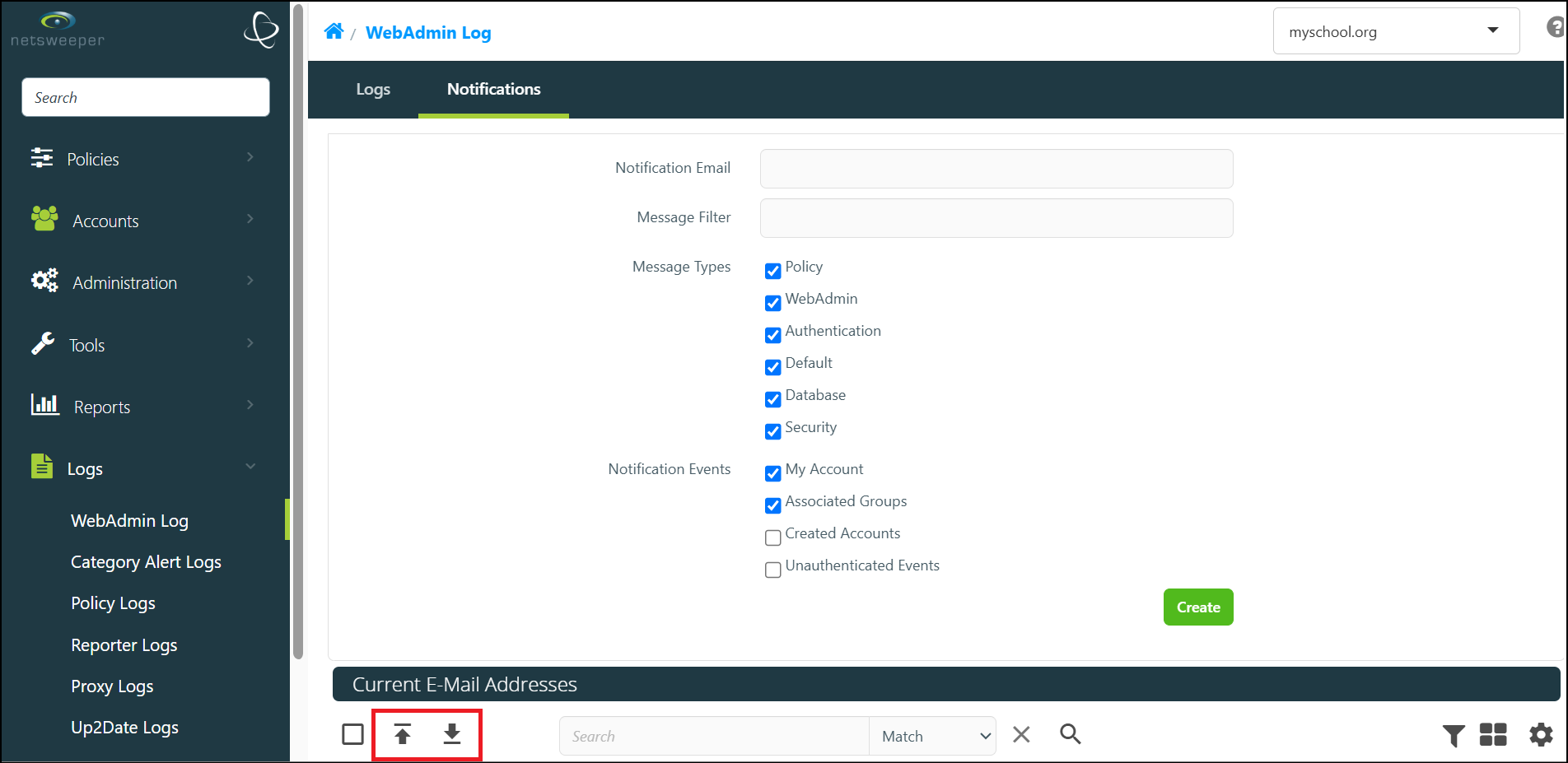
Use Notifications tab to set up email notifications for WebAdmin Logs as they are generated. You can filter by ‘Message Filter’ using Regular Expressions, Message Types and Notification Events. Only WebAdmin Logs that match the filters will be emailed. The ‘Unauthenticated Events’ option is for Admin Users only. It will send a notification for Unauthenticated Events (when the user is UNKNOWN).
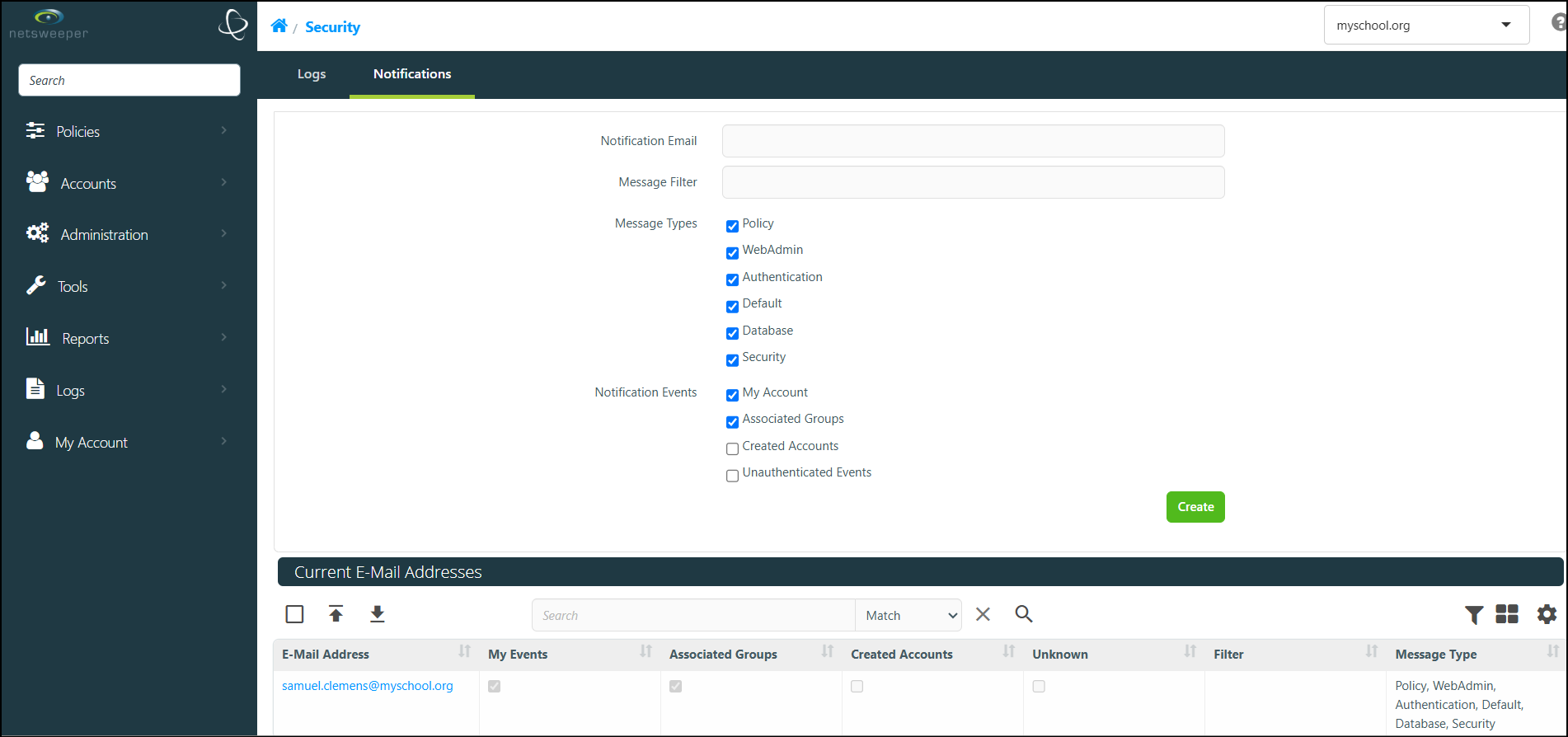
For SysOps to use this feature, it will require that the WebAdmin Notification option is enabled in SysOp Permissions.
WebAdmin Notification Email Settings
Netsweeper sends emails for WebAdmin Notifications and reports, so the correct email server information must be setup. You can view or change the information through WebAdmin Settings. Scroll down in the page to the Email Sending Settings section. If your email server requires SMTP authentication, you must fill out the SMTP Username and SMTP Password fields.
WebAdmin Notifications Import and Export
You can import and export WebAdmin Notifications.