See Also
Account Templates can be assigned to an Account and applied in a priority order. Individual Account Permissions are applied after all Account Template-based Permissions. Templates can be assigned while creating an Account or after Account creation through the Account's Permissions tab.
Assigning an Account Template when Creating or Editing an Account
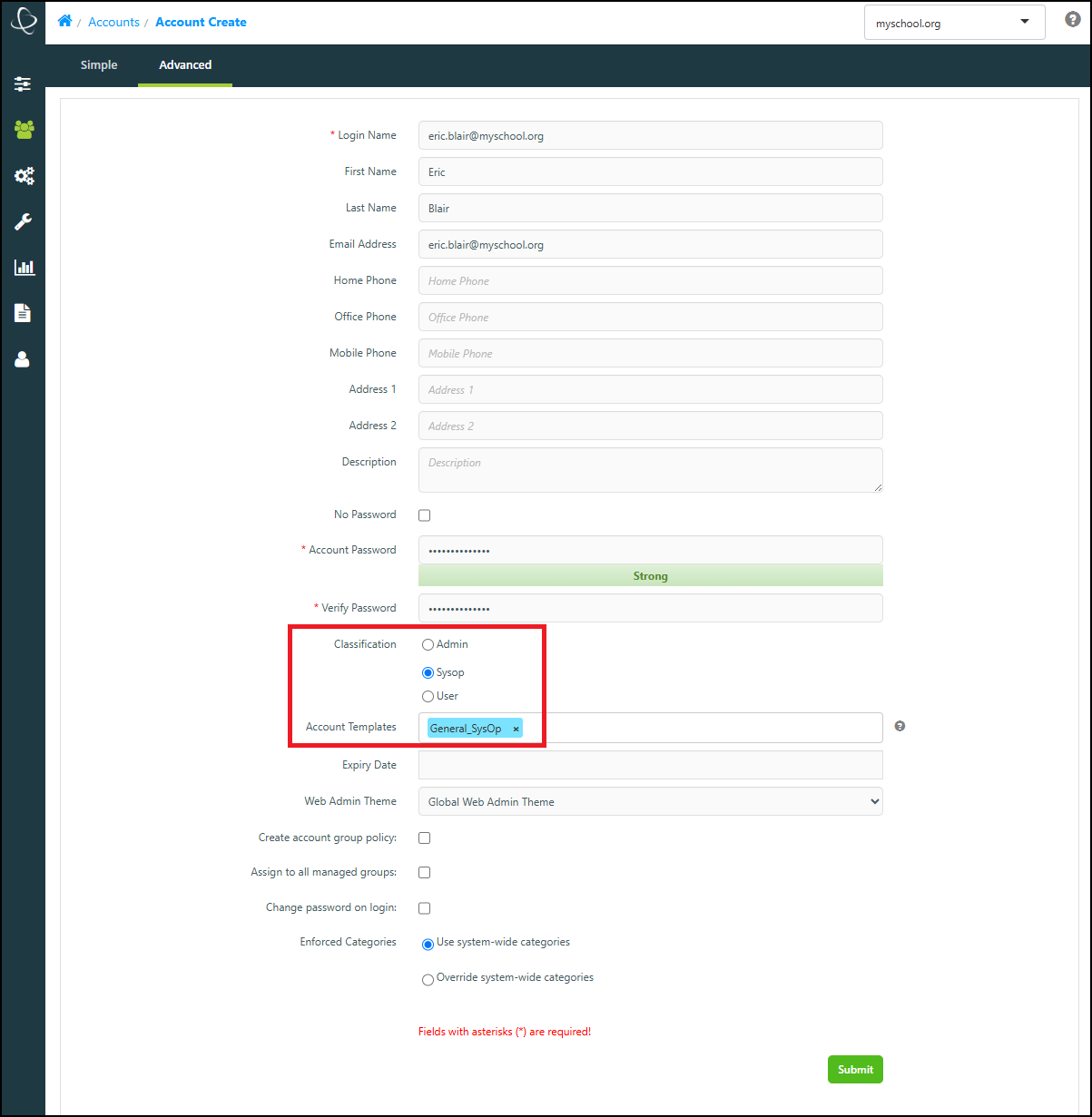
You can assign an Account Template when creating an Advanced Account, or when editing an Account. You can also specify a priority order when assigning multiple Templates to a single Account.
-
In the 'Account Create - Advanced' or 'Edit Account' window, set the Classification field to the desired Account Type.
-
Select the Account Templates field and choose any of the existing Templates for the Account type you are creating.
Assigning a Template through the Permissions Tab
Permission Templates can also be assigned through the Permissions tab, when managing an existing Account.
-
Navigate to Accounts > Accounts > List and select the Account you wish to modify.
-
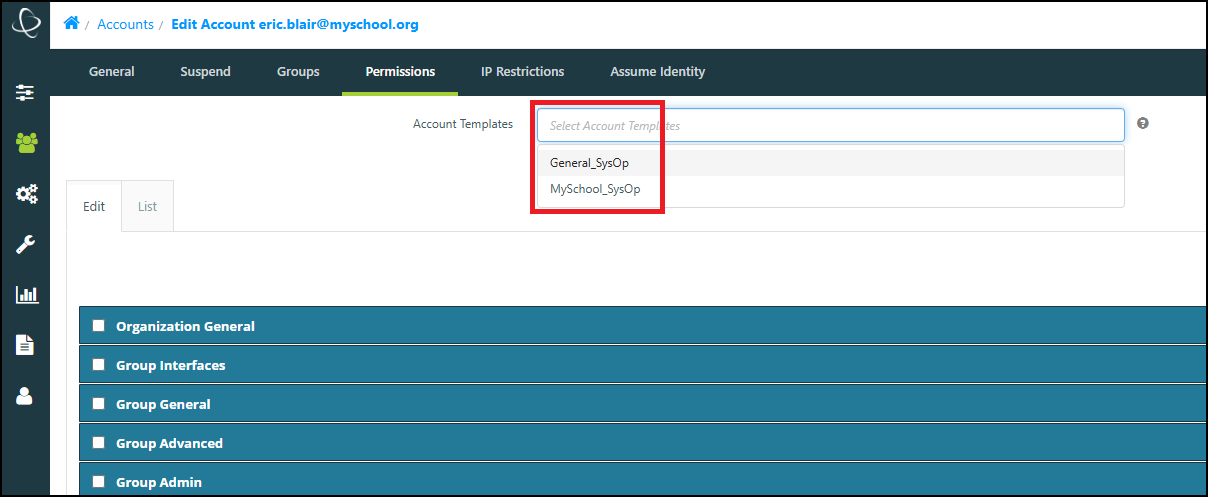
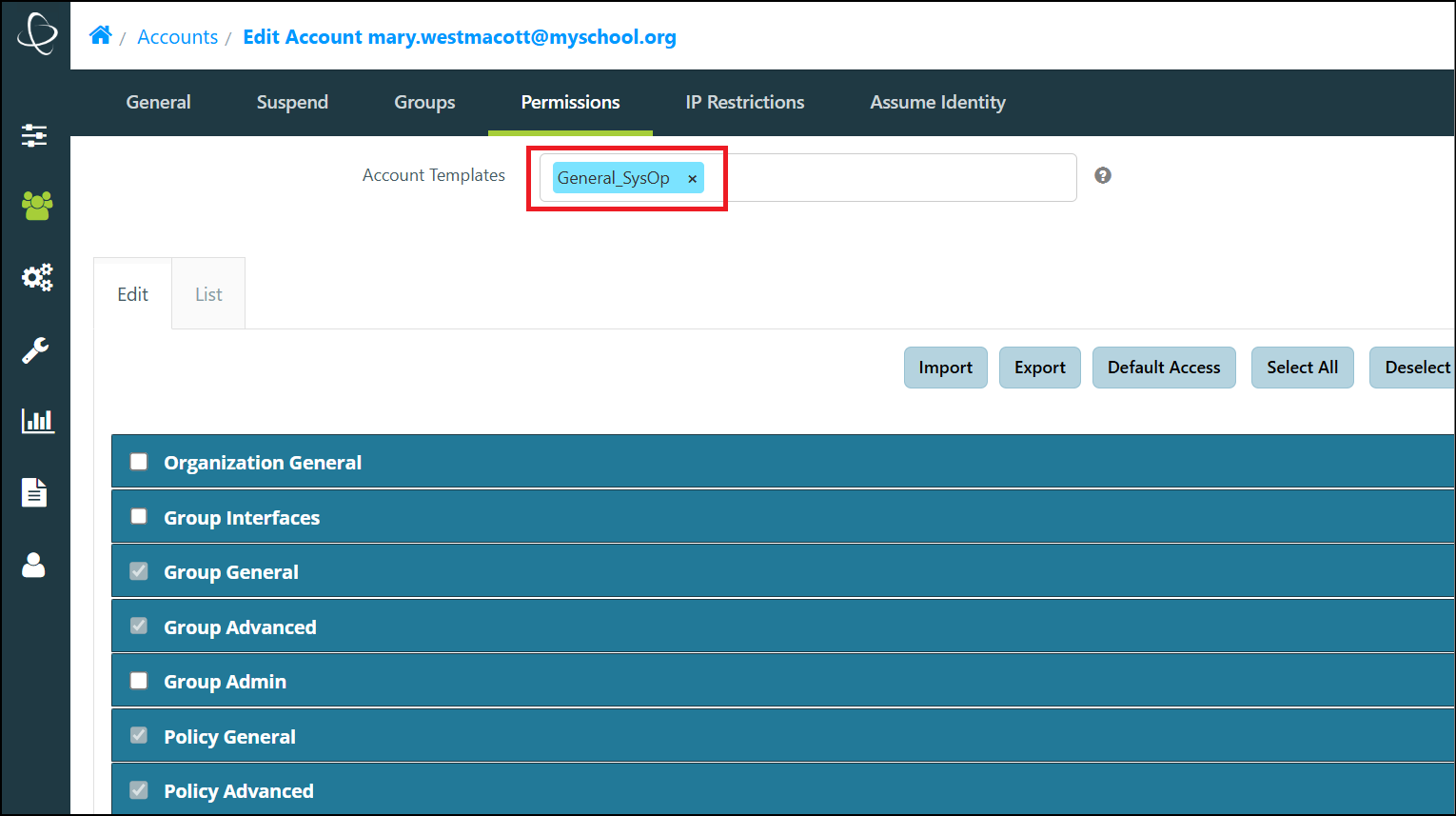
Choose the Account's Permissions tab and in the Account Templates field, select any available Templates for this Account Type.
-
Select the Submit button to apply the Template.
Assigned Permission Template Priority Order
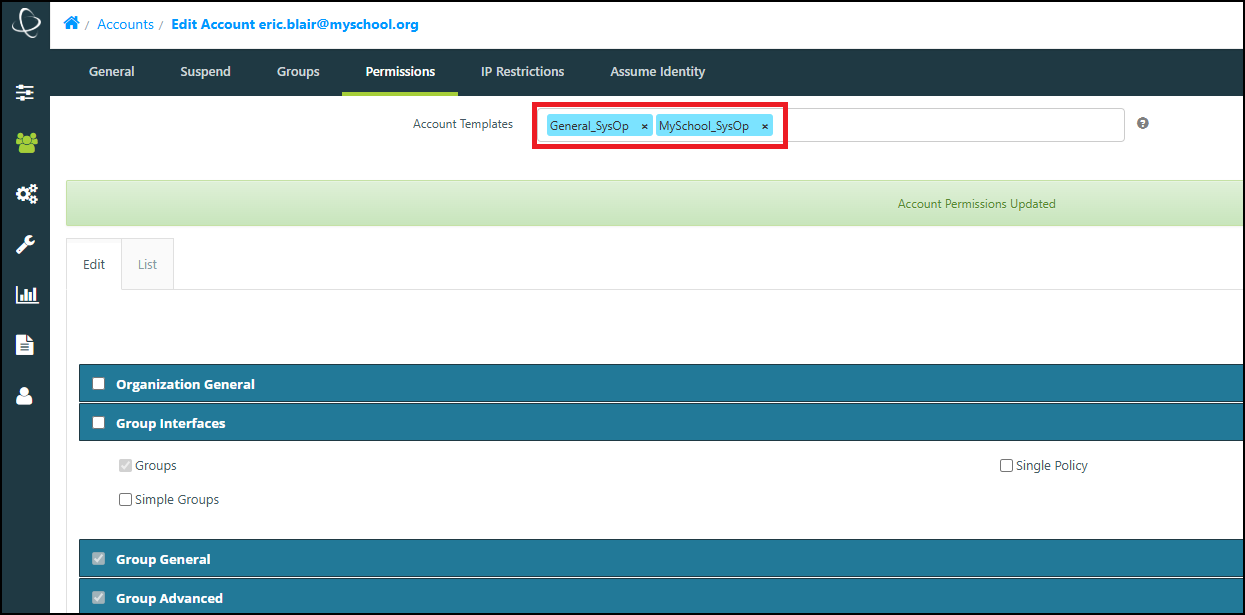
Account Templates can be assigned to an Account and applied in a priority order. Select the Permission Template from the dropdown list. You can add one or more Templates and they can be assigned in priority order. The Templates will take precedence in the order they are listed. For example, if the first Template you assign has a specific Permission disabled and you apply a second Template that enables that same Permission, the Permission will be disabled for this Account.