My Account Preferences
The Account Preferences window allows WebAdmin users to manage their WebAdmin Account password, Account settings, List Suggestions, and Access Tokens.
Navigate to My Account > Preferences to access this window.
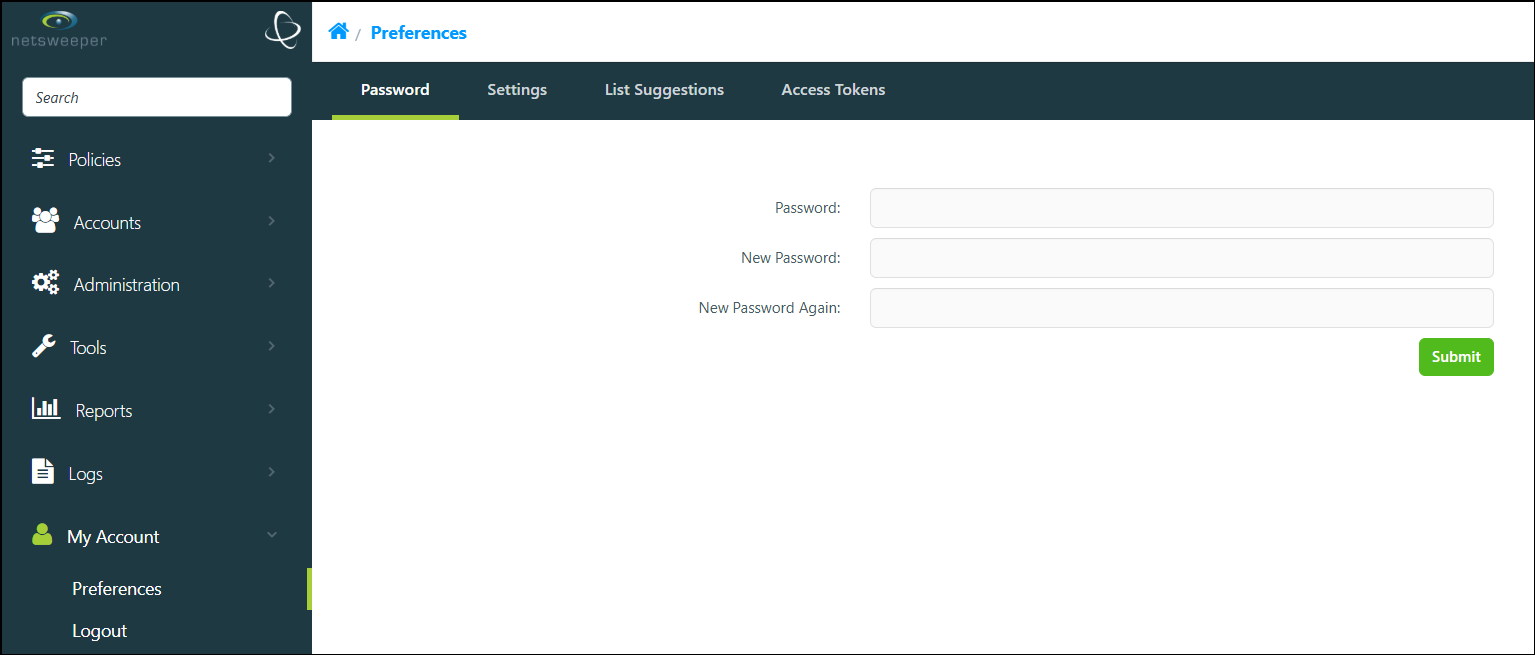
The Preferences window consists of four tabs, which are described below.
Password
The Password tab is used to manage your Account's password. Enter the current password and then enter the new password twice. Select Submit to complete the change.
Please note: If your Account Password has expired, you will be brought to the Password tab when you log in to the WebAdmin.
Settings
Use the My Account > Preferences > Settings tab to manage the following settings for your Account.
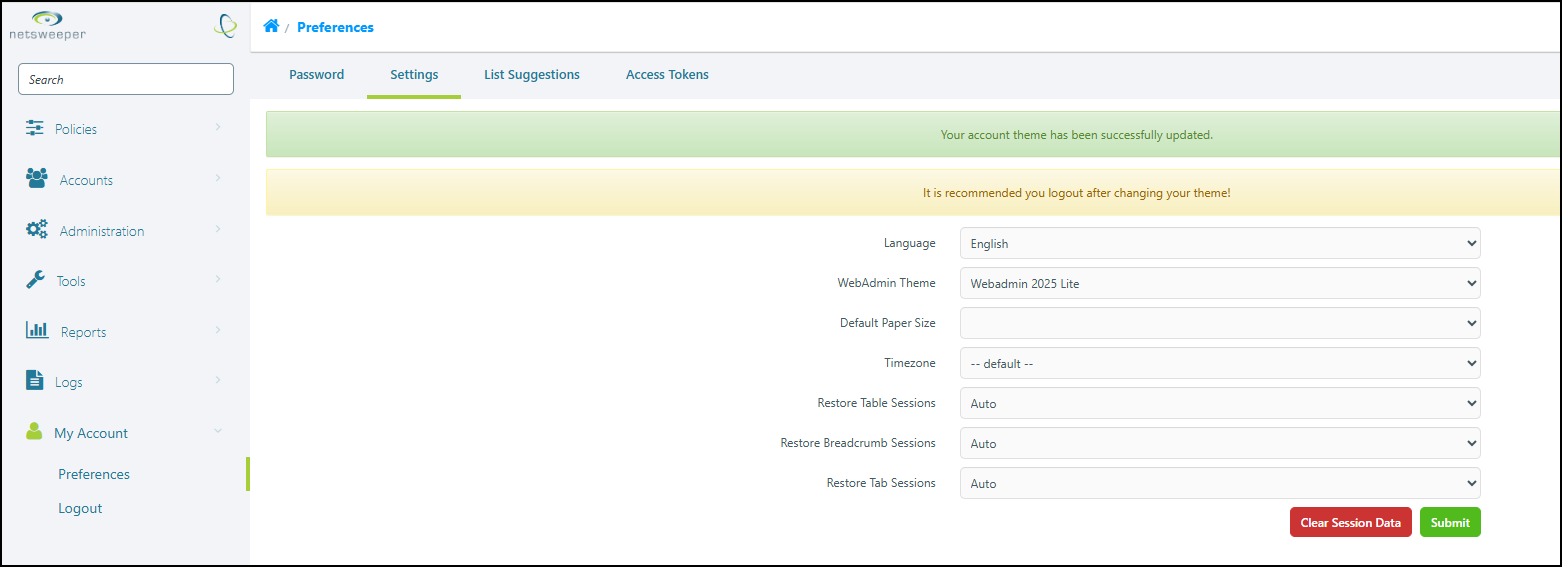
- Language: This allows you to change the language displayed for your WebAdmin Account.
- WebAdmin Theme: This option will allow you to change the Account and Global WebAdmin theme as well as the Global Profile Manager theme.
- Default Paper Size: Use this option to set the default paper size for printable Reports.
- Timezone: Use this dropdown field to change the WebAdmin Account timezone.
- Restore Table Sessions, Restore Breadcrumb Sessions, and Restore Tab Sessions: Each Restore option can be set to Auto, Prompt or Manual or the Session Restore option can be disabled. (When Breadcrumbs are restored, you will be returned to the last visited window with the same breadcrumbs you had in your previous session).
- Auto: The Session Restore functionality will be performed automatically after logout
- Prompt: A Restore Session link displays in the top right corner of the 'Home' page
- Manual: A Restore Session button appears in 'Session Settings' window.
- Clear Session Data: This button deletes your active session. It does not change the database saved values.
List Suggestions
This tab displays List Suggestion Rules along with their descriptions. It allows you to enable, disable or reset a Rule for new or edited entries. This window works with the popup window that displays when a URL is entered in the URL List Manager and the Policy Local List tab.
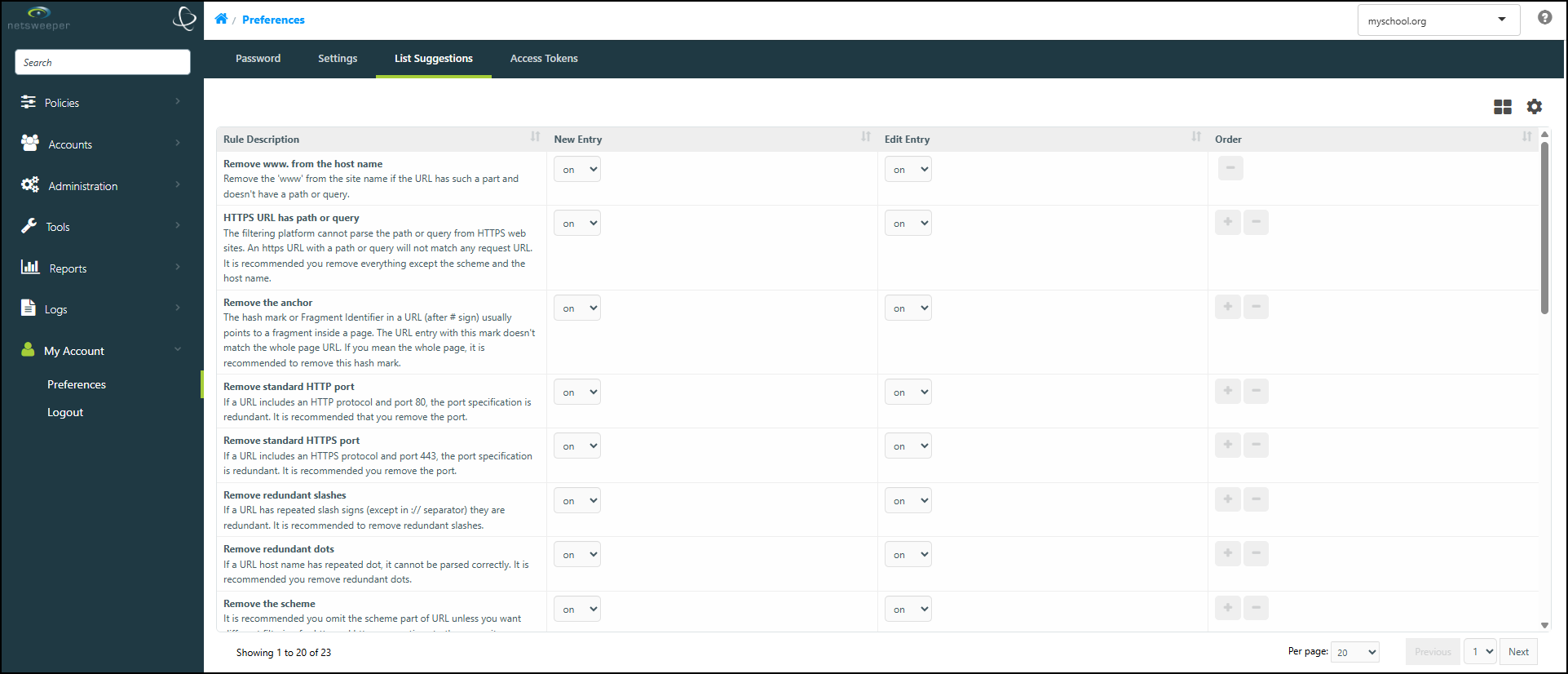
From here, you can set a Rule to on (enable), off (disable) or auto (applies recommended changes automatically). These can be set for new entries as well as edited entries. Use the +/- buttons in the Order column to change the Rule display order. Changes made in this window are saved automatically.
Access Tokens
Use the Access Tokens tab to add, manage, and delete access tokens for Admin and Sysop account users. The tokens are unique across all accounts and they do not require account names when they are used to authenticate the requests or log in to webadmin. Athentication with access token does not create a permanent session in the session store, unless it is handled through the specific web API 'token'.

Creating Access Tokens
To create an Access Token navigate to My Account > Preferences > Access Tokens and select the Create button.

Give your Access Token a name and select the Submit button.

You will see your newly created Access Token, along with a Copy to Clipboard button.
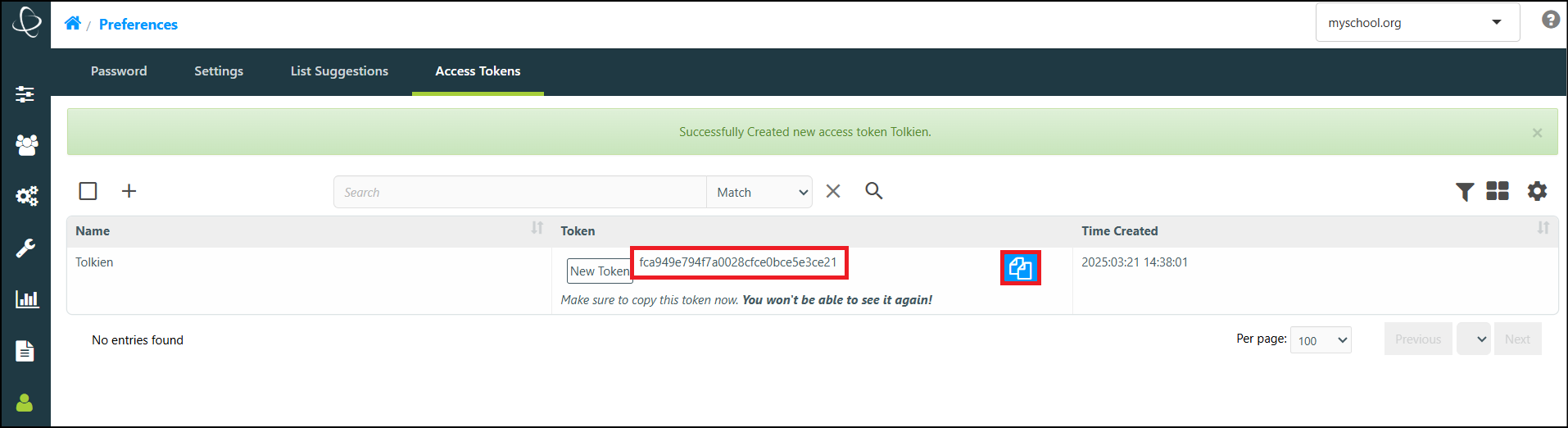
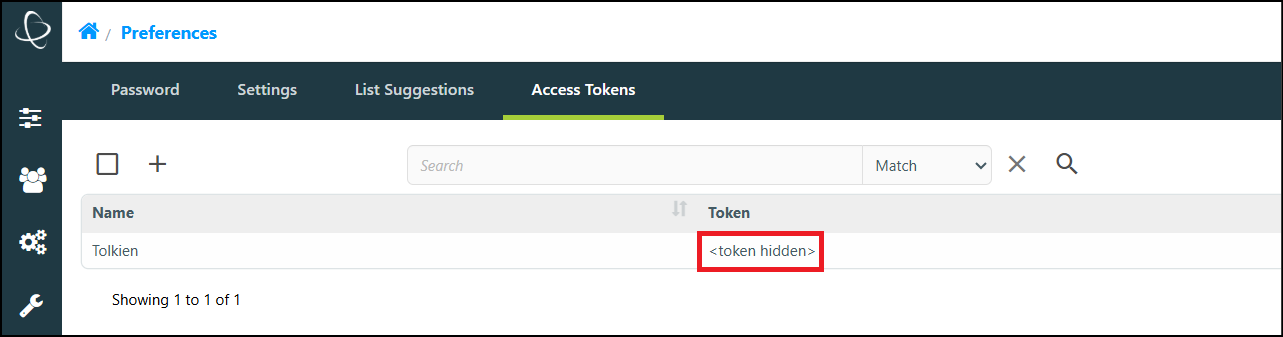
Please note: You will only be able to copy the Access Token immediately after creating it. The Access Token will be hidden if you return to this section.