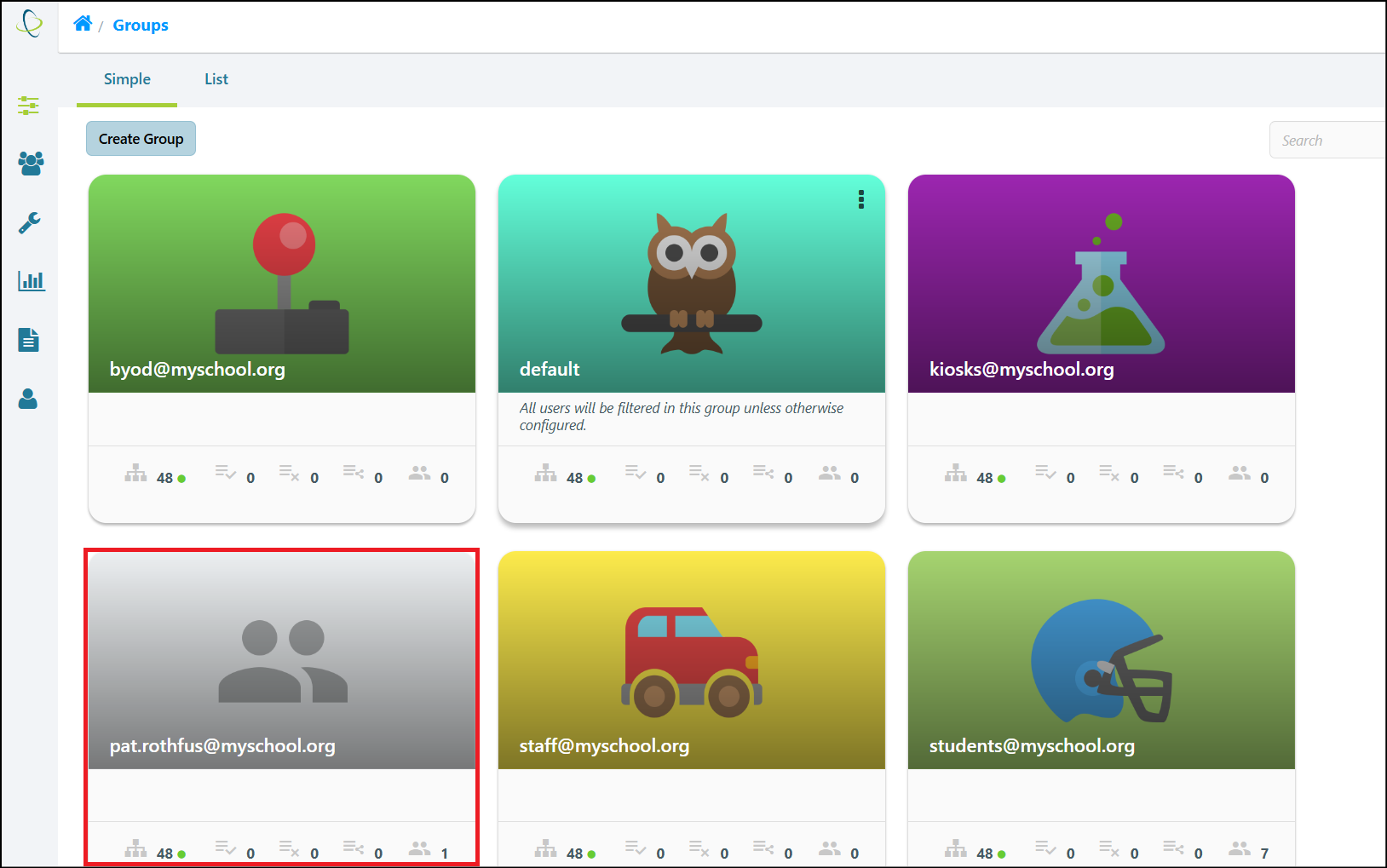
Groups can be created from a specific Client, if desired, by navigating to the Group's Clients tab. Please note: This cannot be done via the Simple Groups interface or from the Clients window.
 See Also
Create a Group from a Client
-
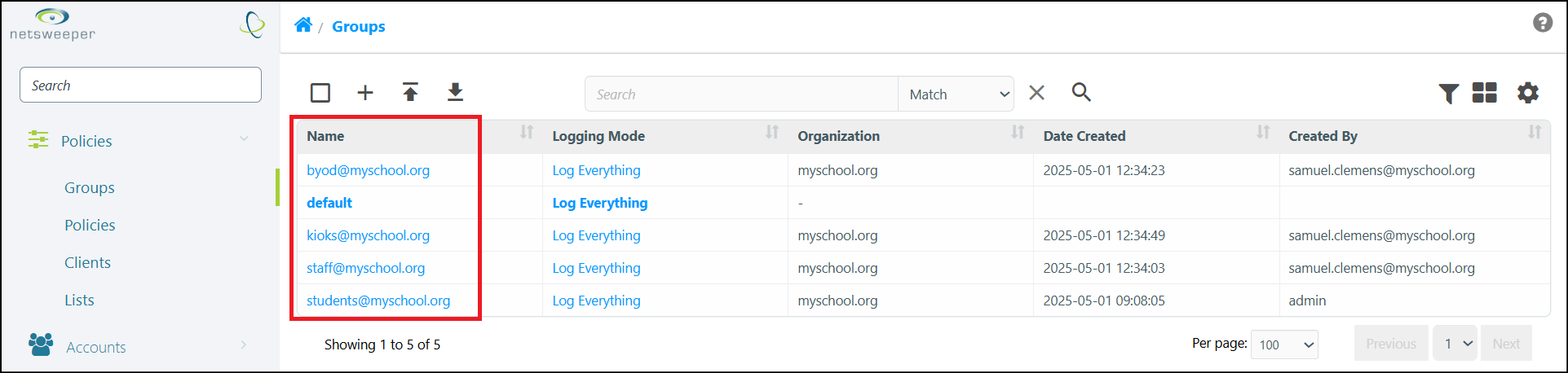
Navigate to Policies > Groups > List and select a Group with a Client you wish to create a new Group from.
-
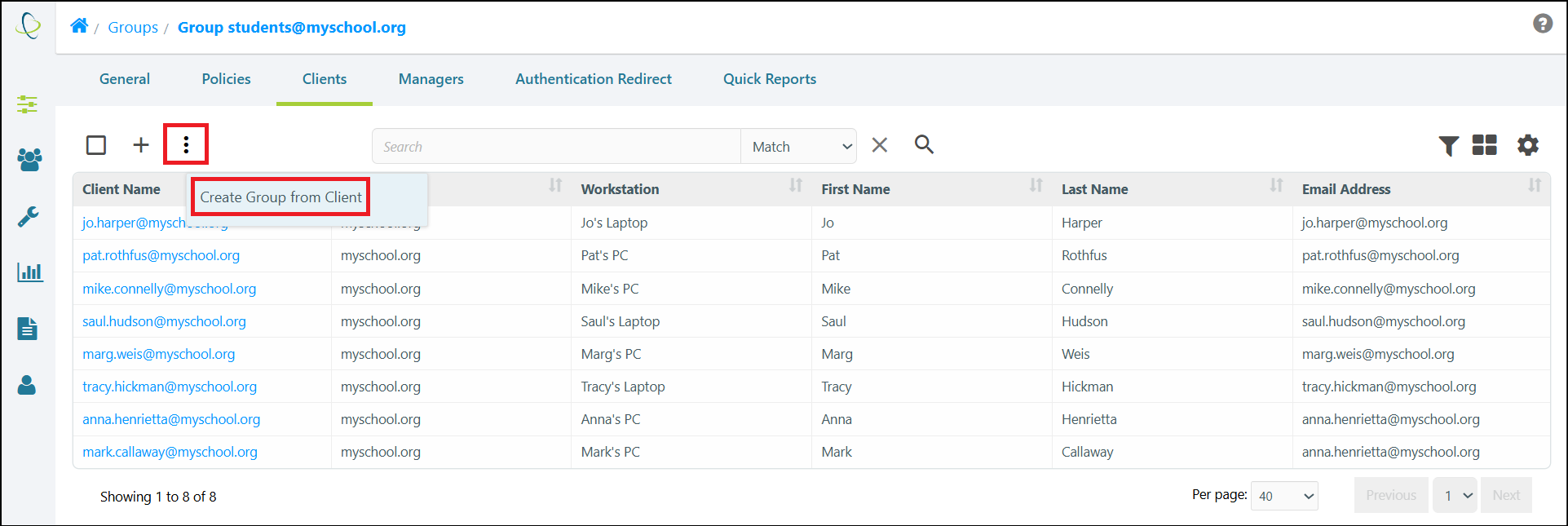
Navigate to the Group's Clients tab.
-
Hover over the Actions icon and use the Create Group from Client button to convert a member-Client into a Group.
-
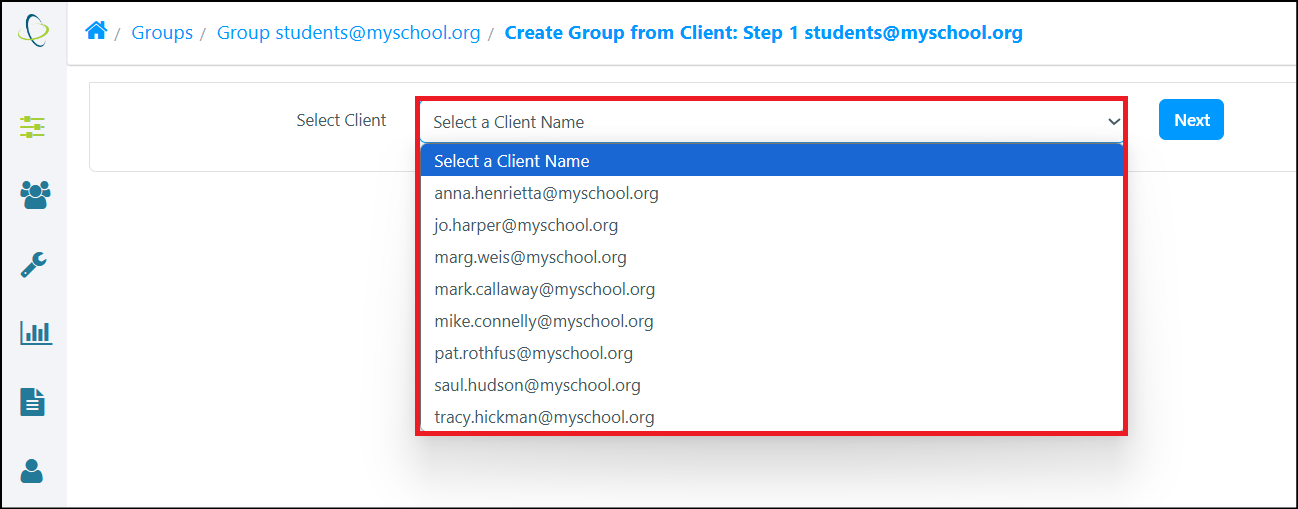
In the 'Create Group from Client: Step 1' window, use the Select Client drop down menu to choose the desired Client.
-
Once you have chosen the Client, select the Next button to proceed to the 'Create Group from Client: Step 2' window.
-
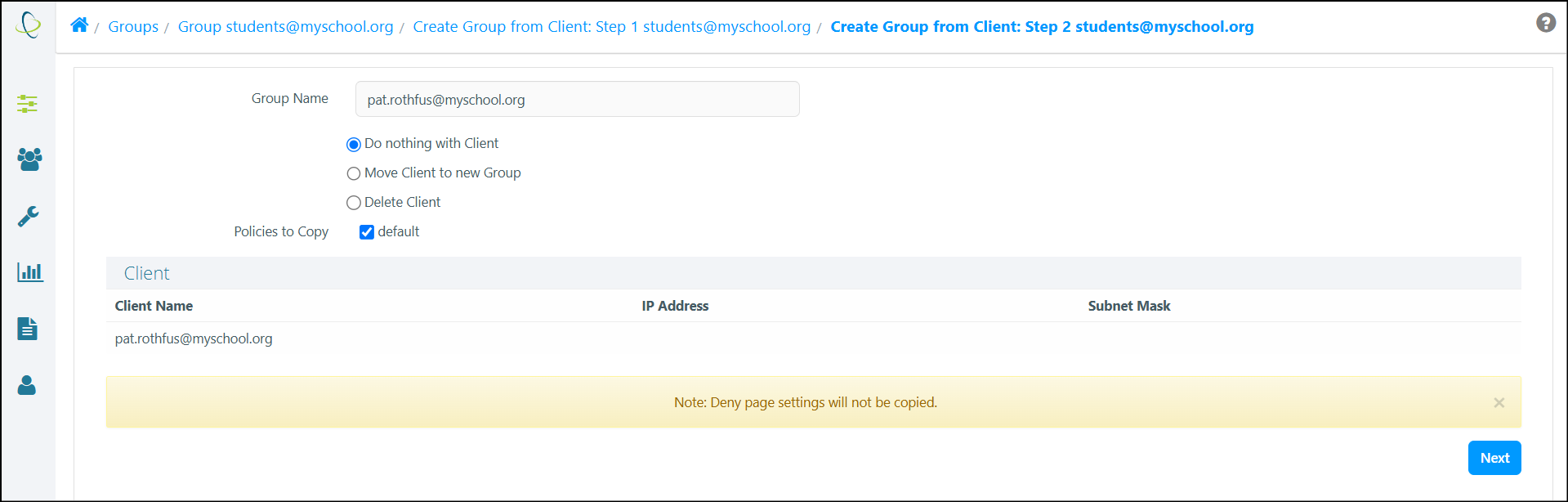
This window allows you to rename the Group, (if desired,) choose what to do with the Client you are creating the Group from, and select any available Policies to copy.
-
You can choose 'Do nothing with the Client' (The selected Client will not be moved to the new Group,) 'Move Client to new Group', or you can choose the 'Delete Client' option.
-
When you are ready, select the Next button to finish creating a Group from this Client.
-
The 'Create Group from Client: Step 3' window displays the results of the task.

-
Select the Back button to return to the Groups window, where your new Group displays.