Lists are groupings of URLs or Keywords that can be used to manage filtering by overriding categorization for their specific entries. This allows Netsweeper Admins and Sysops to fine-tune access for their deployment.
There are different types of lists with different functions that can be used by Netsweeper customers. A System-Wide List can provide filtering across an entire deployment. A Local List can be used on a per Policy basis and assigned to a Netsweeper Group. You can also have Shared Lists that are shared with other Groups in your organization.
As a basic overview, Lists are collections of URLs and Keywords that can be used to allow and deny web requests. There are many additional functions that Lists can perform, such as replace a URL to redirect Clients to another site.
 Categorization Overview
Categorization Overview
As Lists are intended to override Categorizations, we should review the basic Netsweeper Categorization process.
Netsweeper assigns Categories for URL Requests. These Categories are used to allow or deny a web request.
A simplified 'Category Based' process is:
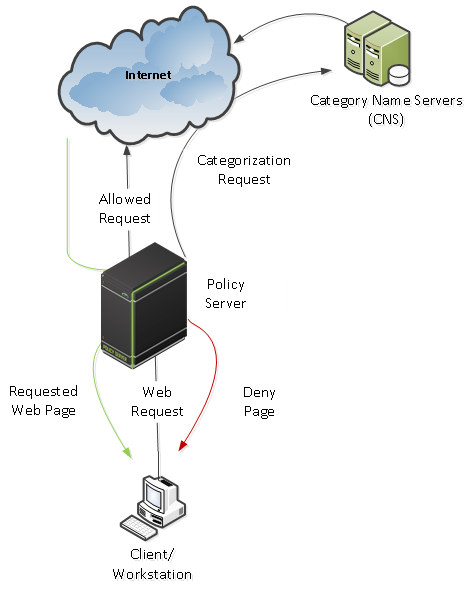
- A web address is entered by a Client and a request is sent through the Policy Server to Netsweeper.
- Netsweeper assigns a Category, such as Pornography or Social Networking, to the requested URL.
- This Categorization is sent back to the Policy Server.
- The Policy Server looks for a Group Policy for the Client or Workstation to determine whether this Group Policy for this Client allows or denies the Request based on the Categorization.
- The request is allowed or a Deny Page is served.
It should be noted that the URL is not denied but the Category assigned to the URL is denied.
Why Are Lists Used?
Why Are Lists Used?
This image shows examples of the Categorizations made by Netsweeper. Some of these Categories are allowed and some are denied based on the preferences set during the implementation. In this example Google is assigned the 'Search Engine' Category and the 'Search Engine' Category is allowed. Facebook and YouTube are both Categorized as 'Social Networking' and this Category is Denied.
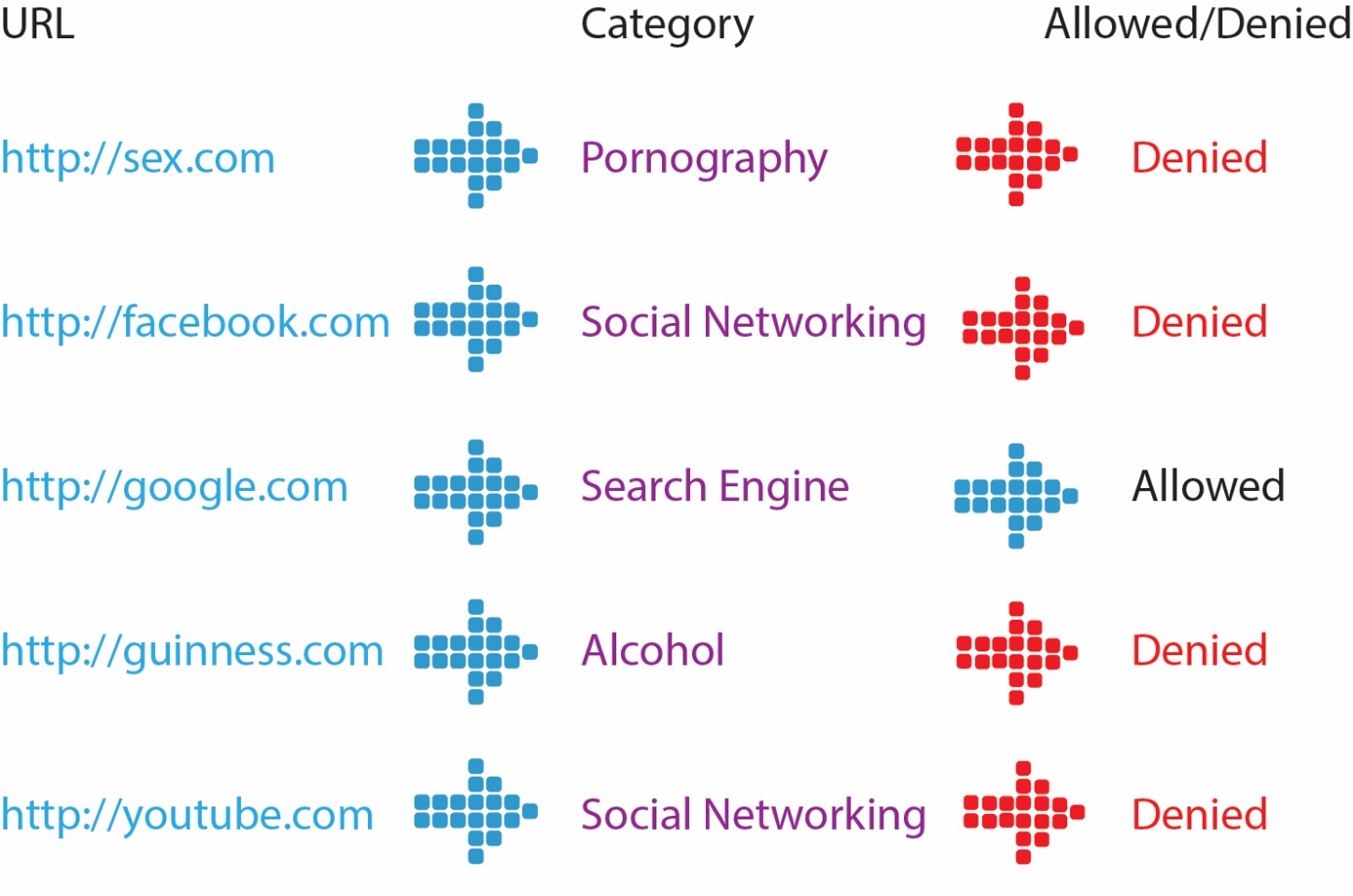
Lists are used to fine-tune the blanket effect of the Categorization process. For example if YouTube is blocked because the 'Social Networking' Category is denied, you can use List Rules to allow access to that site without unblocking the entire Category. Adversely, if Google is allowed because the 'Search Engine' Category is allowed, you could use List Rules to block it without affecting the rest of the sites in that Category.
Lists Processing Order
Lists Processing Order
Lists are used to create exceptions to 'Category Based' processing. Some Lists are controlled by Netsweeper and some Lists are edited in the WebAdmin. A priority is assigned to these multiple Lists, through 'Processing Steps'.
A List assigned to a higher 'Processing Step' takes precedence over lower 'Processing Steps'. These steps and their priority are important in deciding how you want your organization filtered.
List Types
List Types
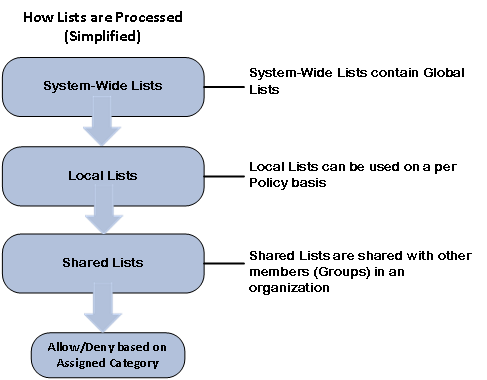
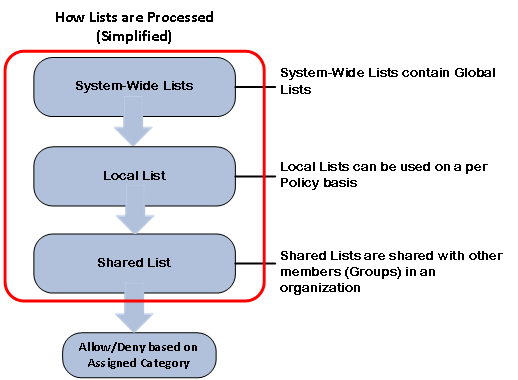
In this table you can see these three List Types. They are listed in the order they are processed, and the order is higher than the simplified Category Based Process at the bottom. As you can see, System Wide Lists have a higher priority than Local Lists and Local Lists have a higher priority than Shared Lists.
|
List |
Description |
|---|---|
|
System Wide Lists |
URLs in System Wide Lists are mandatory for all users. For deny actions, the System Wide Lists can override identical entries in Local and Shared Lists. As an example, it may be decided that no one in an organization can access facebook. If Facebook is added to a System Wide list, Local and Shared Lists will not be able override this setting. |
|
Local Lists |
Local Lists are used to perform Actions for specific URLs for a particular Group policy. Only users assigned to that Policy’s Group, during times when the Policy is active, will be affected. As an example, a teacher may decide they want their Grade 12 class to have access to YouTube which would otherwise be blocked by the Categorization 'Social Networking". Adding and allowing YouTube to the Local List for the Grade 12 Group will enable access to YouTube for all the members of that Group. |
|
Shared Lists |
Shared Lists perform the same function as Local List. However, they can be assigned to multiple Group Policies. As an example, a school with multiple Groups may decide certain URLs should be allowed or blocked. A Shared List could be applied to all of the Groups in the school. As noted earlier, Local Lists can override identical entries in Shared Lists. Shared Lists can also be assigned to the System Wide Processing Step and becomes a System Wide List. |
Categorization Lists
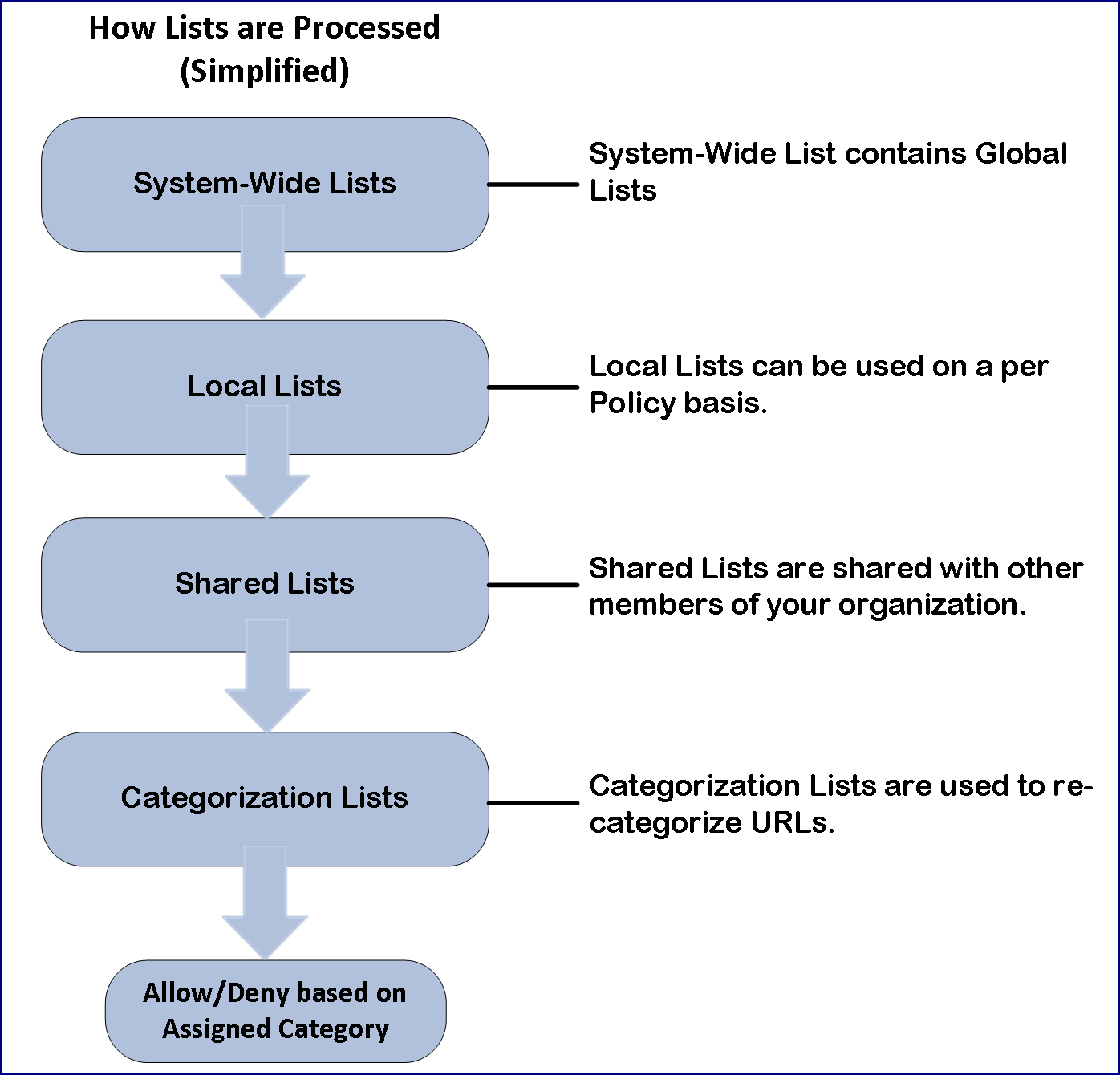
We will now expand our earlier diagram and add another Processing Step containing the Categorization Lists. The Categorization List is used to re-categorize a URL. You may want to re-categorize a URL that is categorized as 'Pornography' to the Category of 'Nudity'. As you can see the Categorization List Processing Step has a lower priority than the System Wide, Local and Shared List. This processing order should be considered when re-categorizing URLs.
See also: Re-categorizing a Site in a List
Groups and Lists
Groups and Lists
Let's quickly review how Groups and Policies are used in Netsweeper. All Clients or Workstations must belong to a Netsweeper Group. These Groups have Policies which are a set of filtering rules that control a Group's browsing access for a specific portion of a week that is set through 'Policy Events'. These Group Policies have Shared Lists and Local Lists.
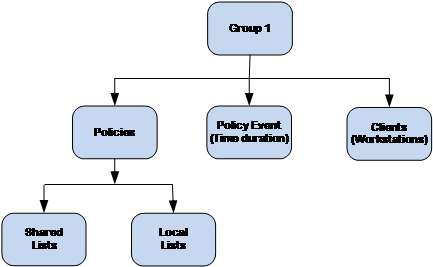
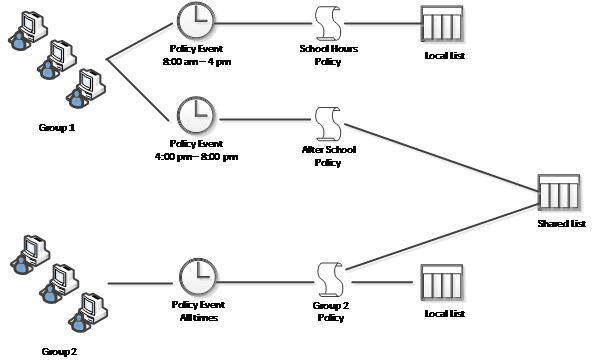
An admin can create a Local List to allow or deny access for that Group. Shared Lists can be created in several ways. Once created, they can be used for multiple Groups. One of the advantages of Shared Lists is that they can be managed and updated centrally and automatically applied to any Group that has applied the Shared List.
The Lists Window
The Lists Window
Use the 'Lists' window to create, manage and assign Lists for filtering. URL Lists support URLs and URL parts (such as scheme, path or query), keywords (including multiple keywords, whole word and multiple words) as well as file extensions and regular expressions.
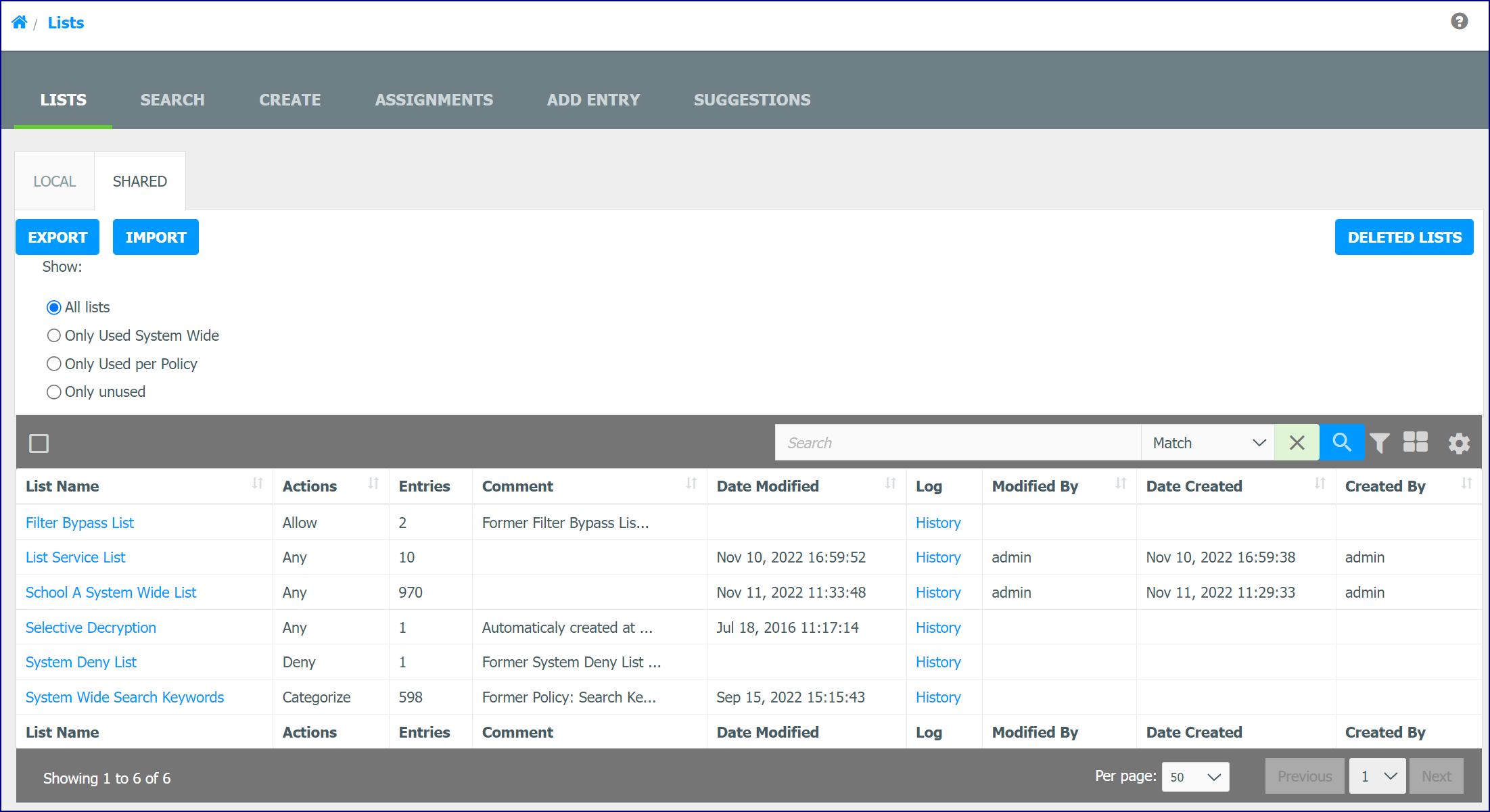
The Lists tab is the default window for the ‘Lists’. It displays all System Wide, Shared and Local Lists.
The Shared tab shows a list of available Shared Lists. The Local tab displays a list of Groups and Policies with Local Lists and the number of Local List entries for each list.
The Import and Export icon allows you to select and import multiple Lists.
The 'Show' option allows you to filter for Lists that are used System Wide, used on a per Policy basis or for any unused Lists in both the Shared and Local tabs.