This document provides a general overview of the components that comprise a Netsweeper Policy Server and information that should be considered when preparing to design a Netsweeper multi-server deployment. Each component of the Netsweeper Policy Server has a relationship with other components on the server, and these relations must be considered.
This document will not go into detail about specific actions you will need to take to configure multiple Netsweeper servers but will refer to supplementary documentation that contains such specifics.
Example Deployment
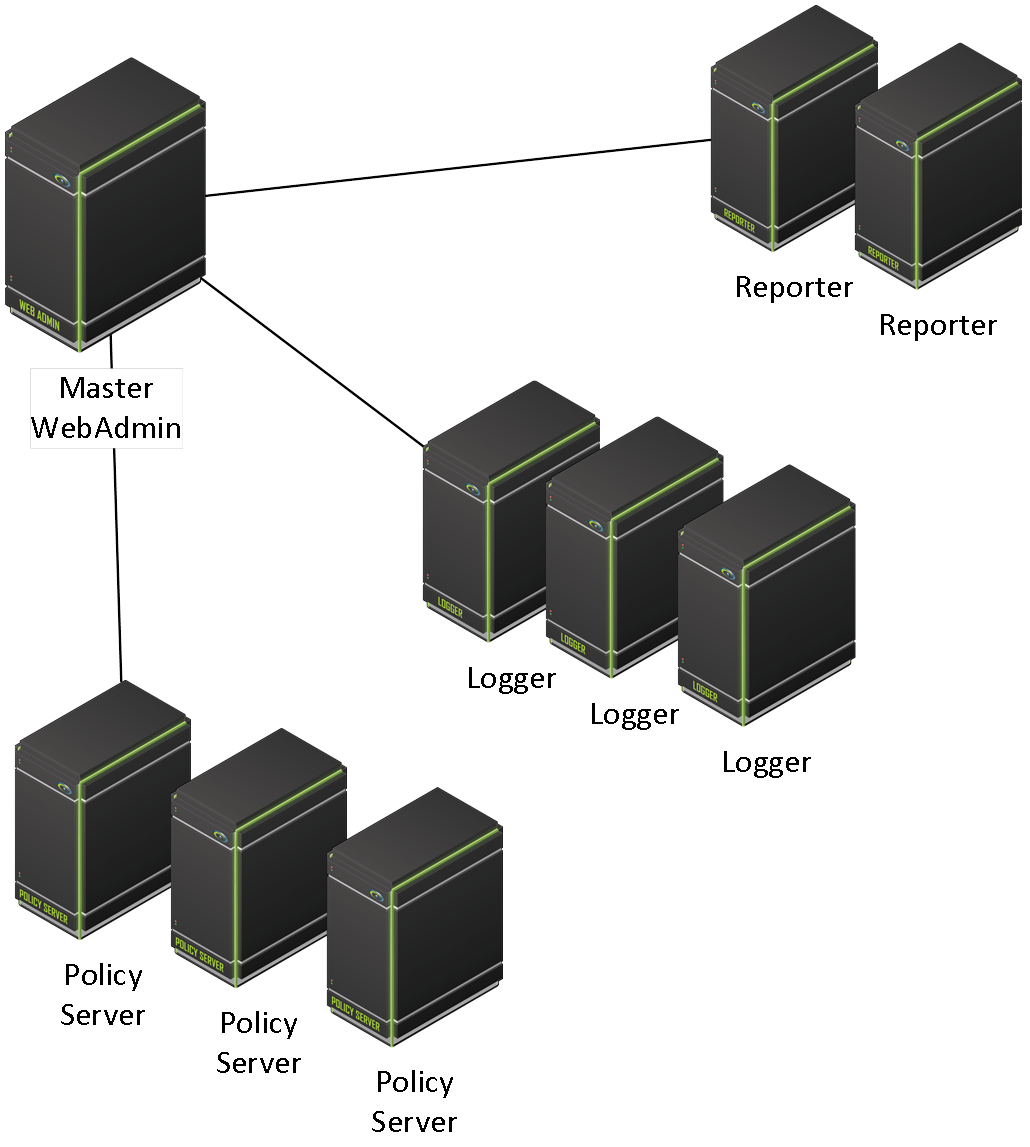
This diagram shows a basic example of a multiple server deployment.
The diagram below sheds some light on the Netsweeper Policy Server, and the services that might reside on it. Based on requirements, you may enable or disable some services.
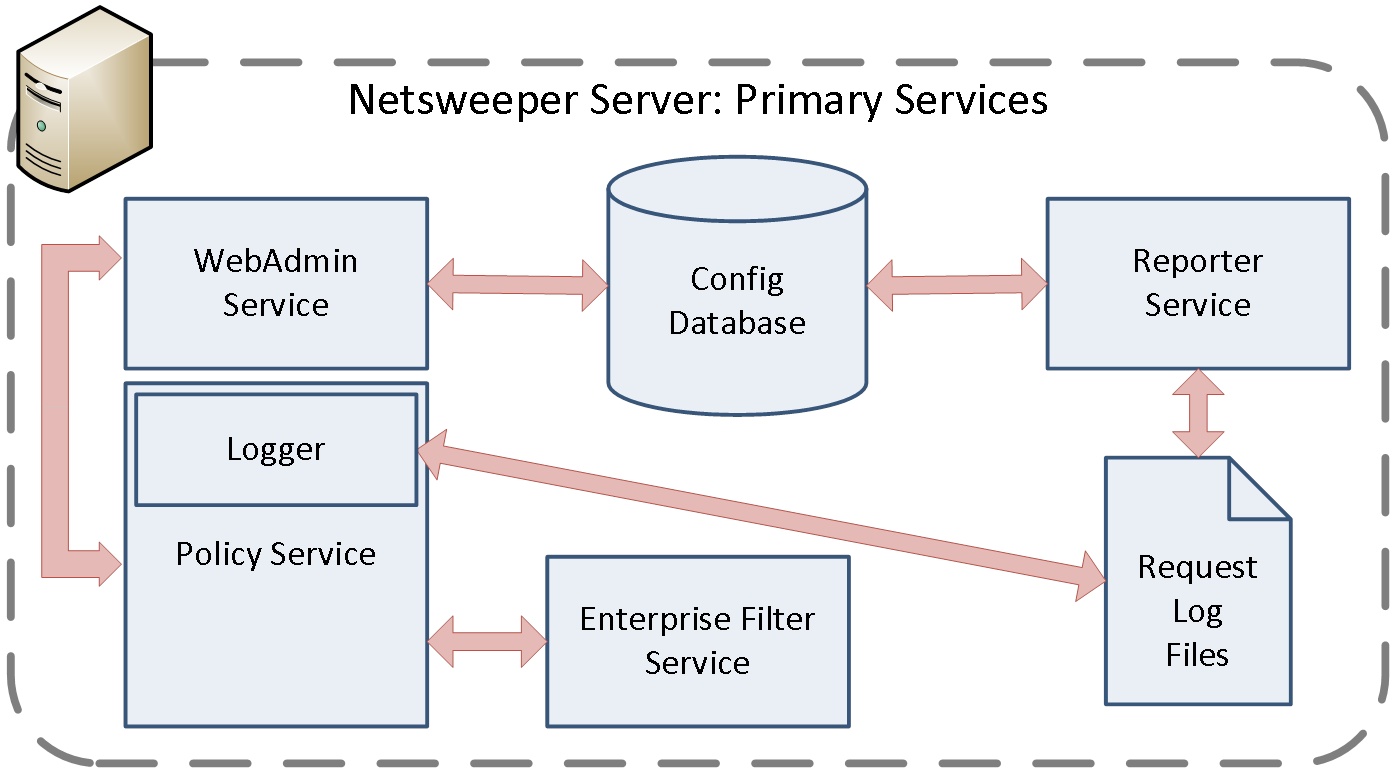
In the diagram above, the Policy Service and Logging Service may not be running on the same machine as the Master WebAdmin Service. Please ensure that you have stopped all WebAdmin Services on remote after you have successfully configured your multiple server deployment.
Order for a Multiple Server Deployment
WebAdmin Configuration Overview
For information on the WebAdmin configuration please see the 'Configuration - Installing Netsweeper in a Single-Server Environment' document. The policy servers will not be able to load the configuration until the WebAdmin is upgraded. Please be aware that once the WebAdmin is upgraded the older policy servers will not be able to load the configuration.
The WebAdmin service is a PHP application running on an Apache web service on the Netsweeper Server. Its primary purpose is to provide a graphical user interface for modifying the database, which is built on MySQL.
It also includes access to system configuration of most other components on the Netsweeper Server:
- · nsd.conf (Policy Service and Logging configuration)
- · WebAdmin
- · Reporter
- · Capture Module
- · Directory synchronization
- · RADIUS
About Request Servers (Hosts)
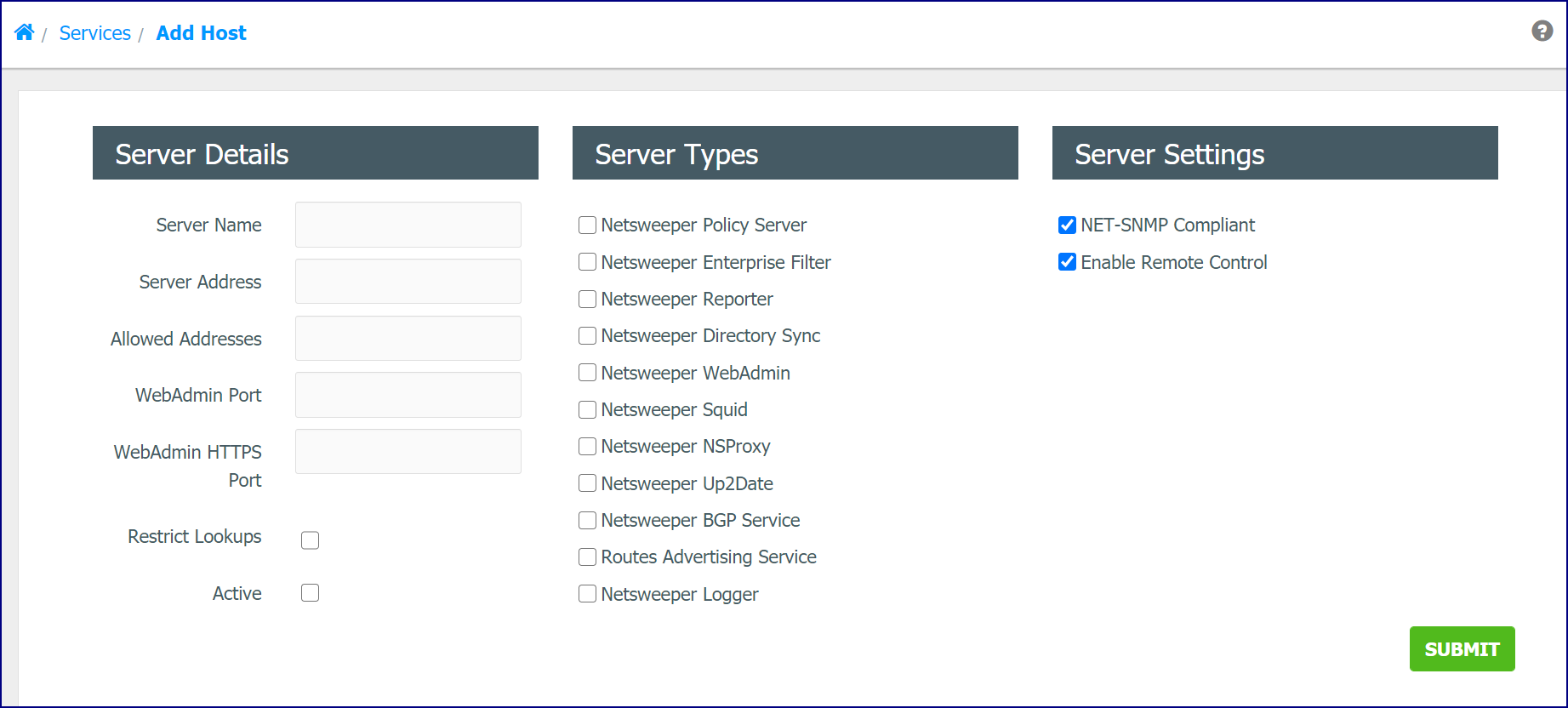
For Multiple Server deployments, you are required to set up Request Servers or Hosts. Use these pages to assign and configure the required services.
Go to Administration > Services and click on the Hosts tab.
Click the Add Host button to access this page.
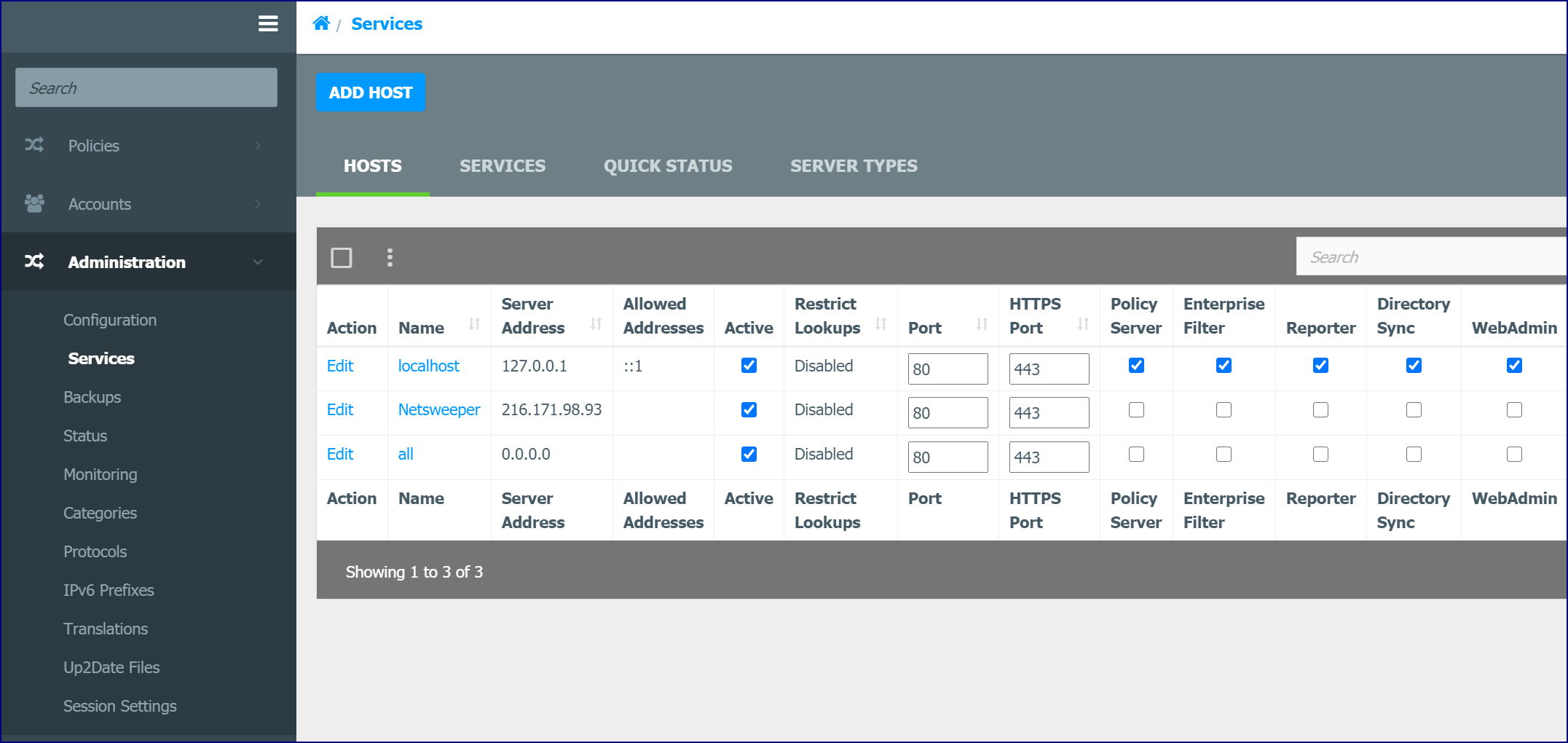
The 'Add Host' page is accessed by clicking the Add Host button in the 'Services' window. It can be used for monitoring remote services.
Policy Service (Policy Server / NSD)
The Policy Service, for which the Netsweeper Server is often named, is the heart of the Netsweeper filtering platform. Its primary function is to make policy decisions and return these decisions to the interceptor service, usually the Capture Module Filter. It also sends transaction information to the logging service for logging purposes.
Some important concepts regarding the policy service:
- · The policy service loads the database into memory, through the WebAdmin service. It does not connect directly to the policy (MySQL) database. This is important to keep in mind when creating deployments with many policy servers/interceptors.
- · While the Policy Server is configured by default to receive policy requests from the Capture Module, it can also receive requests from the Netsweeper Client Filter, Proxy Caches, and many other interceptor devices/services.
- · The Policy Service is also known as the NSD (Netsweeper Daemon.)
Policy Service & WebAdmin
The Policy Service loads its configuration information and the filtering database into memory and does not directly interact with the database. This loading occurs through the WebAdmin (the WebDB component of the WebAdmin). When creating multi-server deployments, the Policy Service on all slave systems will be configured to contact the Master WebAdmin on the Master Policy Server for the purpose of loading this information. Please note that in some cases, the Policy Service might not be running on the Master WebAdmin.
Any changes made to the database residing on a slave policy server will have no effect on policy processing or filtering behaviour. The slave policy server should not be running the WebAdmin or the database service.
To configure a slave Policy Service, you simply need to adjust the deny_page_host and webdb_host settings in the Policy Service configuration on the remote Policy Server. In the 'General' section of WebAdmin Setting, enter the external IP address or DNS address of the Master WebAdmin Server in the 'WebAdmin External URL' field. This field has a default value of 'Generate'.
Once this is completed, we recommend you disable the WebAdmin on the remote Policy Server and all other non-essential services.
WebAdmin & Database
If a Netsweeper Server is loading its configuration from a master system, then the WebAdmin on the slave system will not be used at all, and the Policy Service on the slave system will be configured to load its configuration/database from the master system.
For high availability considerations, please see the “Configuration - Web Cluster” document.
WebAdmin & Policy Server
In a single server deployment, the Policy Service will load its configuration/database from the WebAdmin service on the same machine. It is important to note that the Policy Service does not load directly from the MySQL database, and this provides many performance gains.
When planning a multi-server deployment with many Netsweeper servers, the Policy Services on the slave systems will all load their configurations/databases from a master system, through the WebAdmin.
Database
Netsweeper’s database contains all information required to perform filtering actions. It contains information on clients (filtered endpoints), groups, and policies.
Important concepts to know about the database:
- · The database is built using MySQL, and therefore the MySQL service is required on (at least) the master server of a deployment.
- · Only the WebAdmin and Reporter directly integrate with the policy (MySQL) database.
Database & WebAdmin
The WebAdmin management interface is a view into the database, and allows for management of filtering policies, URL Lists, Monitoring Graphs and other diagnostic and troubleshooting tools.
Database & Reporter
While the WebAdmin allows for the configuration of report definitions (Demand Reports, Schedule Reports, Continuous Reports, etc…) it does not provide this information to the Reporter Service, as it does for the Policy Service. Rather, the Reporter Service queries the database directly to determine what reports it must generate.
Policy Service & Capture Modules
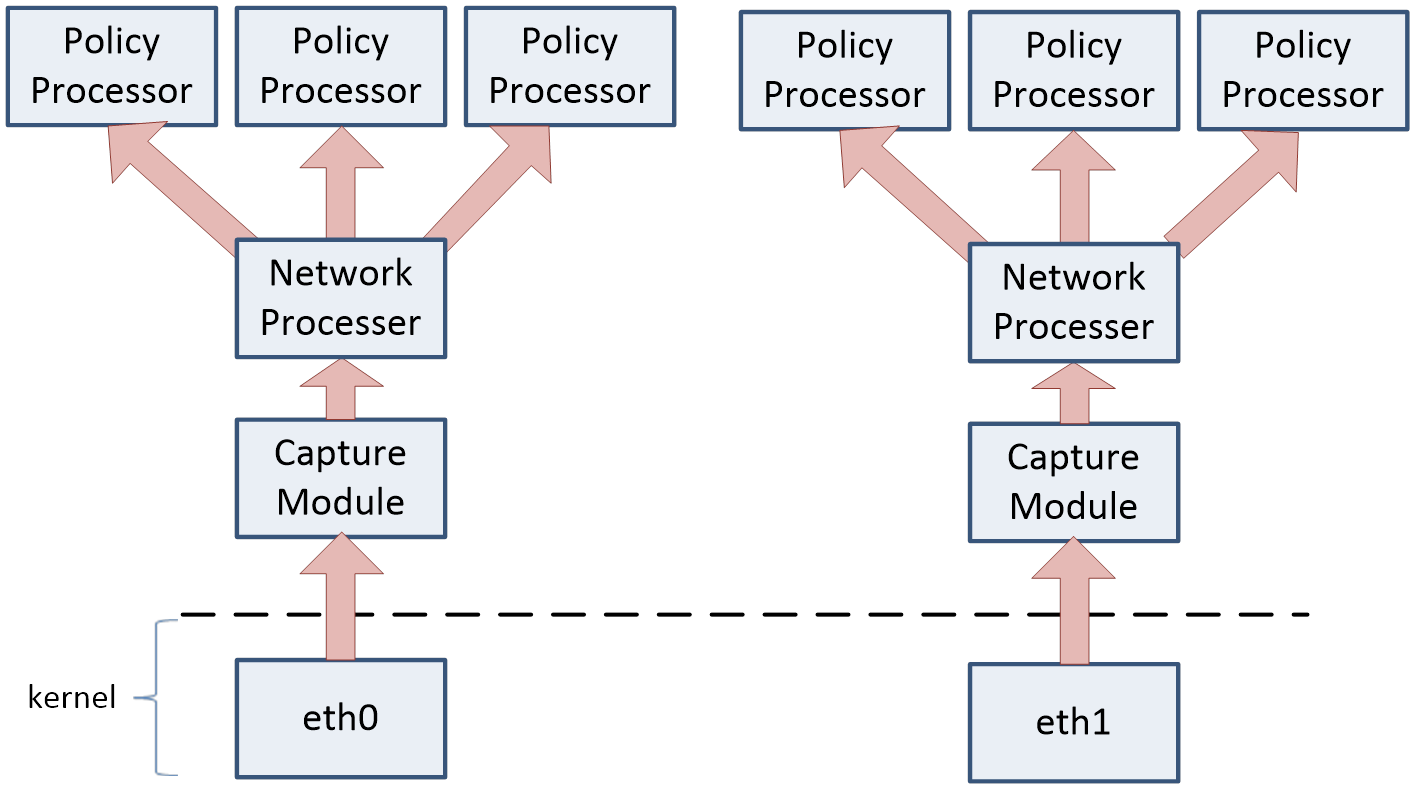
The Capture Module provides an alternate way to capture traffic. The Capture Module scales better on a system with more CPU cores. The configuration consists of the Capture Module, the Network Processor, and the Policy Processors.
Netsweeper Up2Date Service (nsup2d)
The 'Netsweeper Up2date Service' (nsup2d). It is used to settings, configurations, categories, translations, and deny pages across a deployment. It is required to be enabled and configured on all servers. When activated, there are certain files downloaded to the remote server. They are the server_guid.php, public_suffixes.php, url_check_rules.php, categories.php, and settings_nsup2d.php; as well as several netsweeper.mo files which contain the language packages (language translations).
Enabling the Up2Date Service
The ‘Up2Date’ service must be enabled on each remote server. Under Administration > Services, click on your remote host. Click the Enabled link and then click Start.
You can also access the ‘Up2Date Service’ configuration file from the ‘Service Management’ window for the selected remote server. Click the Up2Date Service Settings button. ‘Up2Date Service Messages’ and ‘Up2Date Service Errors’ can also be accessed from here.

Please see the ‘Netsweeper Up2Date Service (nsup2d)’ section of the ‘Ops and Admin – WebAdmin Menus’ documentation for more information.
Logger (LogMod5)
LogMod5, or simply the Netsweeper Logger, is a logging framework that has been developed to be flexible and fast. It provides a wealth of logging functionality that should be fully understood before considering any non-default configurations. Please see the following documents for further information on LogMod5 and its configuration:
- · Configuration - Netsweeper LogMod5
- · Ops and Admin - 03.1 Policy Service Configuration Loading
The Logger works by receiving logging packets from the Policy Service, and sending these through the LogMod5 graph, which is simply a chain of logging actions configured by the system operator.
Important concepts about LogMod5:
- · LogMod5 can be configured in almost endless permutations. Typically the simplest configuration that will achieve your requirements is the best way to meet requirements and keep complexity down.
Logger & Policy Server
Referring to the logger as a distinct service on a Netsweeper Server can be misleading. The logging framework is a component of the Policy Service. In essence, when one Netsweeper system is configured to log to another Netsweeper system, it is the logging components within the policy service that are communicating.
Reporter
The Netsweeper Reporter is a service that checks the database for report definitions, determines if there are pending reports that need to be processed, and processes those reports. It processes all types of Netsweeper reports, including Demand, Scheduled, and Continuous.
Important concepts about the Reporter:
- · The Reporter will scrape Netsweeper log files and process relevant information to generate a report. Depending on the nature of the report, processing can be very quick, or take very long periods of time to process.
- · Reports that use filters that are not indexed will increase disk space requirements and time significantly.
- · Reports that determine the top X of a specific logged piece of data will increase disk space requirements and time significantly.
Reporter & Netsweeper Database
The Reporter only integrates directly with the Netsweeper Database and does not directly integrate with any other Netsweeper components. By default, a Netsweeper server is configured to use the local Reporter (localhost) and must specifically be configured to make use of additional Reporters. The approach to configuring this has two distinct steps:
- Configure the master system such that it is aware of the additional Reporters.
- Configure the slave Reporters to use a Netsweeper Database other than the local one.
This will be discussed in more detail in following sections regarding specific configurations you may want to attempt.
What’s Different using Multiple Reporters
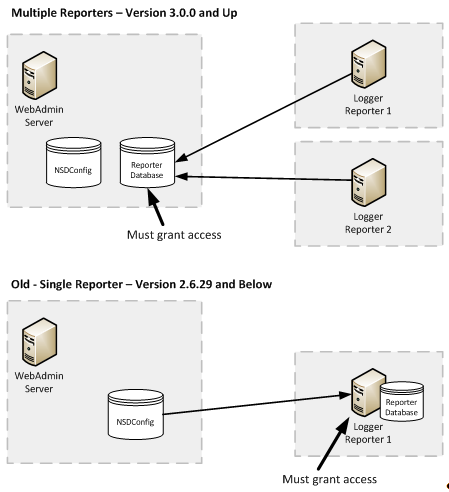
As seen in the diagram below, the key difference is the location of the MySQL (Reporter Database) in the newer versions must reside on the WebAdmin with permission granted to the loggers. In the older versions it was recommended to reside on the Reporter. For more information, please see ‘Configuration – Multiple Reporters’.
Other Services
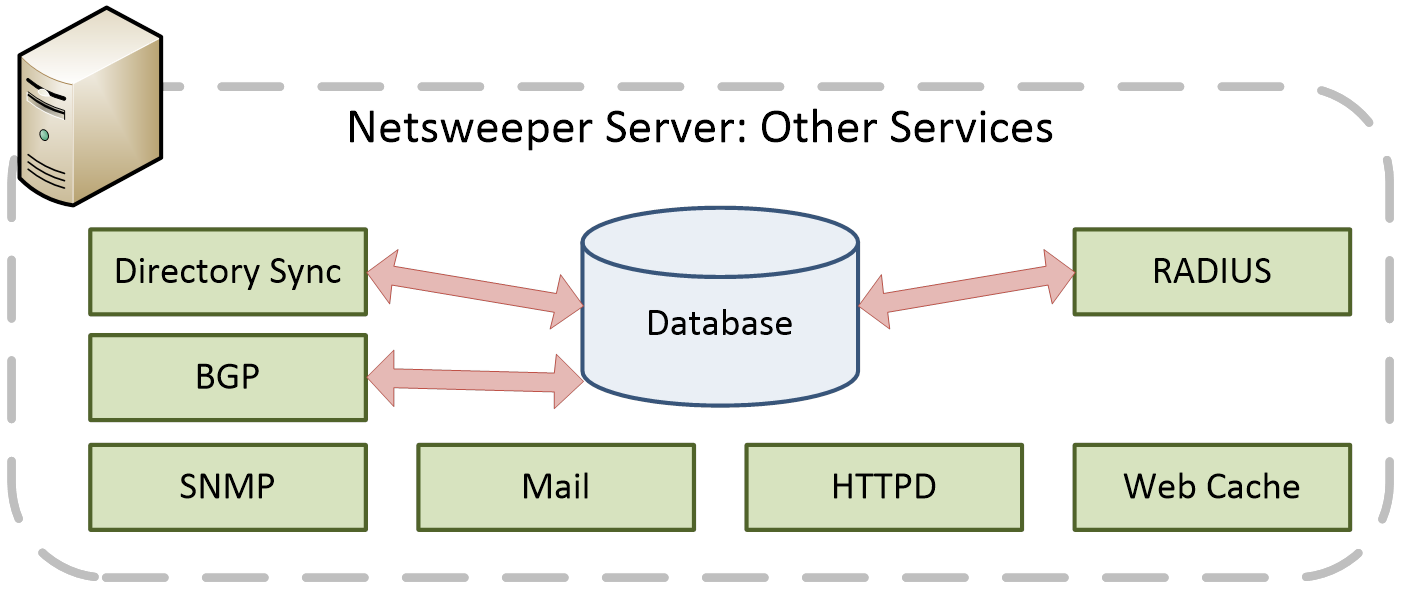
Directory Sync (Dirsync)
If you create a structure of filtering groups and users in Microsoft Active Directory, Novell eDirectory, Apple Open Directory or Google Directory, Netsweeper can use that structure to synchronize the appropriate groups and users in the WebAdmin. After this initial “directory synchronization,” the service known as directory sync periodically updates this information by resynchronizing with the directory server database.
This directory synchronization service or dirsync, checks the directory server every 10 minutes by default. You can change this interval in the WebAdmin. (The sync interval is the idle time between the two synchronization cycles – not including the time required to complete each cycle.) An entire synchronization cycle may take either seconds or minutes, depending on your system configuration, connection speed, number of users, number of groups, etc.
Please see: Directory Sync documents for more information.
Directory Sync service must always be deployed with the WebAdmin service.
RADIUS
The Netsweeper product supports RADIUS integration and has a default configuration that facilitates quickly getting a proof of concept up and running. It can also be customized to meet the requirements of your network. This document will describe Netsweeper RADIUS integration customization to meet various requirements your network may have.
The Netsweeper RADIUS components consist of:
- · RADIUS
Logging Service on the Netsweeper server:
This listens for accounting starts, interim updates, and accounting stops and logs these to the RADIUS log file. - · RADIUS
Parsing Service on the Netsweeper server:
This monitors the RADIUS log file and when encountering accounting packets will perform Netsweeper policy database actions (based on the type of account packet: start, stop, and update.)
Please see: Configuration - RADIUS
The RADIUS service must always be deployed with the WebAdmin service.
The RADIUS service residing on the Netsweeper Server only requires accounting packets and is not involved with authorisation. Accounting packets should be sent on port 1813
BGP and Routes Advertising Service (RAS)
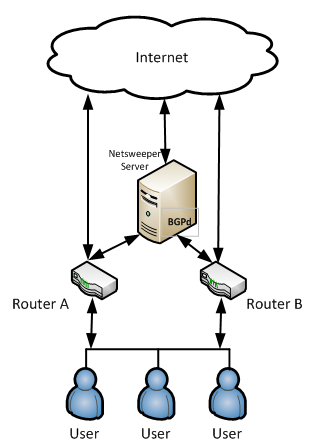
The BGP and Routes Advertising Service (RAS) allows the broadcast of routing information to upstream routers to perform selective filtering based on list information. By default, this advertisement is completed through the BGP protocol. The purpose of the route broadcasting is to only forward the potential requests that require filtering through the Netsweeper server rather than all the requests. This is done by forwarding all the requests to a specific server’s IP address through Netsweeper for inspection. If the specific URL, path included, needs to be blocked, only this single request will be blocked.
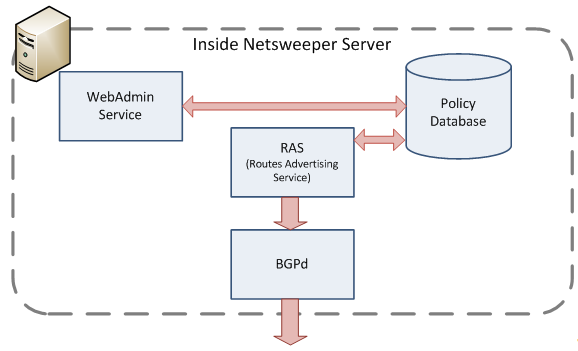
Routes Advertising Service Operation
The Routes Advertising Service is responsible for checking the enabled lists and performing DNS resolutions of the entries in the enabled lists. Only specific entries are used from the enabled Lists and even of these entries only entries with no explicit wildcarding in the hostname are used. IP Address hostnames are not resolved but simply added to the route broadcasting information.
The Routes Advertising Service performs these basic steps:
- Monitors for database changes and perform DNS resolution
- Refreshes DNS lookups based on Time to Live (TTL) on DNS entries
- Retries failed lookups that could not be resolved
- Exports configurations to the specific routes service
- Restarts the routing service, like BGP to broadcast routes to Peers
When any information is updated, or new information is available to push to the upstream peers, Netsweeper will broadcast the new IP information to the Peers via a routing protocol like BGP.
The following details how the routes service performs the three main tasks to manage the DNS and IP address information.
1. Monitors database changes
o Additions to enabled Lists
o Deletions from enabled Lists
o Changes to enabled Lists
o Changes to the Router configuration
2. Checks the expiration time of DNS lookups and performs refresh DNS lookups.
3. Retries DNS lookups for hostnames that could not be resolved
(a) Syntax of hostname is wrong, due to wildcards
(i) We do not attempt resolution
(b) Temporary DNS resolution problems, timeouts, etc.
(i) Retries every 5 minutes
(c) Permanent issue, like domain does not exist, no root server
(i) Retries every hour
4. Export configuration to specific routes service
(d) All IP Information is exported to the configuration file
(e) This is configurable in the WebAdmin UI
5. Restart routing service, like BGP to broadcast routes to Peers
(f) Service restart command is run, default is service bgpd restart
SNMP
The SNMP service on a Netsweeper node provides monitoring and system metrics used by the Master WebAdmin node and can be integrated with third-party monitoring solutions. The SNMP service on a Netsweeper node does not provide alerting or alarming functionality without integration with a third-party monitoring solution.
Proxy
The Proxy service on a Netsweeper node provides traffic interception to the Policy Service for categorization and filtering verdicts. The Proxy service can also provide proxy authentication services to filtered client workstations in order to facilitate per-user filtering.
The Sendmail service on the Netsweeper system provides mailing services that are used by other Netsweeper services. This includes sending reports, WebAdmin notifications and other monitoring information.
Web Server
The Apache Web Server provides the WebAdmin GUI to administrators via their web browsers. It can also serve deny pages, the Netsweeper Configuration Manager, the WebUpgrade tool, the Web Cluster tool, reports, etc. The Apache Web Server allows a Netsweeper node to serve any web pages it needs to, to any browser for administration, configuration and even deny pages.
Services Outside of the Netsweeper Server
Workstation Agent Utility
You can use the Netsweeper Workstation Agent utility to associate the IP address of the workstations on your network with their LDAP user information. This utility can also import other useful configuration information, such as how you want to handle multiple users with identical IP addresses or single users logging on to multiple workstations concurrently. Without special instruction on these matters, Netsweeper will return an error message when these events occur. Please see the document ‘Configuration – Workstation Agent Utility’ for more information.
Client Filter
The Client Filter acts as a thin-client interceptor that is installed on filtered workstations and laptops that may roam outside the filtered network. Netsweeper supports a Windows Client Filter as well as a Mac Client Filter.
If you are deploying the Client Filter with multi-server Netsweeper deployment, make sure that the liger_webadmin_url is the same on all your Netsweeper policy server installations. This setting must point directly to the WebAdmin server and be identical for all your Netsweeper Policy Server instances. If you fail to configure this, the Uninstall Password recovery tool and other features may not work properly. The Profile Manager requires that this setting be identical.
For example, the setting liger_webadmin_url http://serverName:port/webadmin may be set to the following:
liger_webadmin_url http://demo.netsweeper.com/webadmin
Supported Server Configurations
This section will outline common multi-server configurations and their considerations. Typically, the Netsweeper Server operating system is configured to provide four types of functionality:
- · Single Server
- · WebAdmin Server
- · Policy Server
- · Logging/Reporting Server
The following sections will outline these configurations, enabling the well-informed architecture planning and deployment of the many permutations of filtering platforms that can be created.
Single Server Deployment
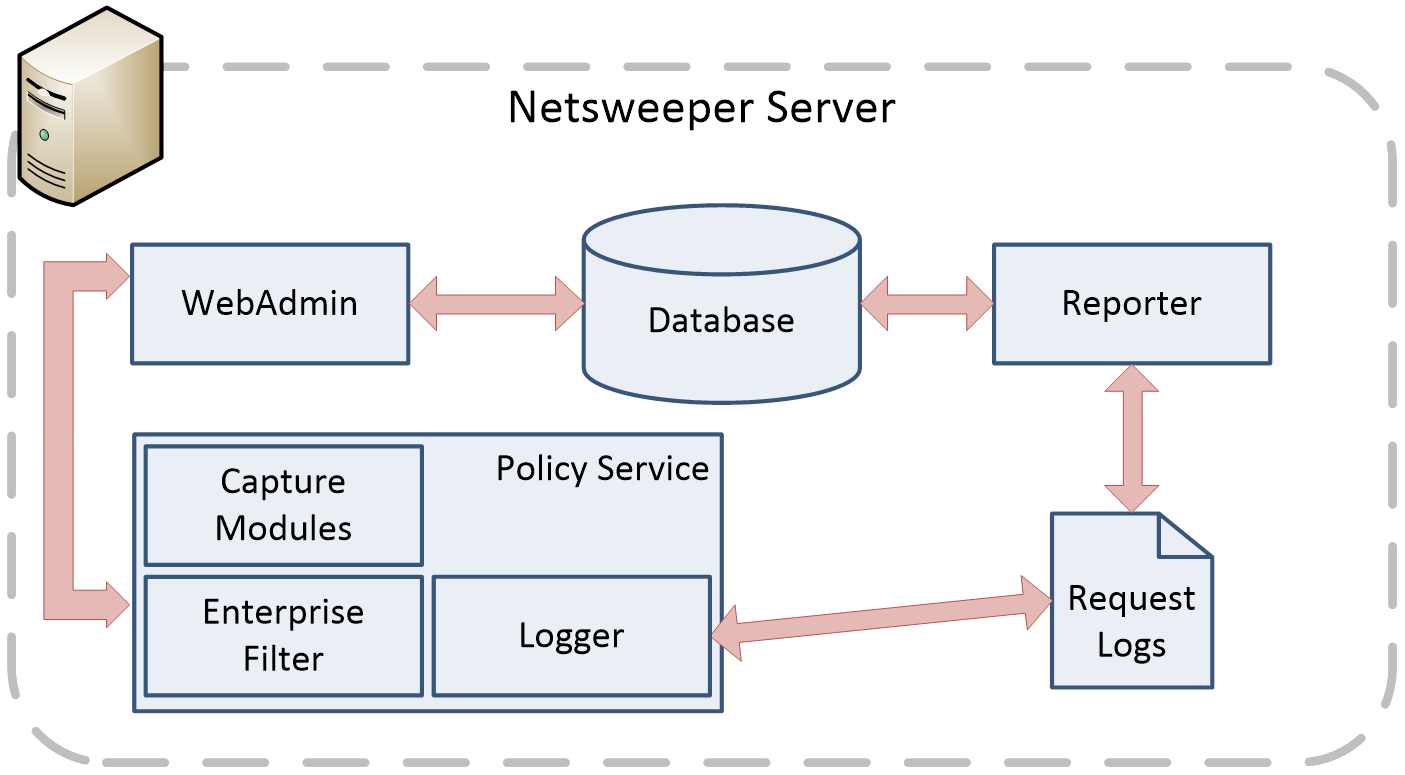
A single Netsweeper Server can provide all filtering service for small deployments with minimal bandwidth and performance requirements.
A clear understanding of a single Netsweeper Server and its initial configuration is very important.
The initial configuration of a single Netsweeper Server must be completed for every server in a multi-server deployment.
For information on configuring a standard Netsweeper Server, which is required before the multi-server configuration takes place, please see the document:
Configuration - Installing Netsweeper in a Single-Server Environment
WebAdmin Server
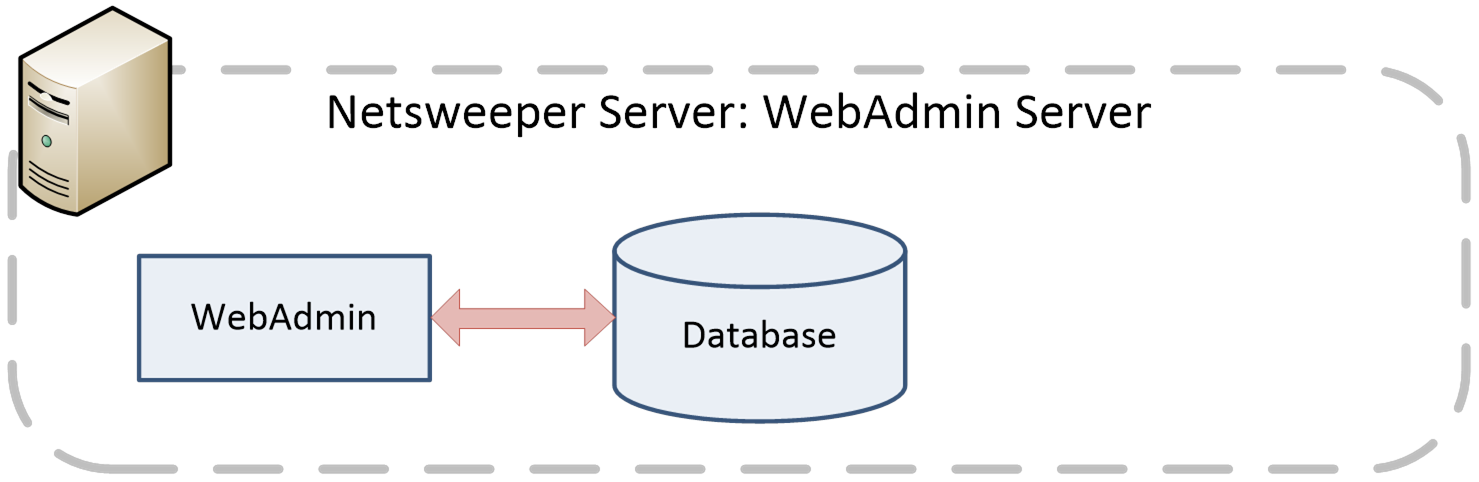
A WebAdmin server is a server that provides the administrative interface, and database, to a distributed Netsweeper filtering platform.
Configuration
Disable Policy Service
- The WebAdmin server will not be filtering traffic or performing any policy processing.
- Disable Reporting Service
- The WebAdmin server will not be scraping log files or generating any reports.
- Disable Logging Service
- The WebAdmin server will not be receiving any log entries or logging filtered requests to disk.
- Disable Capture Modules
- The WebAdmin server will not be intercepting any traffic.
Considerations
RADIUS
- When provisioning filtered subscribers via integration with RADIUS, Accounting packets must be proxied directly to the WebAdmin server.
Directory Sync
- When filtering client workstations on a per-username basis via integration with an LDAP domain controller, the Directory Sync service must be enabled on the WebAdmin server. By default, the sync interval is set to 10 minutes.
BGP/RAS
When advertising routing information with neighboring BGP routers, the BGP and RAS services must be enabled on the WebAdmin server. These services should only be enabled with the Policy Servers and are useless if the Policy Server is disabled on this host. The purpose of BGP/RAS is to "attract" filtered traffic to the box where they are running and therefore allowing the Capture Module and the Policy Server to filter this traffic. If the box is a WebAdmin only and the Policy Server is stopped, it is useless to attract any filtered traffic to this box because there is nothing that would filter that traffic.
| Service | Required | Notes |
|---|---|---|
|
Policy Server |
Disabled |
|
|
NSEF |
Disabled |
|
|
Reporter |
Disabled |
|
|
Directory Sync |
Enabled |
If not required, recommended to disable. |
|
WebAdmin |
Enabled |
|
|
Proxy |
Disabled |
|
|
Port Mapping |
Disabled |
|
|
Database |
Enabled |
|
|
Radius |
Enabled |
If not required, it is recommended that you disable. |
|
|
Enabled |
Proper setup does not require this. |
|
SNMP |
Enabled |
|
|
BGP |
Disabled |
|
|
RAS |
Disabled |
|
Dedicated Policy Server
A dedicated Policy Server provides policy transaction processing to large, multi-server deployments, providing high-bandwidth filtering.
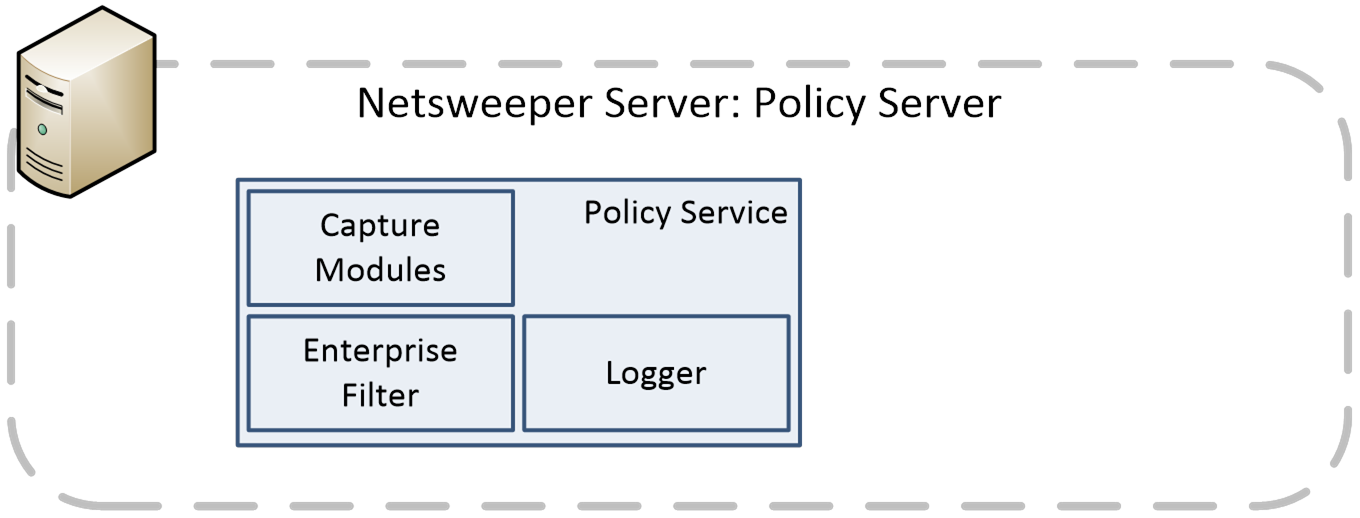
Configuration
Disable WebAdmin
The Policy Server will not be serving the management interface.
Disable Reporting Service
The Policy Server will not be scraping raw log files or compiling reports.
Enable Logging Service
The Policy Server will be logging to the dedicated logging and reporting server.
Optionally Enable Capture Modules
The Policy Server must intercept subscriber traffic. Consult your configuration documentation for details on Capture Module configuration.
Considerations
Consult your deployment documentation for details on how your policy server will intercept traffic for policy processing. If you have any questions about your deployment documentation, please consult your Netsweeper Systems Engineer.
| Service | Required | Notes |
|---|---|---|
|
Policy Service |
Enable |
A dedicated Policy Server must intercept subscriber traffic. Consult your configuration documentation for details on Capture Module configuration, logging configurations, etc. |
|
Reporter |
Disable |
A dedicated Policy Server will not be scraping raw log files or compiling reports. |
|
Proxy Service |
Optional |
The Policy Server must intercept subscriber traffic. Consult your configuration documentation for details on which service will be used to intercept traffic. |
|
WebAdmin |
Disable |
A dedicated Policy Server will not be serving the management interface. |
|
Directory Sync |
Disable |
A dedicated Policy Server will not be synchronizing with a Directory Server of any kind. |
|
Port Mapping |
Optional |
A dedicated Policy Server must intercept subscriber traffic. Consult your configuration documentation for details on which service will be used to intercept traffic. |
|
Database |
Disable |
A dedicated Policy Server will load the database of groups, policies, clients, etc. from the master WebAdmin Server. |
|
Radius |
Disable |
A dedicated Policy Server will not receive RADIUS accounting messages. Subscriber provisioning occurs on the master WebAdmin Server. |
|
|
Disable |
A dedicated Policy Server will generally not send mail. |
|
SNMP |
Enable |
A dedicated Policy Server must respond to SNMP requests from the master WebAdmin Server to meet monitoring requirements. |
|
BGP |
Optional |
A dedicated Policy Server must intercept subscriber traffic. Consult your configuration documentation for details on which service will be used to intercept traffic. |
|
RAS |
Optional |
A dedicated Policy Server may intercept subscriber traffic based on route advertisement information. Consult your configuration documentation for details on which service will be used to intercept traffic. |
Logger/Reporter Server
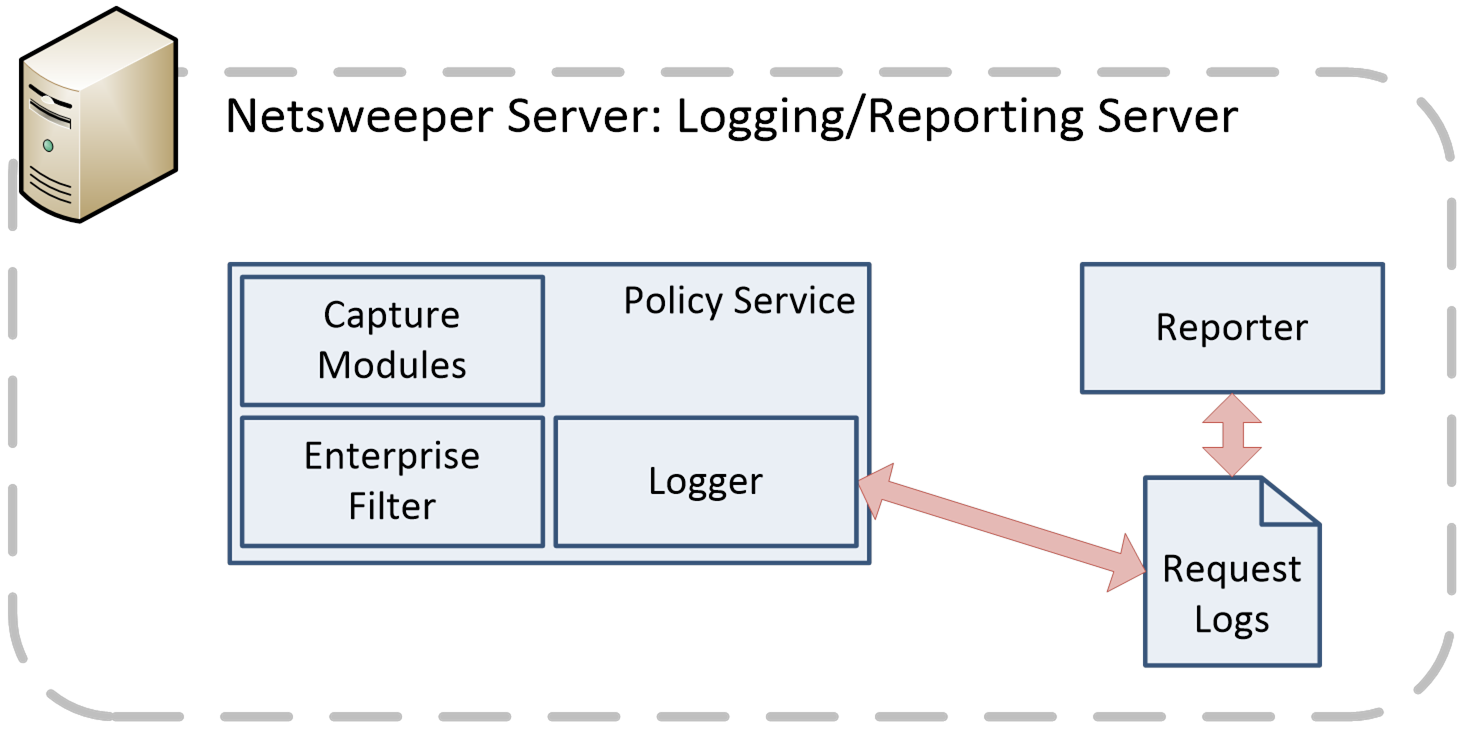
The logging and reporting architecture allows for multiple reporting servers to work together to generate reports. All servers share the same reporter database but have their own local set of request logs and save the report instances locally.
The logmod5 framework changes the way that logging is done locally and remotely in the policy server 2.6.29.14 and above. It is important to specify which nodes you want and how they are connected and configured.
Configuration
The reporter also needs access to the database, which generally resides on the WebAdmin server.
See the documents: ‘Configuration - Netsweeper LogMod5 and ‘Overview - Policy Server Logging with LogMod5’ for more specific information. The table below outlines some options to consider when using these documents.
Enable Policy Service
The dedicated logging and reporting service will be receiving log entries from the policy servers in the deployment via the policy service on port 3000, by default.
Enable Logging Service
The dedicated logging and reporting service will be logging to the disk.
Enable Reporting Service
The dedicated logging and reporting server will be scraping the raw log files and compiling reports.
Disable Capture Modules
The dedicated logging and reporting service will not be intercepting subscriber traffic.
Disable WebAdmin
The dedicated logging and reporting service will not be intercepting subscriber traffic.
| Option | Description |
|---|---|
|
Multiple Remote Servers and LogMod5 |
You can add more remote logging servers by adding more tcpclient nodes after the mirror node in the nsd.conf. |
|
Local Disk Logging on Policy Servers |
All data can be logged locally on each Policy Server instance and also mirrored to a remote logging server. For performance reasons you may wish to remove the local logging aspect since these logs are only used for support, troubleshooting and diagnostic purposes. |
|
Diskqueue Node for Guaranteed Remote Logging |
Diskqueue settings can create a queue. This will queue failed log entries that are sent to a tcpclient. In addition, error reporting can be configured to queue failed log entries and report them to the policy server error log indicating a critical problem has occurred. |
|
File Size Specifications and Default Settings |
It is recommended to always specify the file sizes for all node elements when possible. This will make sure after an upgrade the configuration will remain the same. Sometimes default values will change and may cause issues after an upgrade. |
|
Remote Loggers with Timer |
A timer node can be used to schedule usage of a particular remote service. |
|
Group Hash Node |
This node diverts log entries to a different downstream neighbor depending on the contents of the group field in the log entry. They can be grouped by IP, username, groupname, allowed/denied, and URL. This allows for the optimization of reports. |
Considerations
When logging over the network to a dedicated SAN device, latency can become a limiting factor.
| Service | Required | Notes |
|---|---|---|
|
Policy Service |
Enable |
A dedicated Logger/Reporter Server must respond to the Policy Service’s logging protocol. Consult your configuration documentation for details on logging configurations. |
|
Reporter |
Enable |
A dedicated Logger/Reporter Server will scrape raw log files and compile reports. |
|
Proxy Service |
Disable |
A dedicated Logger/Reporter Server will not intercept any subscriber traffic. |
|
WebAdmin |
Disable |
A dedicated Logger/Reporter Server will not be serving the management interface. |
|
Directory Sync |
Disable |
A dedicated Logger/Reporter Server will not be synchronizing with a Directory Server of any kind. |
|
Port Mapping |
Disable |
A dedicated Logger/Reporter Server will not intercept any subscriber traffic via Port Mapping. |
|
Database |
Enable |
A dedicated Logger/Reporter Server will host the database of reports. The database service must be configured to grant the Master WebAdmin access to the database of reports. |
|
Radius |
Disable |
A dedicated Logger/Reporter Server will not receive RADIUS accounting messages. Subscriber provisioning occurs on the master WebAdmin Server. |
|
|
Enabled |
Mail service should be enabled to mail reports. |
|
SNMP |
Enable |
A dedicated Logger/Reporter Server must respond to SNMP requests from the master WebAdmin Server to meet monitoring requirements. |
|
BGP |
Disable |
A dedicated Logger/Reporter Server will not require the use of a BGP routing engine. |
|
RAS |
Disable |
A dedicated Logger/Reporter Server will not require the use of a Route Advertisement Service. |
Deny Page Web Server
There are many deny page settings that can be configured for Netsweeper. If you want to utilize all the Netsweeper deny page functionality you will use the WebAdmin server to serve deny pages. For large network deployments, it is recommended that deny pages be hosted on a dedicated webserver on the network. Utilizing a dedicated Web Server for deny pages can significantly reduce WebAdmin load, and is also recommended for security purposes. Generally, most installations serve deny pages for 1% to 10% of their total filtered traffic. This may require 1 or more web servers.
There are two methods to configure the deny page host depending on your requirements. The first method can be used for almost all installations where redirection to a single URL meets their requirements. This would indicate there are no Global Deny Page rules other than the default. This would also mean no user can specify a deny page in a group or policy. If users are specifying deny pages, or multiple deny page rules are required, changing the deny_page_host is recommended.
Deny Page Redirect to URL
1. Go to Tools > Deny Pages. The ‘Deny Pages’ page opens.
2. Click the Rules tab if not already open.
3. Click
the ‘Default Deny Page’ link. The ‘Modify Global Deny Page’ displays.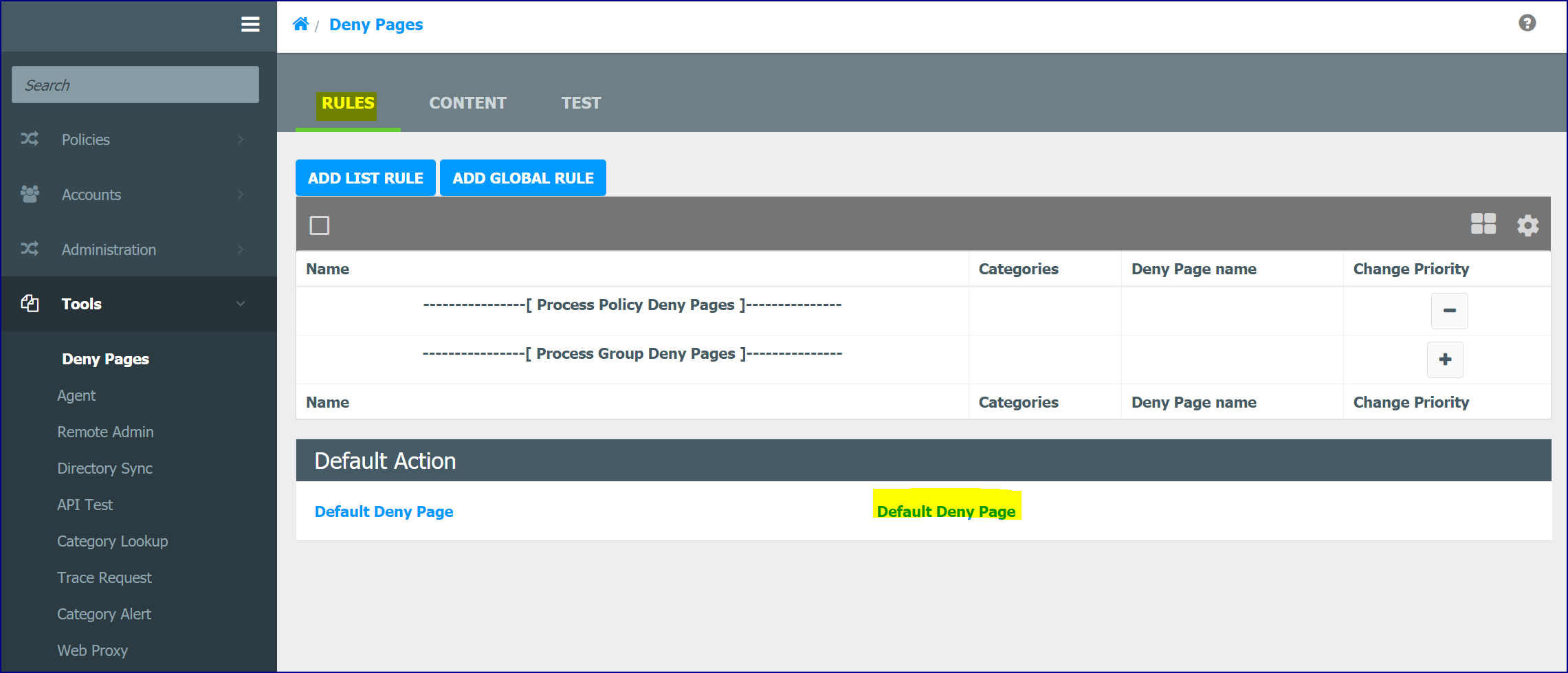
4. In
the Deny Page Options section, click ‘Redirect to URL’. The page changes
to display a field for the name of the dedicated webserver.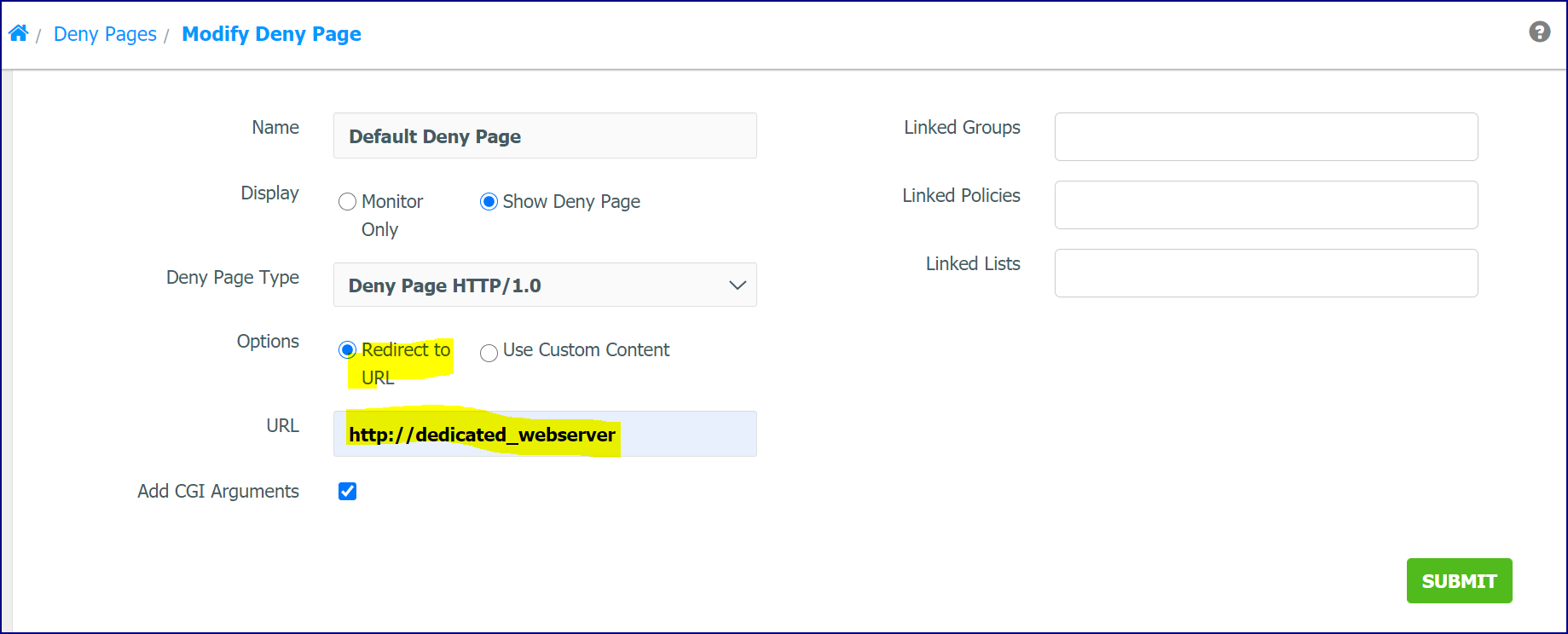
5. Enter the name of the dedicated webserver (the URL must begin with http://) and click Submit.
6. The ‘Deny page has been successfully saved’ message displays.
Setting the External URL of the WebAdmin Server for Multiple Servers
If your server is installed behind a firewall or integrates with a cache, or is a multiple server deployment, you must explicitly set the URL of the WebAdmin server to the external IP address or DNS name of the server that customers will use to adjust their filtering configurations and to load deny pages. Otherwise the deny pages may not load images or other resources. Change this field from 'Generated' to the external IP address or DNS name of the server.
Use the format http://[IPorNAME]/webadmin//
1. Go to Administration > WebAdmin Settings button.
2. Scroll
down to the ‘General Settings’ section and change the WebAdmin External
URL from 'Generated' to the external IP address or DNS name of the server.
Use the format http://[IPorNAME]/webadmin/
3. Click Submit to save this setting.
Changing Policy Service deny_page_host
The second method is to edit the Policy Service configuration on each policy service.
1. In the WebAdmin go to Administration > Services and click on the host name you wish to edit to open the Service Manager page.
2. Click on Policy Server Settings to open the ‘Policy Server Settings’ page.
3. Change deny_page_host and the deny_page_http and deny_page_https
4. See an example of the Policy Server Settings page below.
Deny page Settings
# The string $HOST in the deny_page_http and deny_page_https configuration settings is
# replaced with the deny_page_host parameter. This allows multiple policy servers to
# point to either individual deny pages or to point to a common deny page.
# The deny_page_host needs to be defined before the deny_page_http and deny_page_https
# settings are defined.
#
# The value of $HOSTNAME will use the local machines hostname value.
# If this setting is not set, it will default to the $HOSTNAME value.
# Format:
# deny_page_host filter.company.org
#
deny_page_host denypage.example.com
# Deny Page for HTTP traffic
# This define the location of the deny page for http traffic. The following information
# is passed to this deny page as GET request parameters.
# dpid
# This id of the deny page to load from the Netsweeper database.
# cat
# This contains the list of categories that will be logged for the request.
# ttl
# This is the time to live of the category. You can find out what denied the request.
# url
# This is the url that was denied by the policy server.
# groupname
# This is the name of the group the user belongs to.
# policyname
# This is the name of the time policy the user was being filtered in.
# userip
# This is the ip address of the end user as seen by the policy server.
# username
# This is the user name of the user used to associate the client to the policy
#
# connectionip
# The ip address of the surrogate device making the connection to the policy server.
# This could be the Client Filter, or other 3rd party device. This is useful for debugging purposes.
# nsphostname
# The $HOSTNAME of the policy server denying the request. This is useful for debugging purposes.
# protocol
# The request_protocol used to deny the request. This allows the # deny page to have special handling for different protocols like, # thinclient, icap, etc.
# dplanguage
# The language that should be used for the deny page. This will be the time policy deny page language or the group deny page language.
# If you are using the Netsweeper deny page (http://$HOST:8080/webadmin/deny/index.php) there are some more variables you can use in the deny page.
# $WEBADMIN_SERVER_IP
# This defines the IP address of the server the deny page was loaded from.
# $FILTER_MESSAGE
# This is a text message defining the reason why access has been denied.
# $FILTER_CAT
# This is a list of categories the site was denied for.
# $FITLER_CATINFO
# This is the category name and category description of the categories the site was denied for in the following format. catname: catinfo[catname: catinfo]
# $FILTER_DATE
# The current date on the server when the deny page was generated.
# $FILTER_ENCODEDURL
# This is the url that was denied by the policy server encoded for link embedding. Example: http://log/url=$encodedurl
# $FILTER_SHORTURL
# The url truncated to the Max Display URL Length and three dots added ...
# Format:
# deny_page_http http://$HOST:8080/webadmin/deny/index.php
deny_page_http http://$HOST:8080/webadmin/deny/index.php
# Deny Page for HTTPS traffic
# Secure webpages operate differently than unsecured webpages. When a browser makes a
# connection to a secured webpage, the header requests contains nothing but a request
# to make a connection. Than a secure connection is created between the browser and
# the webpage. Any information transferred after the connection cannot be viewed,
# therefore it's not possible to see what file the browser is requesting. The
# Netsweeper is only able to intelligently block a secure request on the first
# connection to the webserver. Since the connection types are different, the only kind
# of block page that can be displayed is another secured block page. Unfortunately, no
# specific information about the type of block can be delivered. The following
# parameter tells the nsd where to redirect the connection to.
# Format:
# deny_page_https $HOST:443
#
deny_page_https https://$HOST:443
Deny Pages from WebAdmin
Depending on your requirements, the deny_page_host may be equivalent to the webdb_host. This means the WebAdmin Server would host both the management interface and the deny pages being served to block client workstations. This can be configured in Administration > Service. Click on Policy Server Settings for the Host you wish to edti.
Client Abuse System Deny Pages
If you wish to use the 'Client Abuse System' the WebAdmin must host the deny page. This is a requirement for the Client Abuse system to function properly.
Deny Page Rules and Custom Deny Pages
If you wish to use the Deny Page Rules and Custom Deny Pages the WebAdmin must host the deny page.
Policy Service Settings for Multiple Servers
A common configuration of the Netsweeper filtering platform is to have a dedicated WebAdmin server with many Policy Servers. This requires that the Policy Server is able to load its configuration database from the central WebAdmin, using the WebDB (Web Database) API.
To configure a Policy Server to load its configuration database from a remote server, the following policy service configuration setting must be modified:
webdb_host webadminServerIPorName
It’s important to remember to list this Policy Server as a valid Request Server in the WebAdmin under Policy Management > Request Servers.
It is always recommended to have the deny_page_host setting the same as the webdb_host in all installations. The only other recommendation is to have the deny_page_host set to a remote web server that can handle the deny page load.
The Delay Framework
The delay framework refers to how the WebAdmin WebDB API process works, and how the timing of 'WebDB Settings' checks work.
1. Policy Service calls WebAdmin WebDB API
2. WebAdmin WebDB API checks the Database for changes
3. If changes are found RETURN CHANGES
4. WebAdmin WebDB API checks total time spent
5. if webdb_applysettingscheck_web_totaltime expired we RETURN nothing
6. WebAdmin WebDB API returns changes
7. Waits for webdb_applysettingscheck_web_delay
8. Then go to step 2
WebDB (Web Database) Settings
Webdb_download_canfail
This will make sure the Policy Server remains online even if the WebAdmin is not available to load the configuration. During a failure, the local cached database is used.
This setting can be enabled if you wish to have the Policy Server remain online even when the WebAdmin is not accessible to load the database from. The default value is true, or 1.
This setting can be disabled if you wish to stop the filtering of subscriber traffic if the WebAdmin becomes inaccessible.
Format:
webdb_download_canfail {true|false}
webdb_host
This changes the $WEBDBHOST variable in the webdb_url setting. This is the recommended setting to change the remote host the Database is loaded from. The default value is localhost. When multiple Policy Servers are deployed, the webdb_host is the Master WebAdmin server.
Format:
webdb_host HOSTNAMEorIPADDRESS
webdb_applysettingscheck_delay
This setting defines how often a Policy Server communicates with the webdb_host. This defines the delay in milliseconds between checks with the Web Database API (residing on the WebAdmin) for updates. The default value is 1 second or 1000 msecs. For deployments with multiple Policy Servers, we recommend a delay of 1 minute or more between checks. A longer delay will reduce load. When changing this setting it is recommended to change the webdb_applysettingscheck_web_delay and the webdb_applysettingscheck_web_totaltime to appropriate values.
Format:
webdb_applysettingscheck_delay msecs
webdb_applysettingscheck_web_delay
This setting defines how the WebAdmin WebDB API behaves defined by the webdb_host setting. This setting defines the delay in milliseconds to check settings updates from the Web API to the underlying database. Its default value is 3 seconds. The WebAdmin WebDB API will check the database for changes every webdb_applysettingscheck_web_delay interval until the webdb_applysettingscheck_web_totaltime has been reached. We recommend leaving this setting as is.
Format:
webdb_applysettingscheck_web_delay msecs
webdb_applysettingscheck_web_totaltime
This setting defines how the WebAdmin WebDB API defined by the webdb_host settings behaves. This setting defines the total time in milliseconds the WebAdmin WebDB API can consume in one call to poll the database for changes. The default value is 1 minute. For deployments with multiple Policy Servers, we recommend web_totaltime be reduced to zero in addition to increasing the webdb_applysettingscheck_delay to the frequency you wish to poll for database changes.
Format:
webdb_applysettingscheck_web_totaltime msecs
High Availability
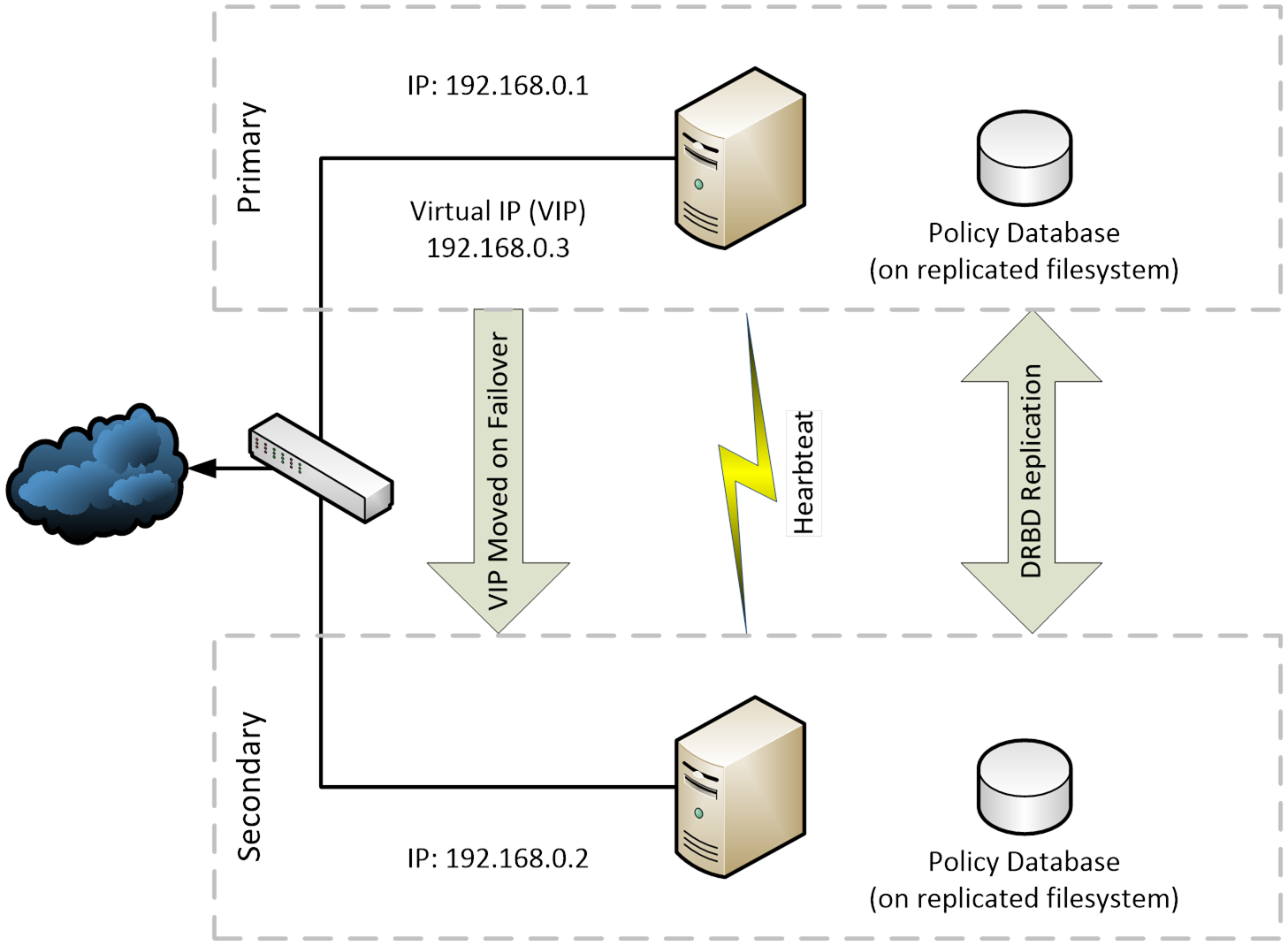
A High-availability web cluster is two connected computers working together and seen as a single system. It creates redundant groups or clusters to provide continuous service and failover capabilities to utilize a minimum of downtime. Each node has its own IP as well as the Virtual IP (VIP) that can be migrated to the other node either through a failure of the active node or as an administrative action. DRBD is used to replicate services between the servers, and these services are monitored using Heartbeat.
For high availability, you should also change the failure method to shutdown. When a critical failure occurs, the Policy Server will shutdown instead of serving a deny page indicating the nature of the failure. This method should be used when multiple Policy Servers are used in a high availability configuration.
webdb_failure shutdown
You can also change the GLOBAL failure mode by changing the failure setting.
failure shutdown
A critical failure can be caused by a webdb error (unable to load data), logger critical error (can't write logs), or invalid serial.
Remote Admin Access Control
Although Remote Administration Access Control is part of the Policy Server Settings, these settings apply to all nodes in a Netsweeper filtering platform, regardless of their dedicated function.
The Master WebAdmin server must be able to communicate to all nodes in a Netsweeper filtering platform via the remoteadmin protocol over port 3434, by default.
You can edit Remote Administration access through Policy Server Settings. Remote administration is used for authentication and for several WebAdmin functions. You must list the servers by IP address or subnets, that are allowed to connect. If you add the IP address of 0.0.0.0 all servers will be allowed to connect.
Format:
remoteadmin_allow 127.0.0.1
remoteadmin_allow 12.34.56.78
remoteadmin_allow 172.16.0.0/16
remoteadmin_allow 192.168.100.0/24
remoteadmin_allow 10.0.0.0/8
remoteadmin_allow 127.0.0.1
Netsweeper's address of technical support
remoteadmin_allow 216.171.98.93
Configuration Monitoring
Remote Monitoring
This section discusses configuration options for remote monitoring of multiple Netsweeper systems within a Netsweeper filtering platform.
Request Servers and Services
For remote services to show up in the Administration > Services page, the remote servers must be set up in the Request Servers page.
Request Servers Page
In WebAdmin, go to Administration > Service Hosts tab to view, add and modify remote servers. Click the Add button to add a Service.
Adding a New Request Server
In the ‘Add Request Server’ page add the ‘Site Name’ and ‘IP Address/Range’ and then check off the server types you wish to apply to configuration. The IP address that is added must be available to the Master WebAdmin.
Remote Admin Access Control and Monitoring System Status
The nsd.conf contains settings for managing remote administration and is used for authentication and monitoring of system status in the WebAdmin. You must list the servers by IP address or subnets that can connect. If you add the IP address of 0.0.0.0 all servers will be allowed to connect.
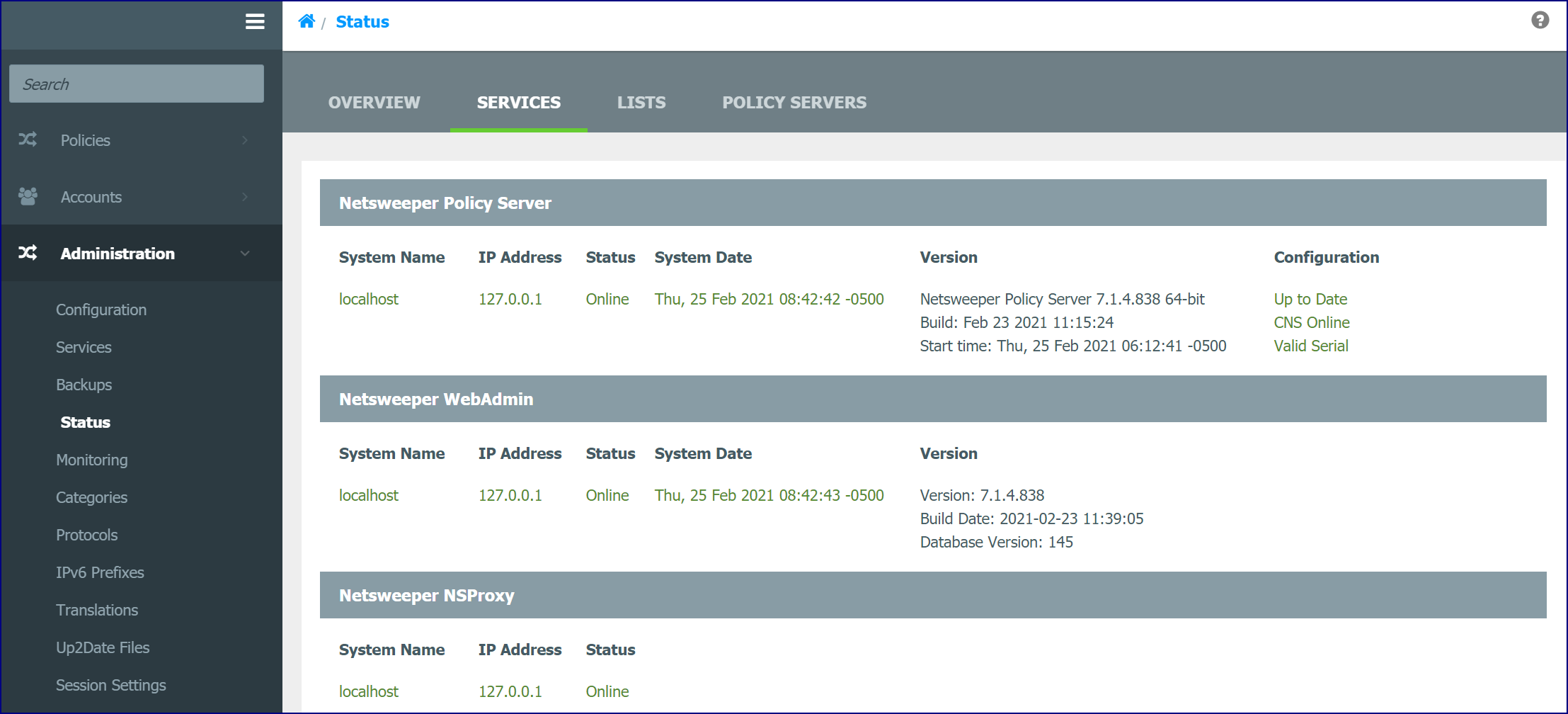
In the example below the Admin (192.168.4.63) needs to monitor the system status of a Reporter. The ‘remoteadmin_allow xxx.xxx.xxx’ with the Admin IP is added to the nsd.conf for the Remote Reporter. In WebAdmin, to view the status and statistics for the remote Reporters, go to Administration > Status and click on the Services tab.