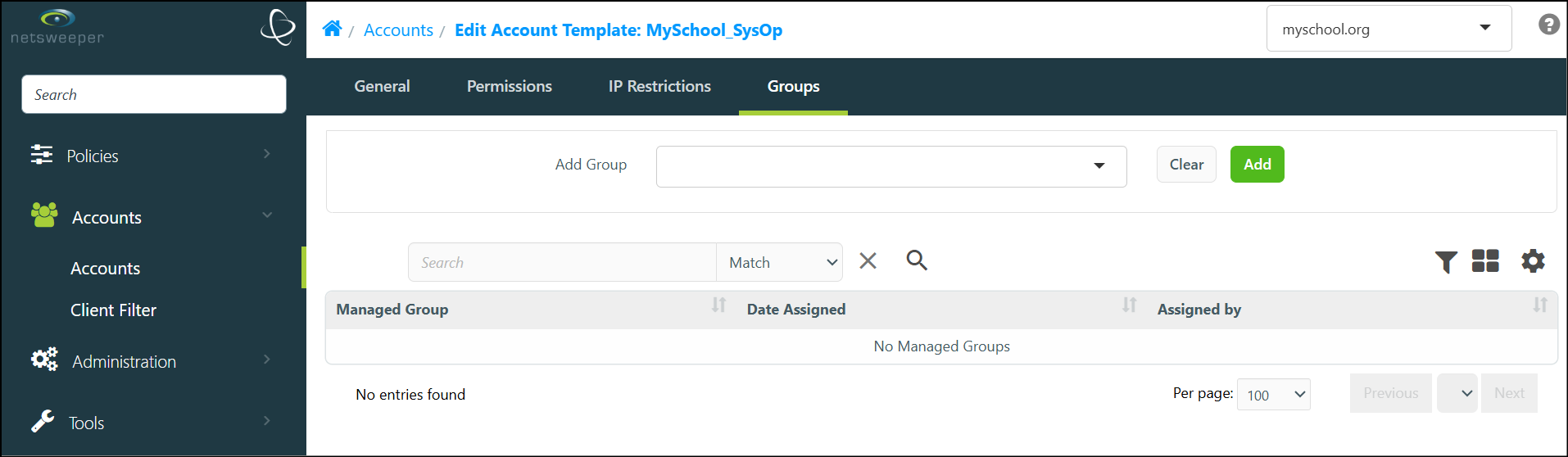
Once created, Account Templates are configured through their tabs. All Templates have 'General', 'Permissions', and 'Groups' tabs. SysOp Account Templates also have an 'IP Restrictions' tab. Each of these sections allows for management of a specific aspect of the Template.
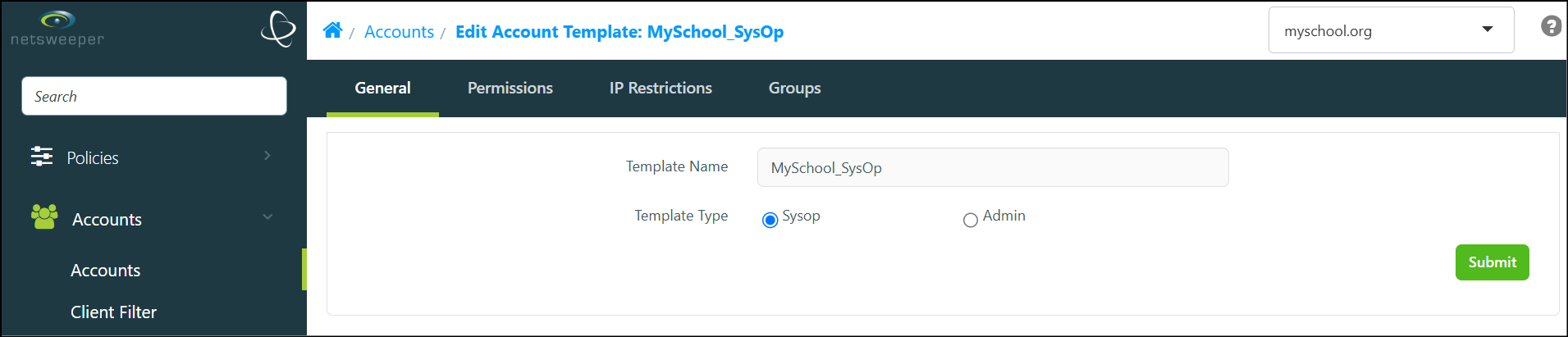
The General Tab
The General tab allows you to modify the Template Name and Template Type.
The Permissions Tab
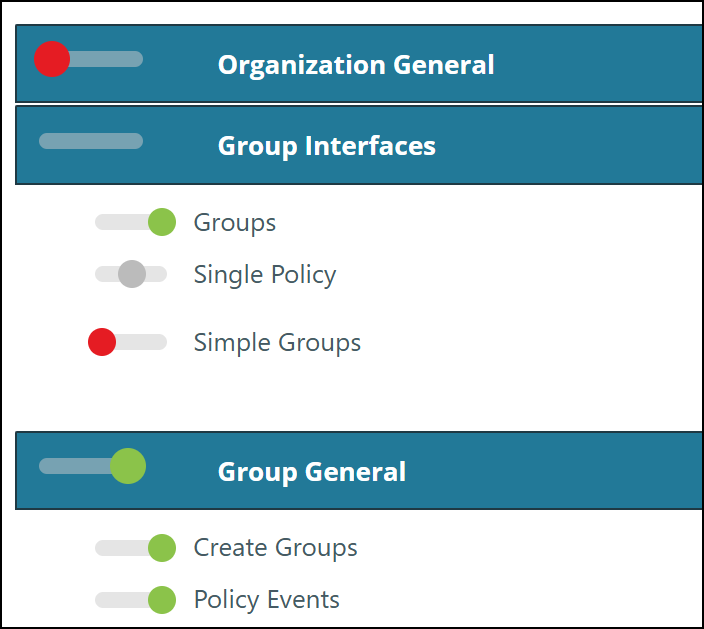
Template-based Account Permissions have three settings: Enabled, Disabled and Unset. Enabled and Disabled will be applied but Unset will be ignored. This allows for Permissions to be explicitly enabled or disabled if needed, while also leaving the option for the 'Unset' Permissions to be enabled (or not) on a per-Account basis.
There are three settings for each Permission within a Template
|
Option |
Description |
|---|---|
|
Enable: |
The green toggle button enables the permission. |
|
Unset: |
The grey toggle button unsets the permission. |
|
Disable: |
The red toggle button disables the permission. |
Copying, Importing, and Exporting Permission Templates
In addition to manually configuring the Template's Permissions, you can also choose to Copy the permissions from an existing Template, as well as Import and Export Templates. Expand the text below for instructions on these processes.
 Copying Permissions From an Existing Account Template
When you create a new Account Template, you can choose to copy the Permissions from an existing Template, instead of manually managing each of the individual Permissions.
- Navigate to Accounts > Accounts > Templates and select the Template you wish to manage.
- Choose the Template's Permissions tab.
- Choose an Account Template in the dropdown field and select the Copy from Template button to apply that Template's permissions.
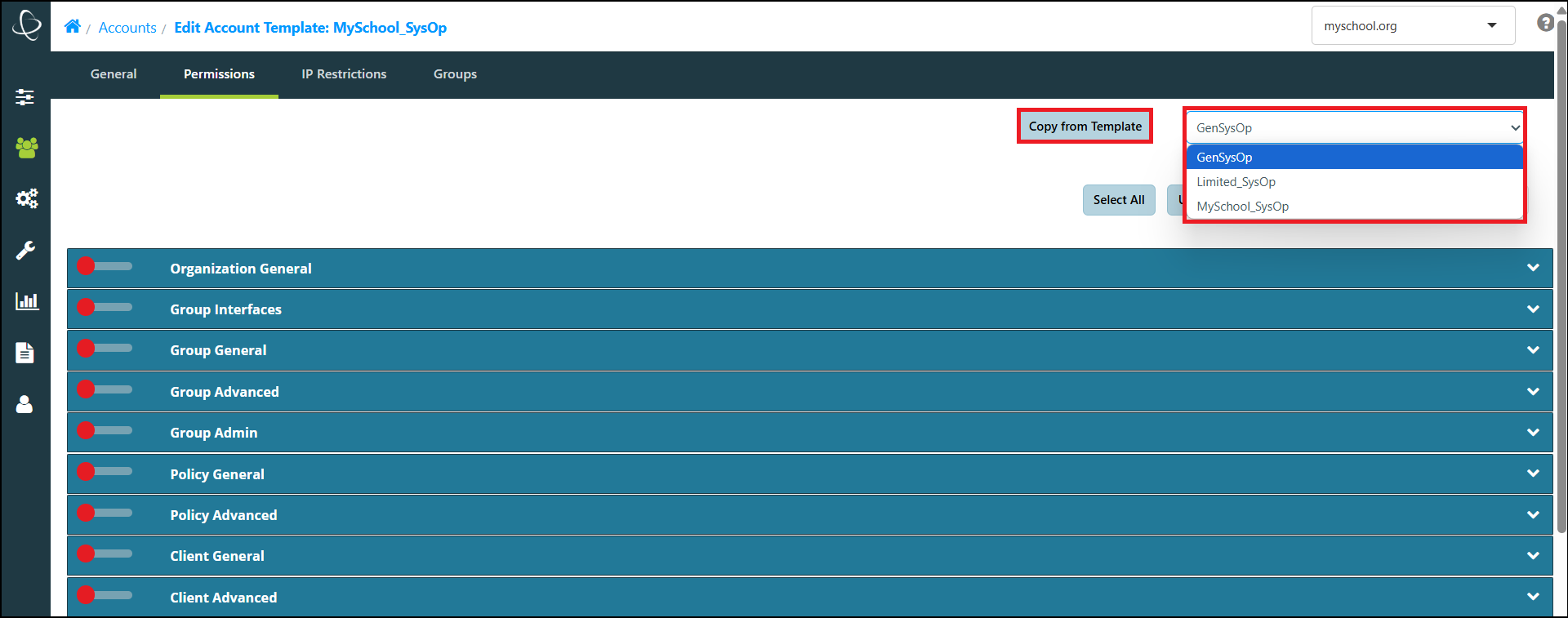
- The permissions are copied over. You can then fine-tune the Permission set for this Template, as desired.
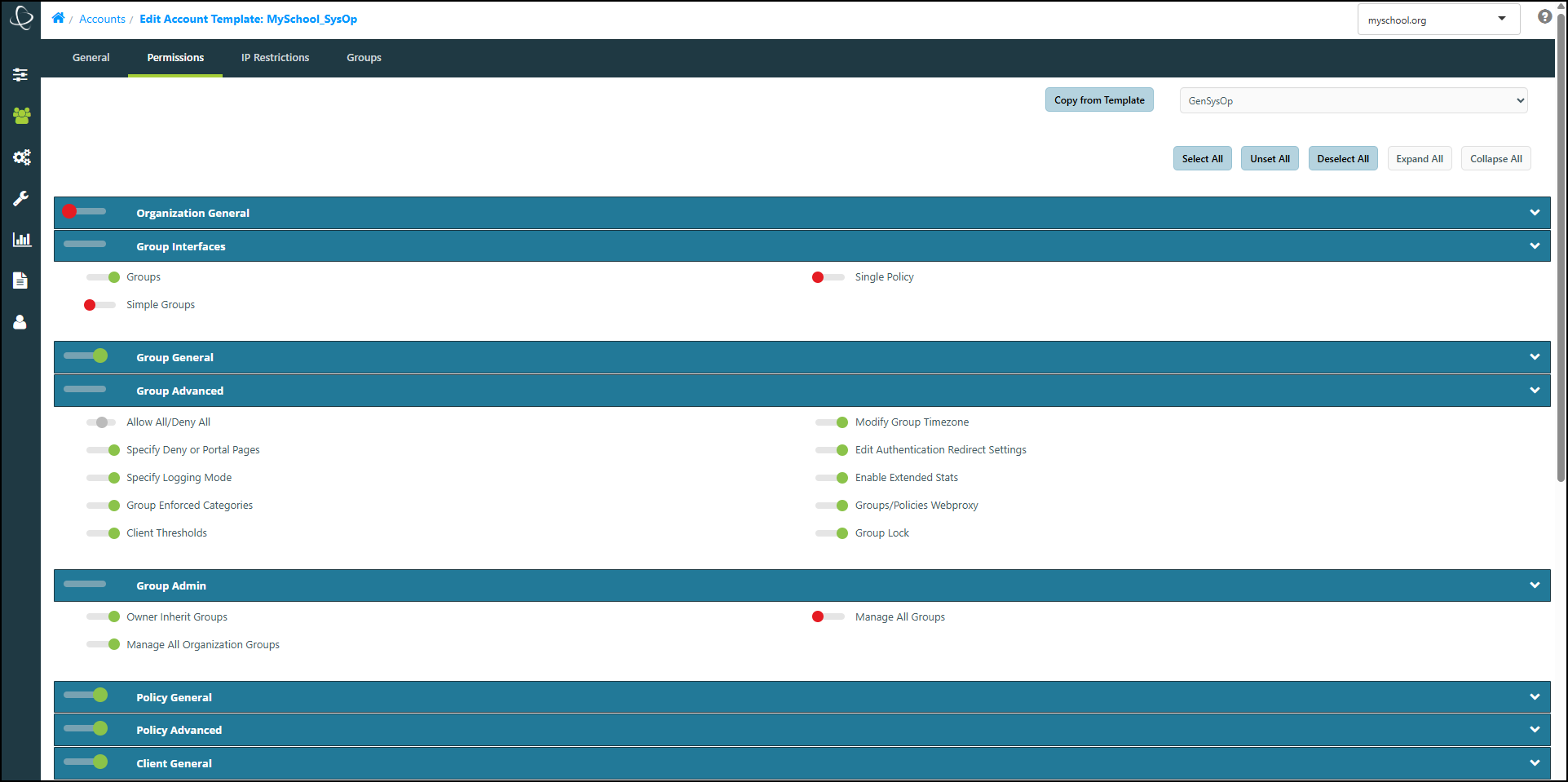
- Select the Submit button to apply your changes.
Importing and Exporting Account Template Permissions
Exporting Account Template Permissions
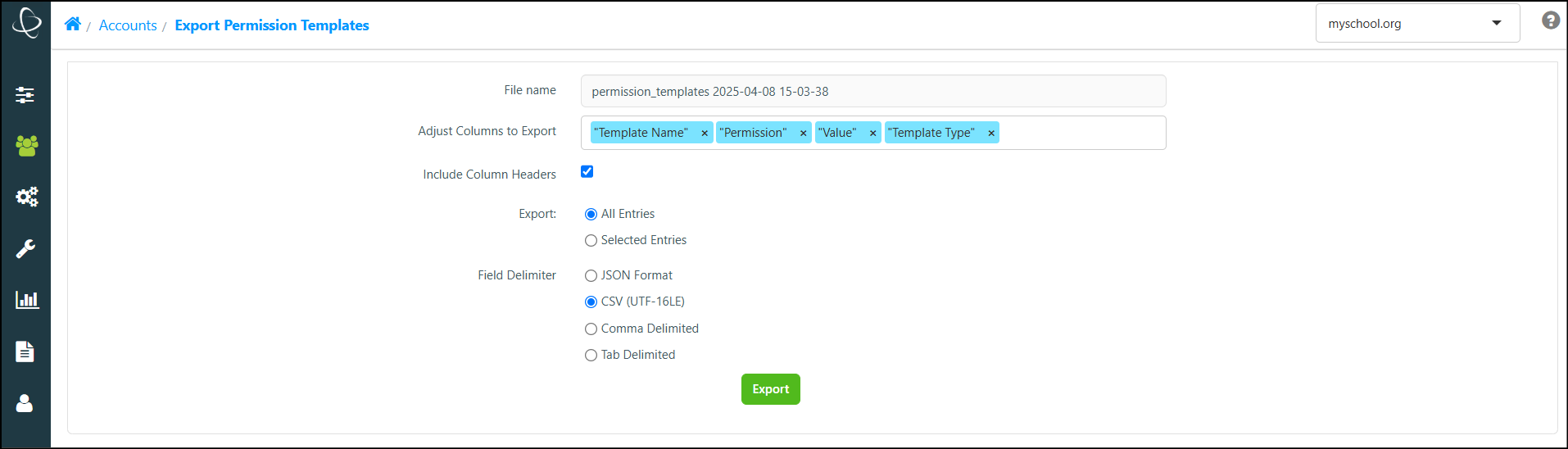
When exporting Account Template Permissions, you can choose to export all Templates or highlight certain Templates to export them only.
- Navigate to Accounts > Accounts > Templates, and select the Export button.
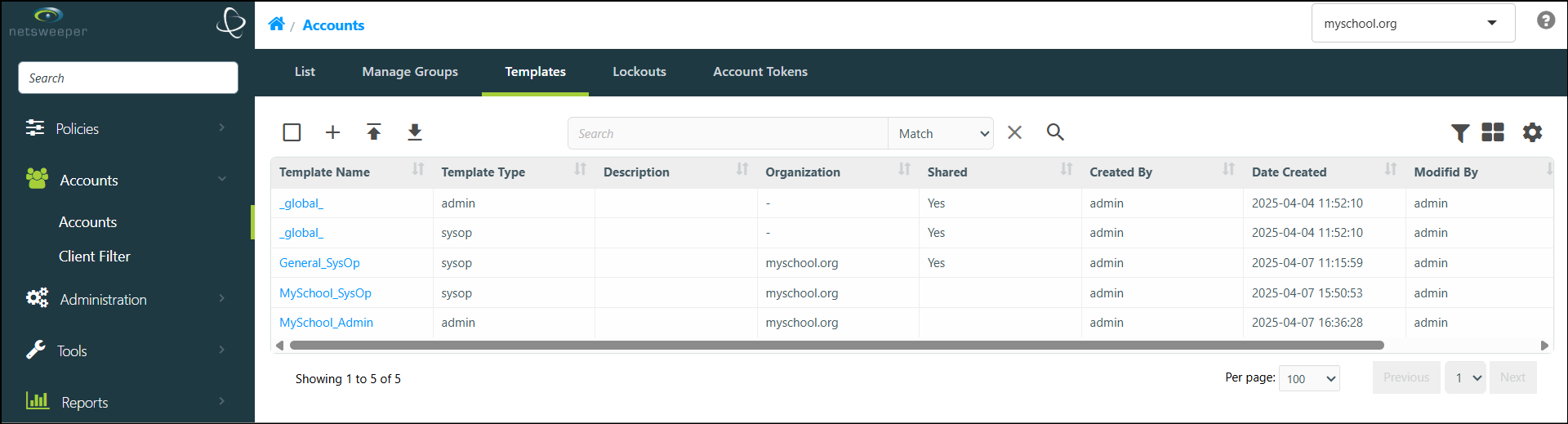
- In the 'Export Permission Templates' window, rename your export if desired, choose your export options and select the Export button to complete the export.
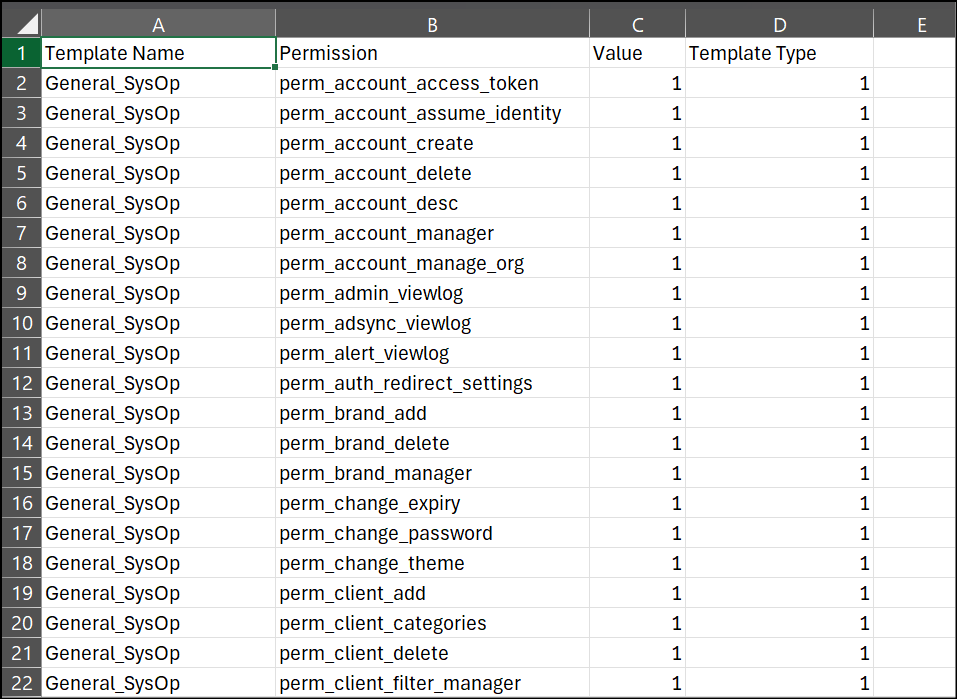
- Modify the downloaded template file as desired.
Importing an Account Permission Template
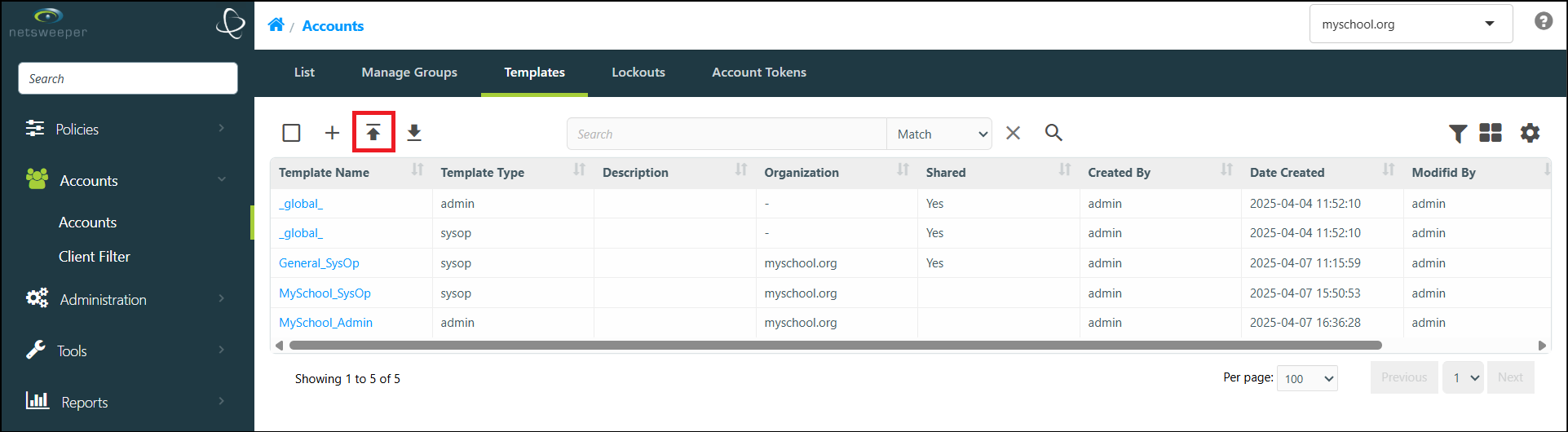
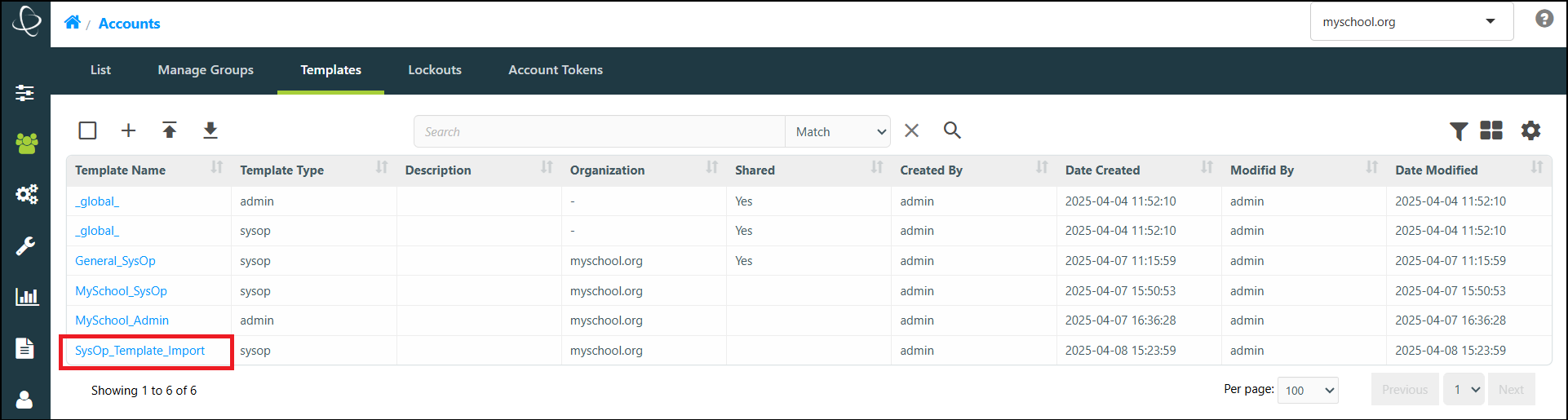
- Navigate to Accounts > Accounts > Templates, and select the Import button.
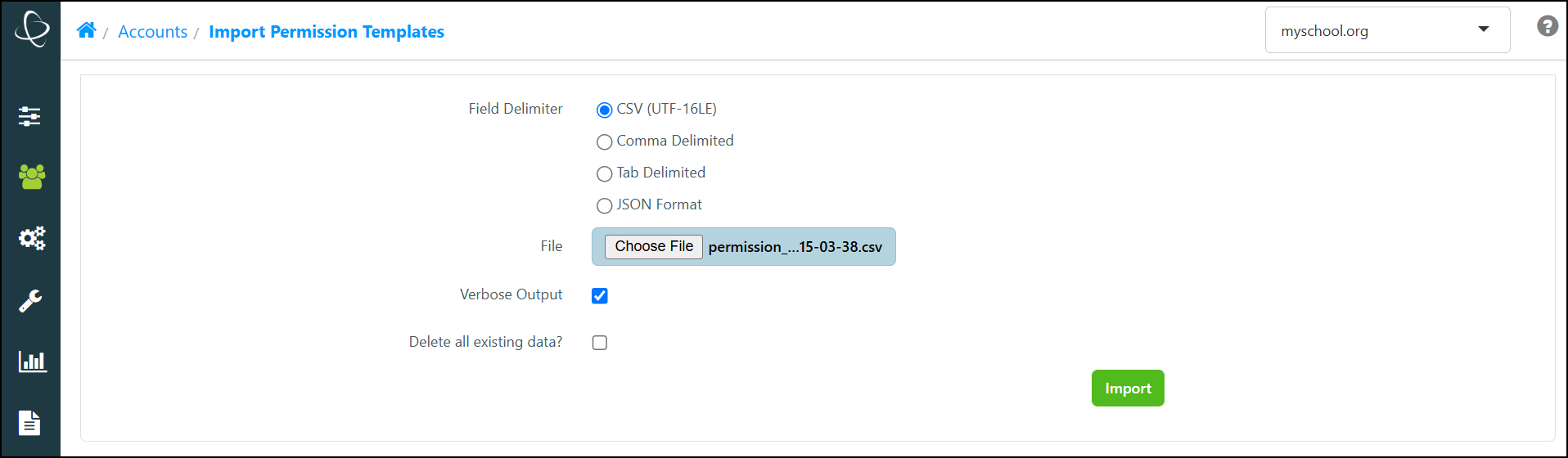
- In the 'Import Permission Templates' window, Select the File, choose your import options and select the Import button.
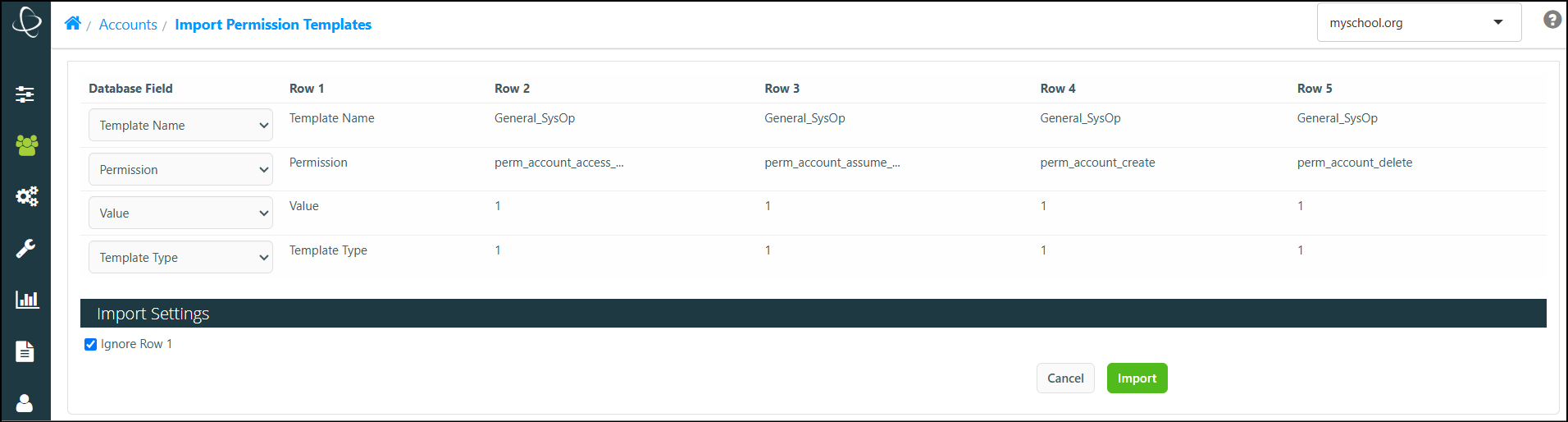
- In page 2 of the 'Import Permission Templates' window, review your import and select the Import button.
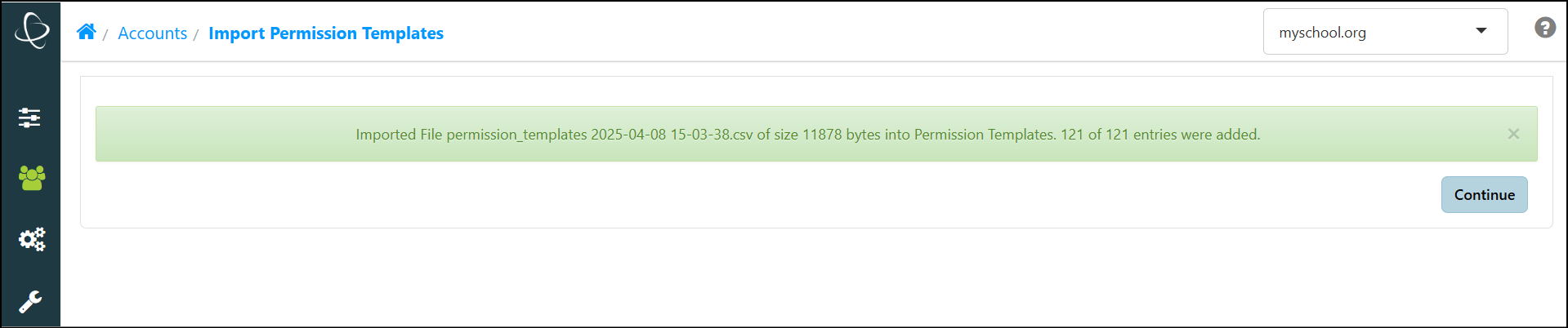
- The success window displays.
- Select the Continue button to return to the Account Templates window, where your newly imported Template has been added.
Manually Assigning Permissions
For information regarding manually assigning Permissions to an Account, please refer to our Setting Permissions for a SysOp or Admin Account documentation.
The IP Restrictions Tab
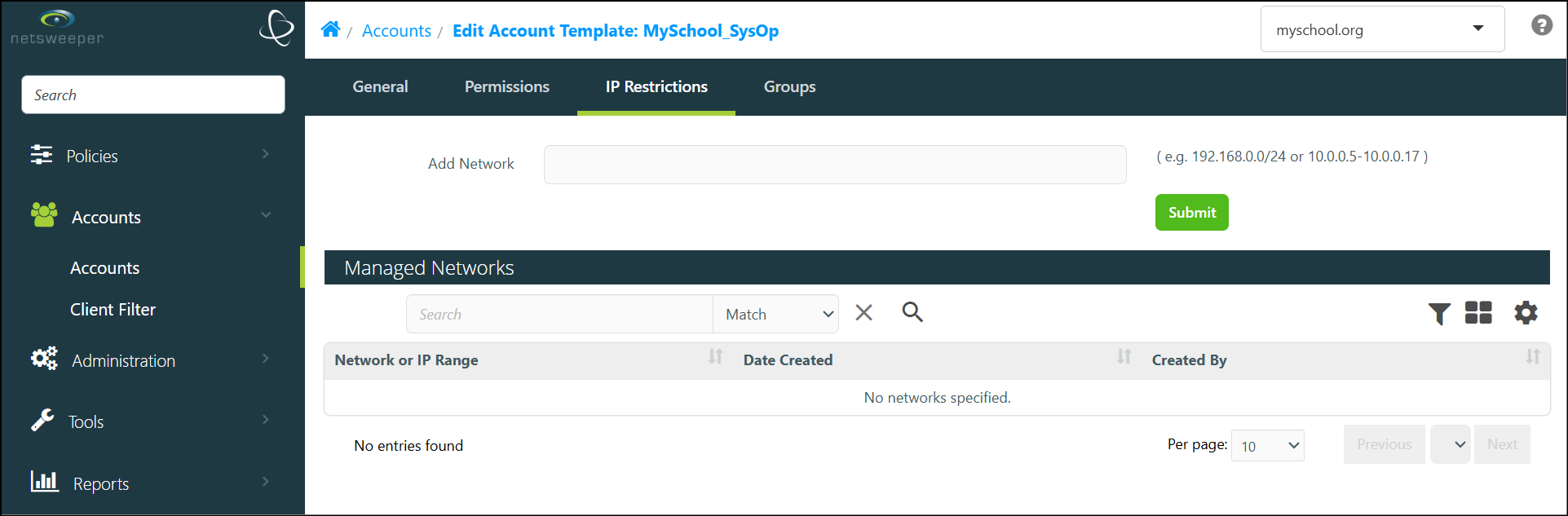
The IP Restrictions tab can restrict a Template to specific IP ranges (e.g., 192.168.0.0/24 or 10.0.0.5-10.0.0.17). This prevents the SysOp from adding network- or client-based workstations outside of this range. Please Note: This tab does not display for Admin Templates.
The Groups Tab
Use the Groups tab to assign or remove Groups from the selected Account Template, streamlining the assignment of Groups for Accounts this Template is applied to.