The URL/Keyword Local Lists are used to perform Actions for specific URLs for a selected Group policy. Only users assigned to that Policy’s Group, during times when the Policy is active, will be affected. Lists allow for any actions (allow, deny, assign a category, rewrite the whole URL).
Local Lists versus Shared Lists
Local Lists have a higher priority than Shared Lists, allowing for specific (Local) rules to override general (Shared) rules. Local Lists cannot override System Wide Lists, however, since they have the highest priority in the Policy Service Processing Order..
Local List How-To Guides
Expand the following sections for step-by-step walkthroughs on each topic.
 Enabling the URL/Keyword Local List
Enabling the URL/Keyword Local List in Group Policies
You can enable the URL/Keyword Local List by opening the Policy for a specific Group.
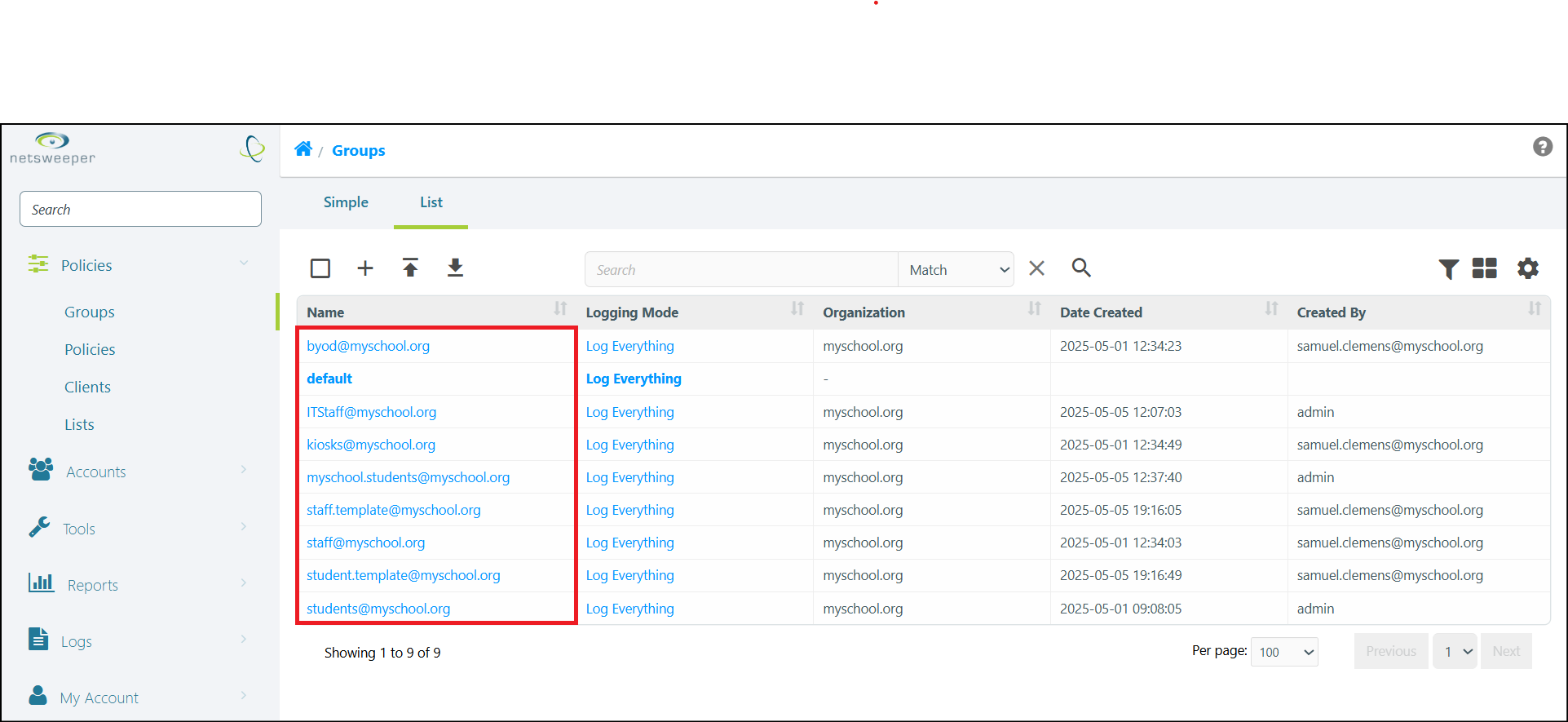
- Navigate to Policies > Groups > List and choose the Group you wish to manage.
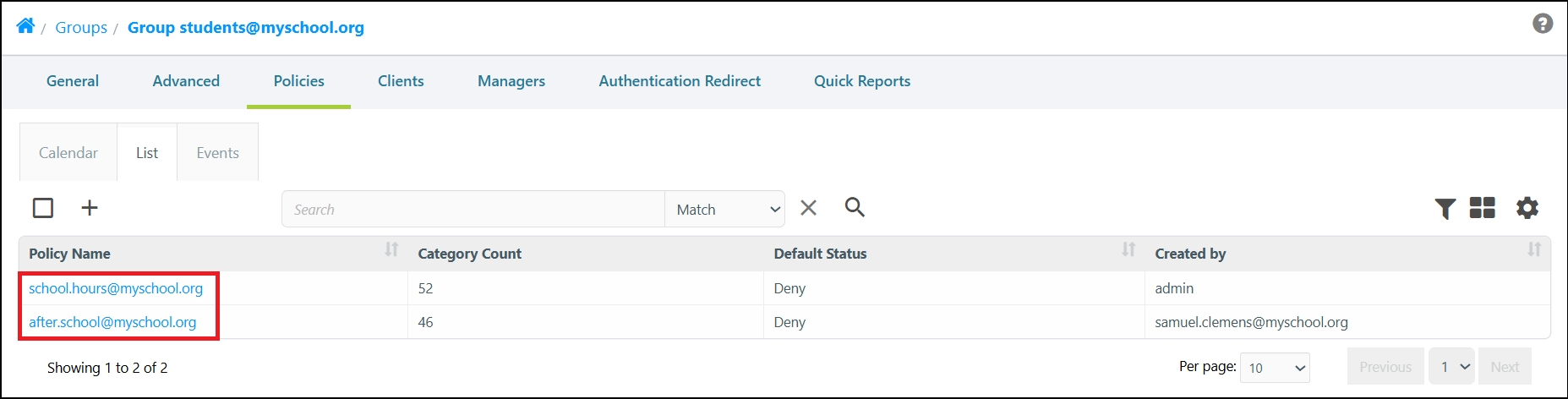
- Select the Group's Policies tab and then the List sub-tab.
- Choose the Policy you wish to edit. (Note: Many Groups only have one Policy).
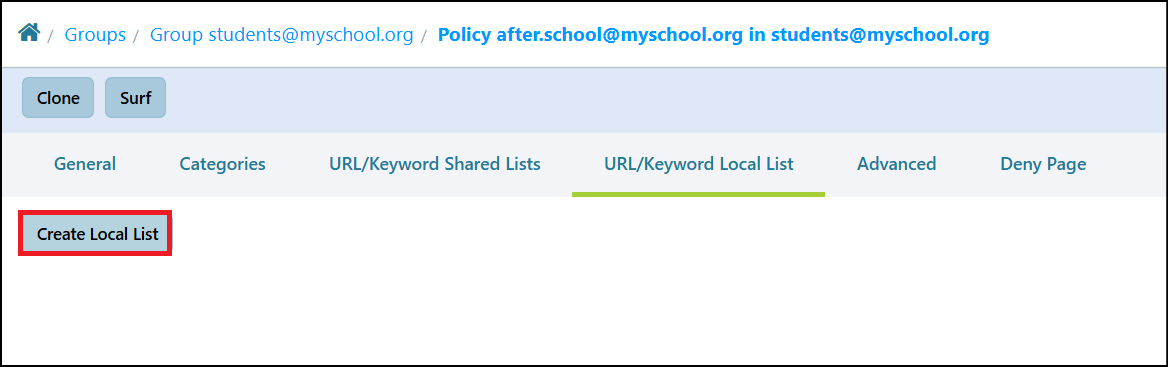
- Select the Policies' URL/Keyword Local List tab and select the Create Local List button.
The Local List Interface
The URL/Keywords Local List Interface
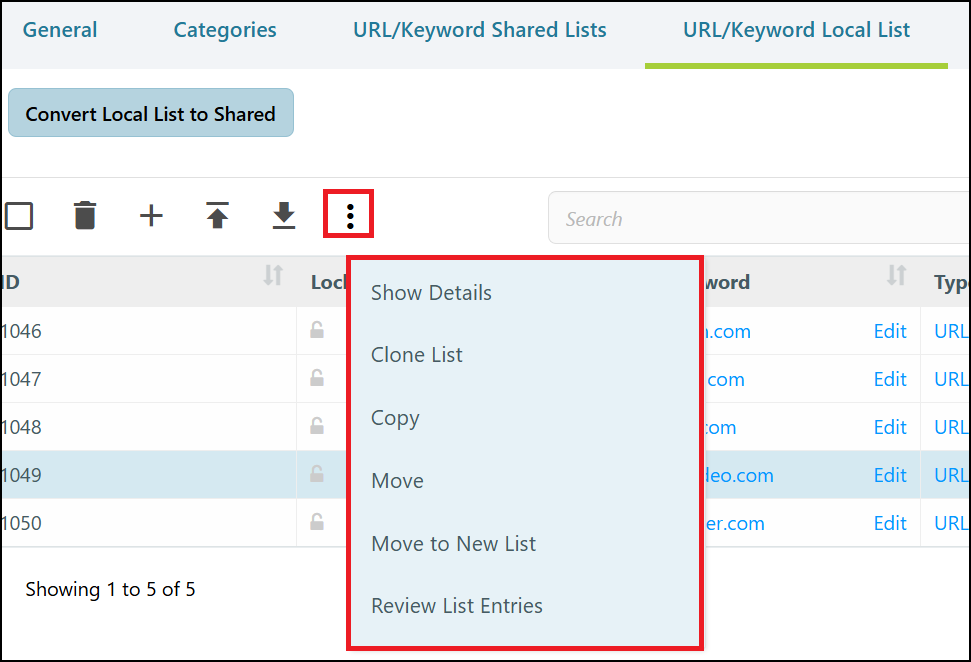
You can use the below image as a reference when navigating the URL/Keyword Local List interface. The Select All / Deselect All box allows you to select or deselect all the items in the list. The Actions icon provides additional options. The Trash icon as well as certain options withing the Action menu only display when one or more List items are selected.
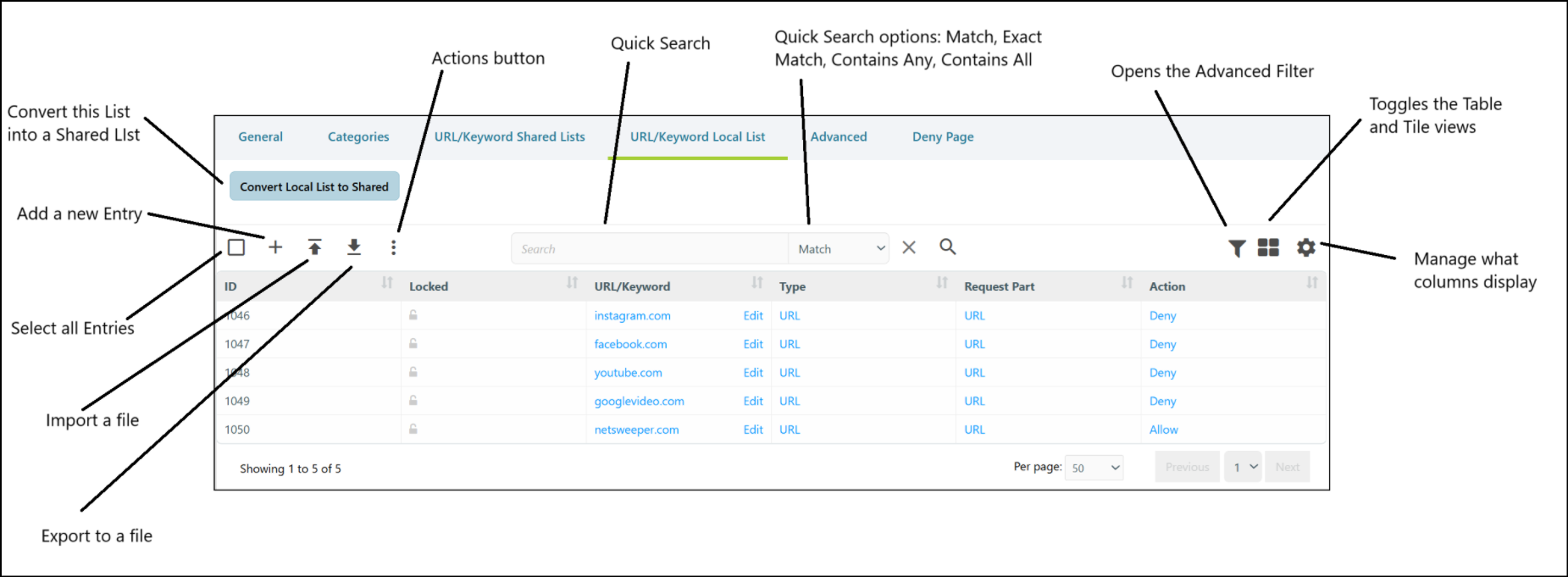
The Trash icon lets you delete the select items from the list. The Actions icon displays a menu containing the items shown in the image below.
Adding a List Entry
Adding a New Entry to a Local List
-
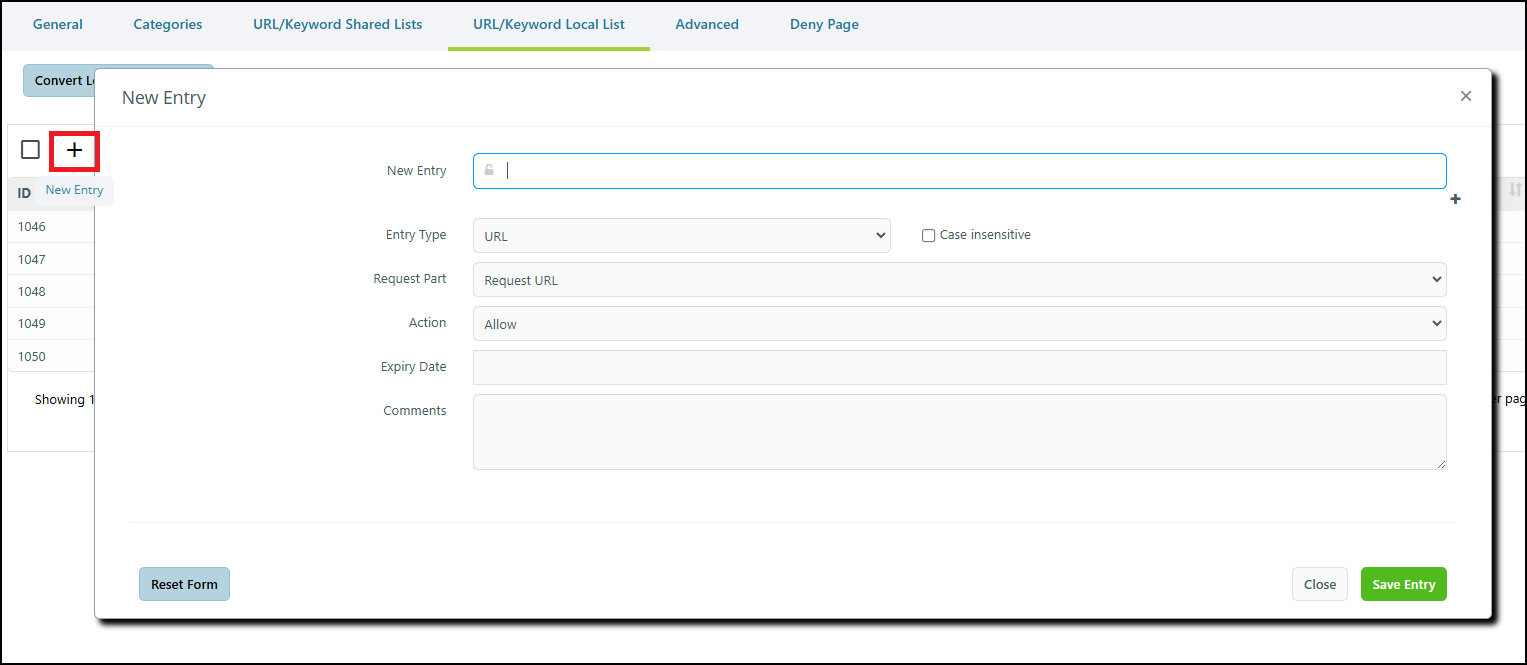
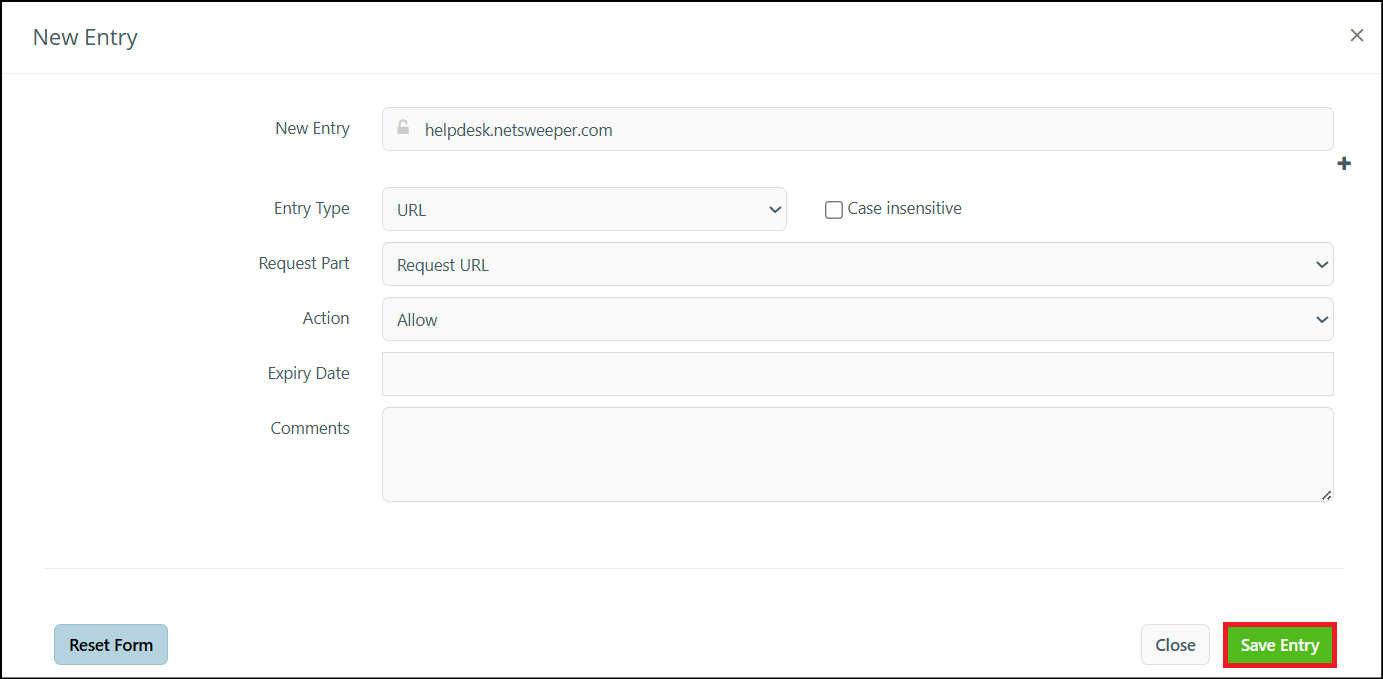
Select the 'New Entry' (+) icon to open the 'New Entry' pop-up window.
-
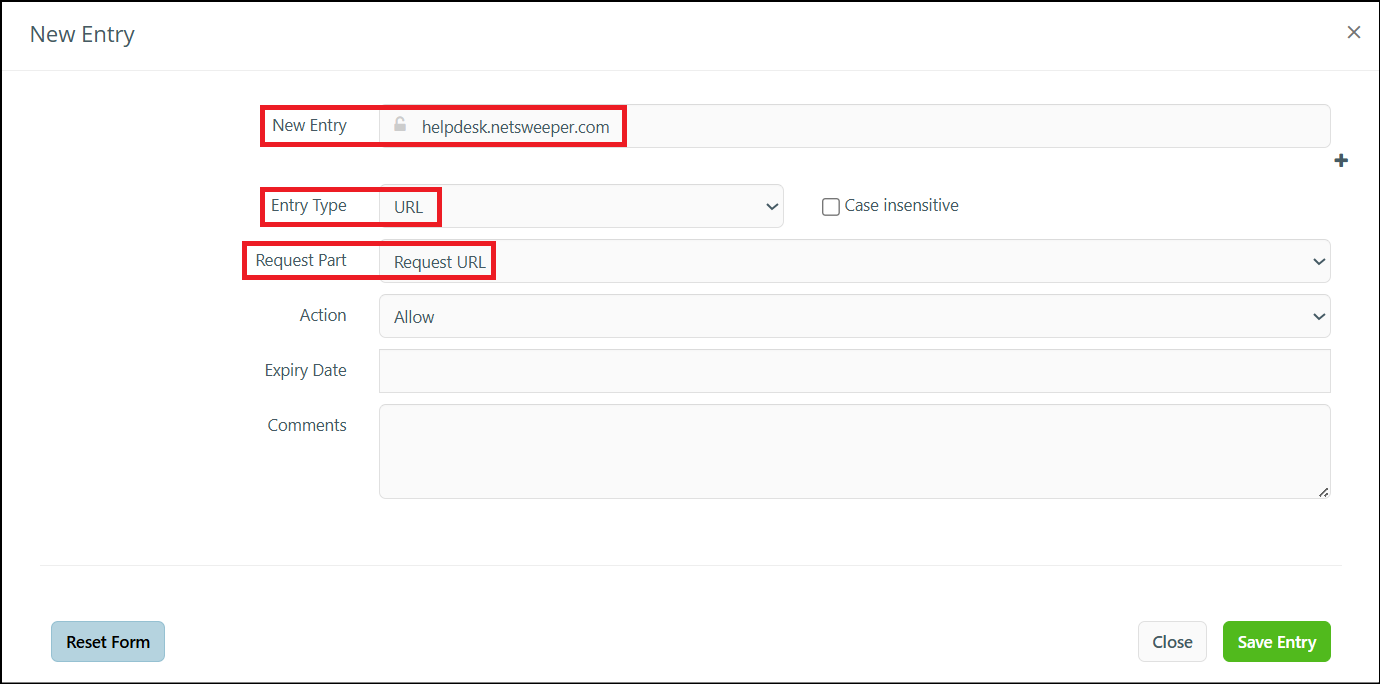
Type the URL or Keyword in the New Entry field and set the Entry Type and Request Part fields accordingly.
-
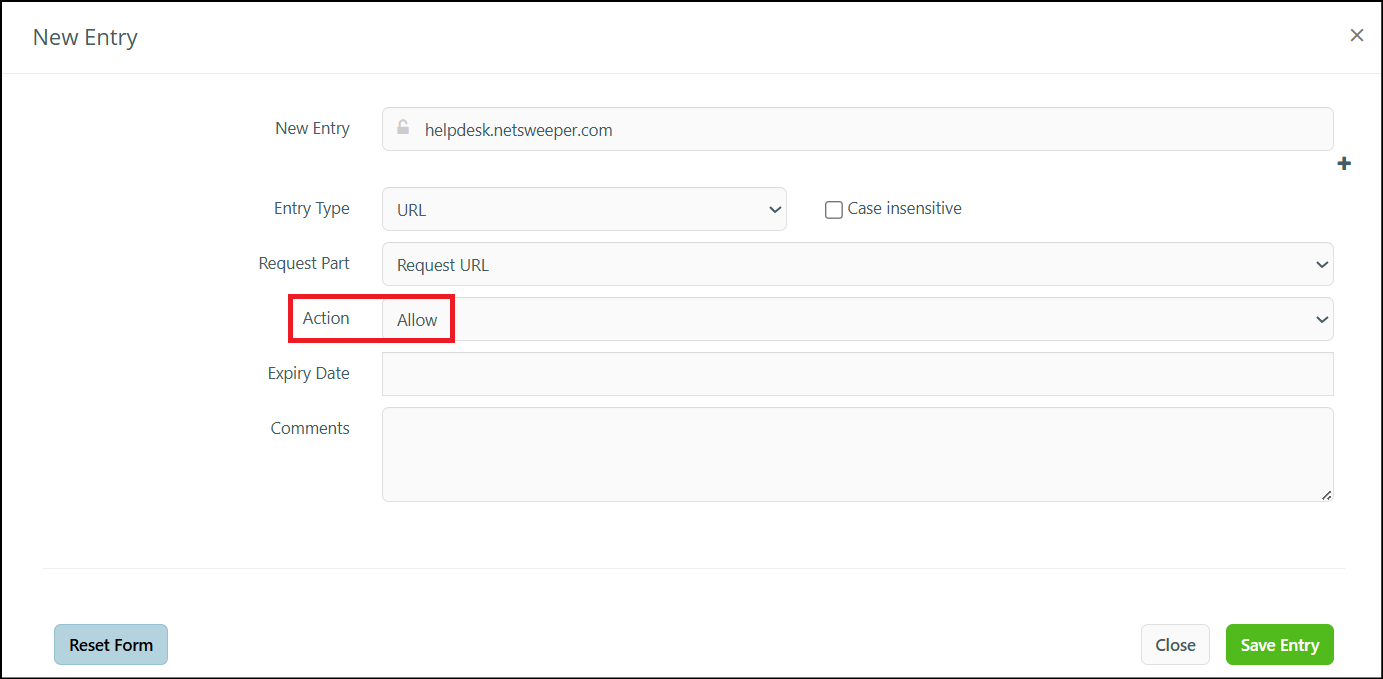
Set the Action field as desired, (typically 'Allow', 'Deny', or 'Categorize'). For a full list of the available actions, please refer to our Actions in List Entries documentation).
-
You can optionally set an Expiry Date and add a Comment, if desired.
-
Select the Save Entry button.
-
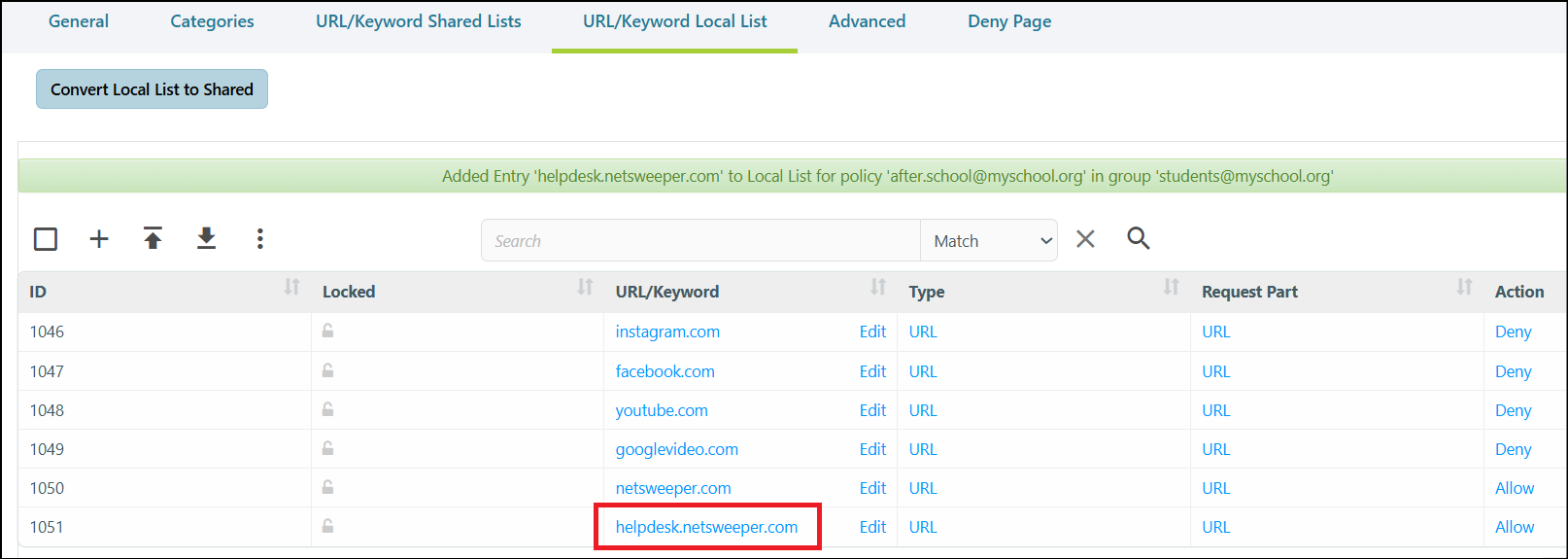
Your new rule displays.
List Suggestions
- Depending on the entry, a 'List Suggestions' pop-up may display alerting you to any conflicts or additional consideration. See our List Suggestions documentation.
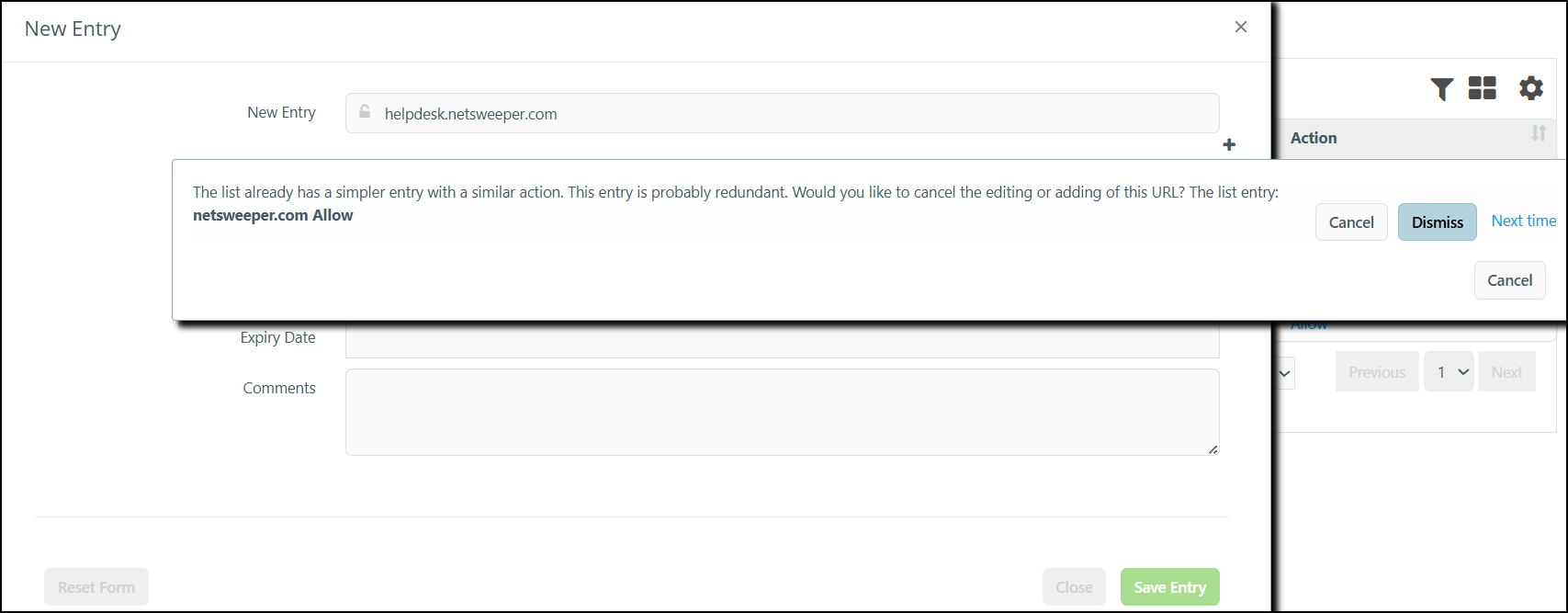
Best practice is to review the details of the suggestion before making the decision that seems best for your deployment needs. For example, perhaps in the above example it would be best to Dismiss the suggestion, add the rule, and then remove the more generic 'netsweeper.com' Allow rule.
Convert Local List to Shared
Convert a Local List to a Shared List
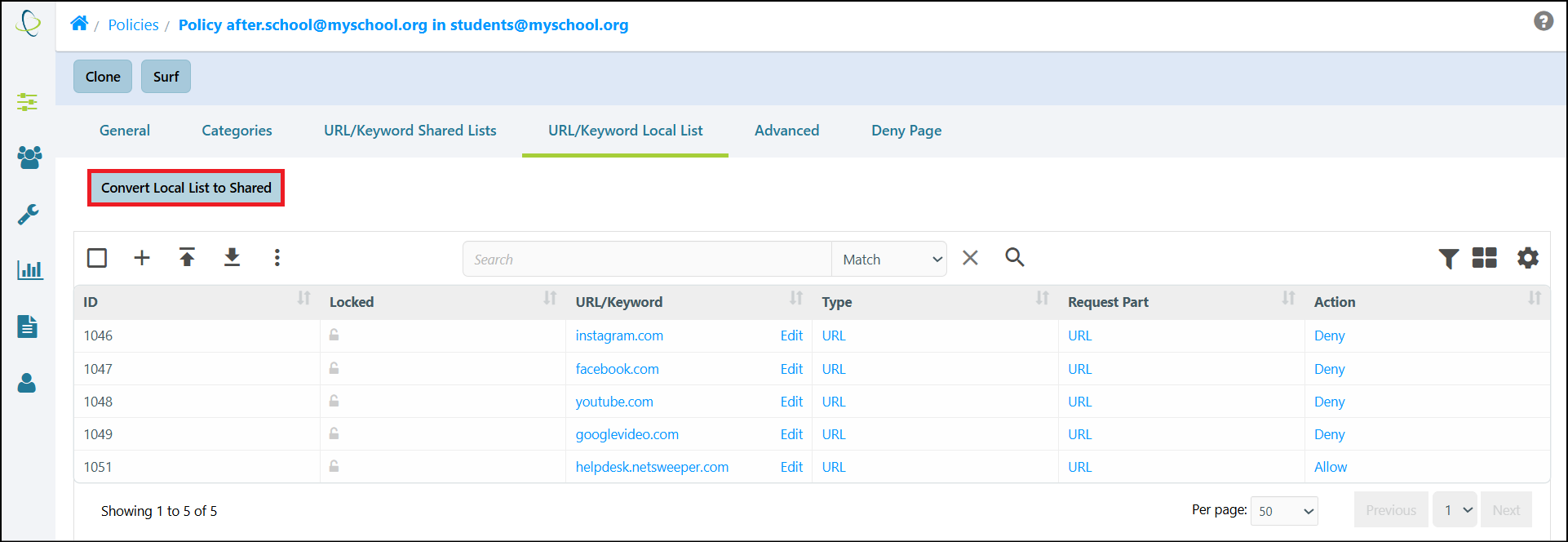
You can use the Convert Local List to Shared button to convert your Local List into a Shared List. This allows you to share lists with other Groups within your Organization.
-
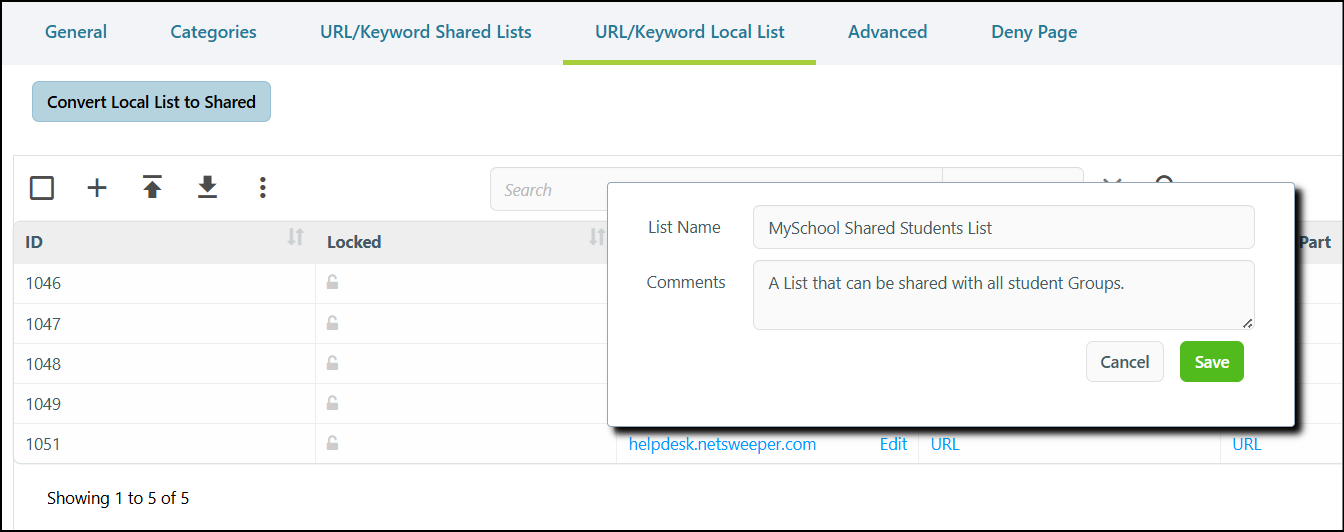
Select the Convert Local List to Shared button to access the 'Convert List' pop-up window.
-
In the List Name field, give your new Shared List a name. There is also an optional Comments field.
-
Select the Save button to finish converting the List. Your Local List is now removed.
-
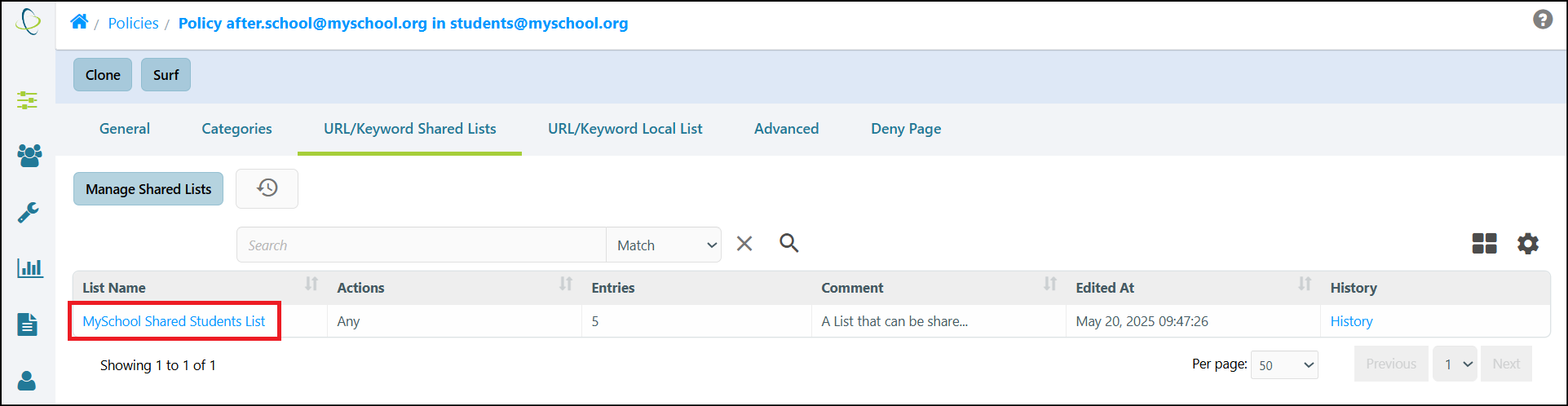
Navigate to the URL/Keyword Shared Lists tab. The newly created Shared List displays.
Sharing the List with other Groups
Please note that while the Group that the Local List belonged to automatically has the Shared List applied, no other Groups will; and the List will need to be Shared with them. For information on how to do this, please refer to our Shared Lists documentation.