Groups Window Overview
'Groups' are groups of Clients that share the same set of filtering Policies. You can access the Groups window by navigating to Policies > Groups.
Simple and Advanced Groups
There are two types of Groups: Groups with 'Advanced' options and 'Simple' Groups.
Simple Groups
The ‘Simple' Group option is used to quickly create a Group. These Simple Groups have no visible Policies and therefore no Policy Event Calendar. Once you have created a Simple Group, you can apply or edit Category Templates, Custom Categories, Local and Shared Lists as well as Quick Reports.
Advanced Groups
With Advanced Groups, you can assign Policies, a Policy Event Calendar, Clients, administration Accounts and enable Quick Reports as well as addition features discussed later.
Simple Groups Tab
The Simple Groups tab lets you view and create a ‘Simple Group’. Simple Groups have no Policy and therefore no Policy Event Calendar. To Create a Group, click the Create Group button, select the icon, and enter the ‘Group Name’ with no spaces and an optional description. Click Save to add the Group. To view or modify an existing Group, click the Group to display the Group properties. You can assign Category Templates or Custom Categories can be applied. In addition, entries can be added Allow or Deny and Shared Lists can be applied. You can also assign Quick Reports.
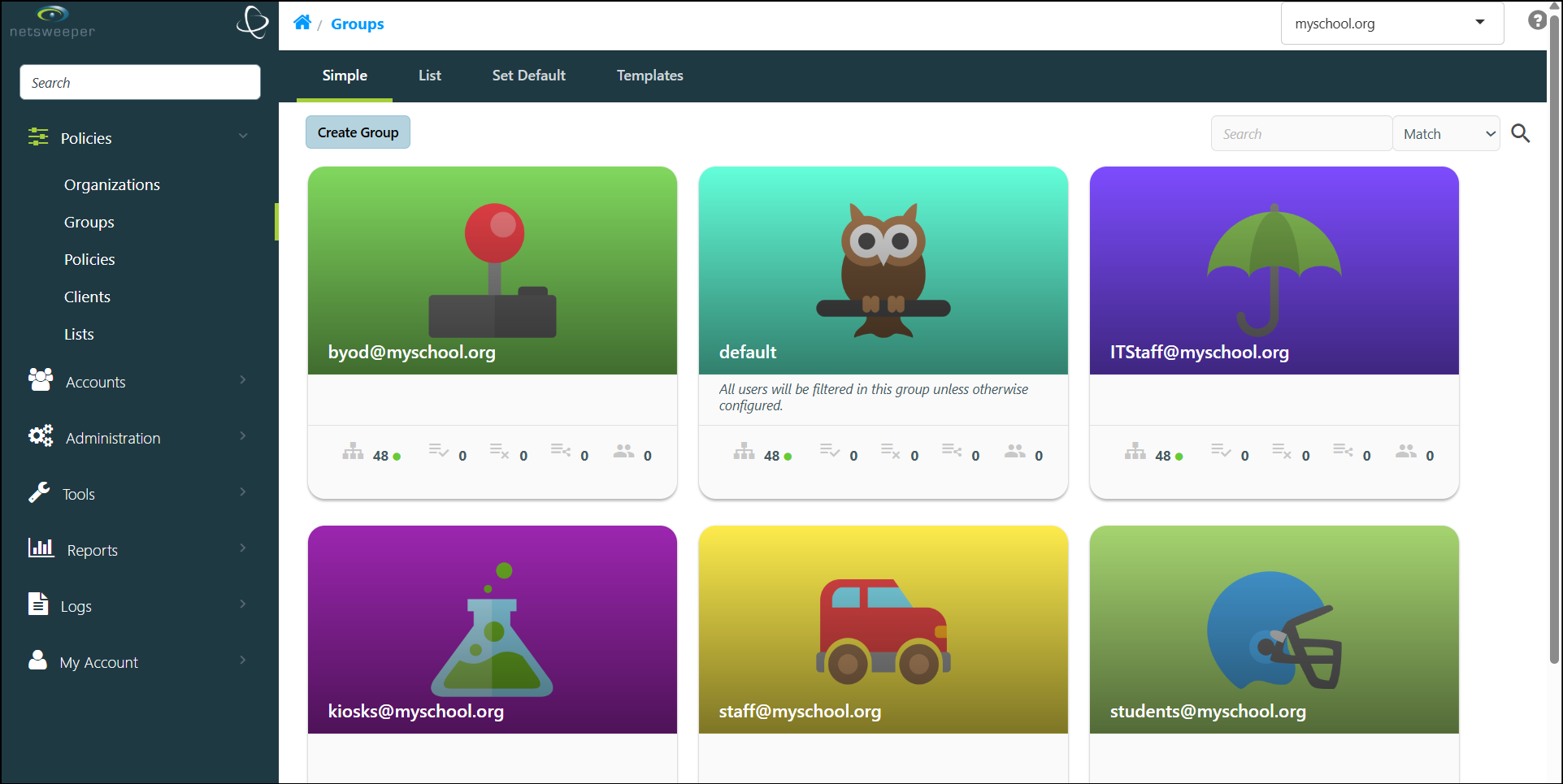
For more information on the Simple Groups, please refer to our 'Simple Group' documentation.
Advanced Groups
Advanced Groups provide the full suite of options for managing Groups. Advanced Groups can be accessed by navigating to Policies > Groups > List. The Groups List tab displays a list of all Groups that your Account has permission to see, including Groups that were created with the Simple Groups interface. With advanced Groups, you can assign Policies, a Policy Event Calendar, Clients, administration Accounts and enable Quick Reports as well as other features discussed later.
For more information on this topic, please refer to our Creating Groups documentation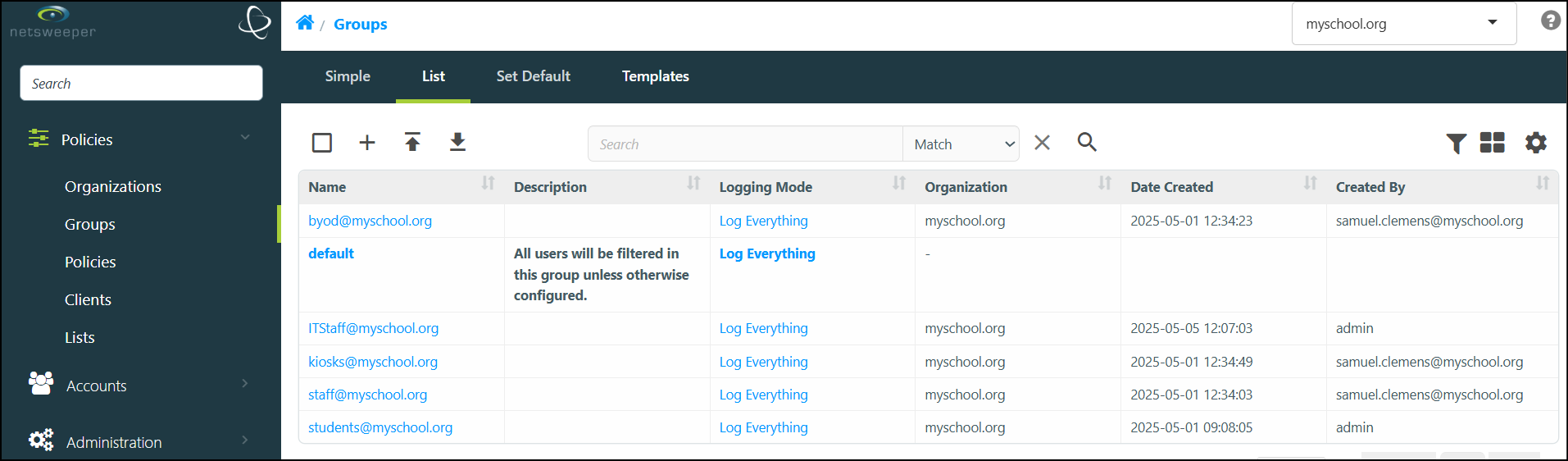
See also:
Group Attributes and Preferences